Fix pixelated video online. See it before you pay.
Drop in a blocky, blurry or low-quality clip. An AI restoration model rebuilds the detail, and you watch the result for free before you decide to pay.
- Free preview of your own footage, no signup
- Pay only if you love it: from $9.99, 7-day refund guarantee
- Private: files are deleted automatically after 24 hours
- Free 15-second AI preview
- No account needed
- Deleted after 24 hours
video
- MP4
- MOV
- WebM
- AVI
- 3GP
- MKV
- iPhone
- Android
- TikTok
- Zoom
From blocky mush to a clear picture
These clips were crushed down to blocky 240p-style video on purpose, then restored with the same technology as your free preview. Pick an example and drag the handle.
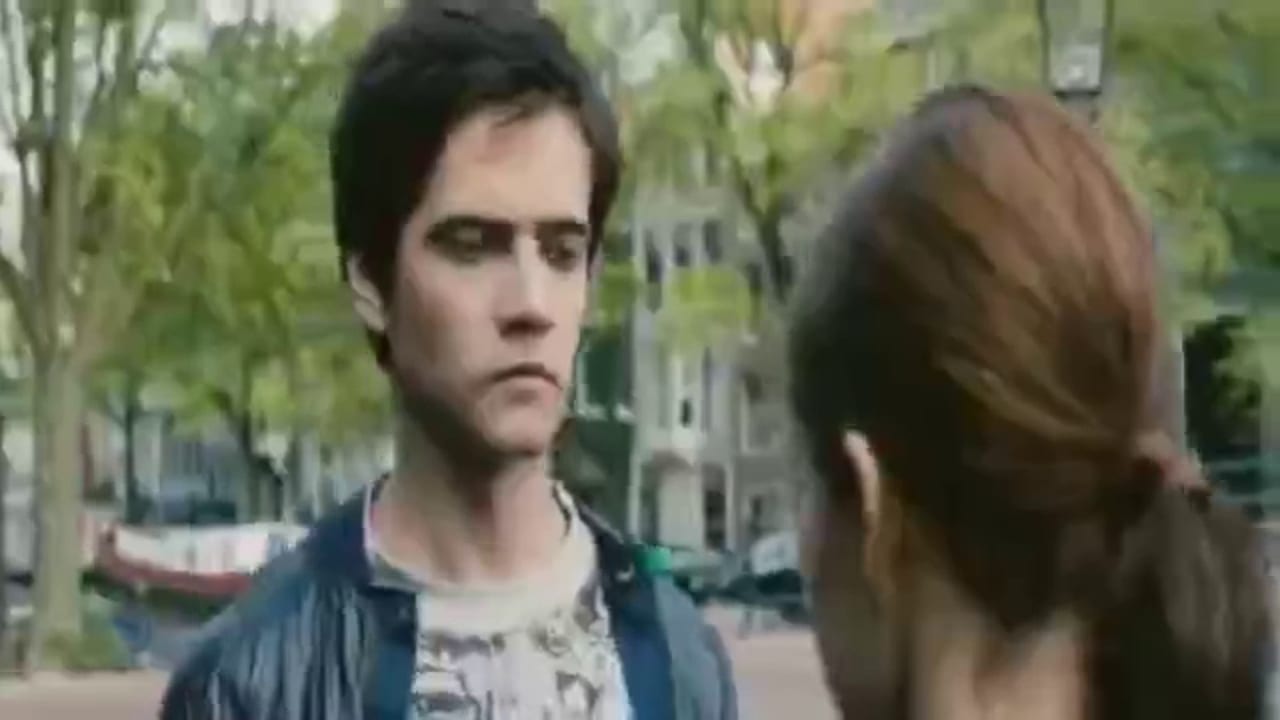
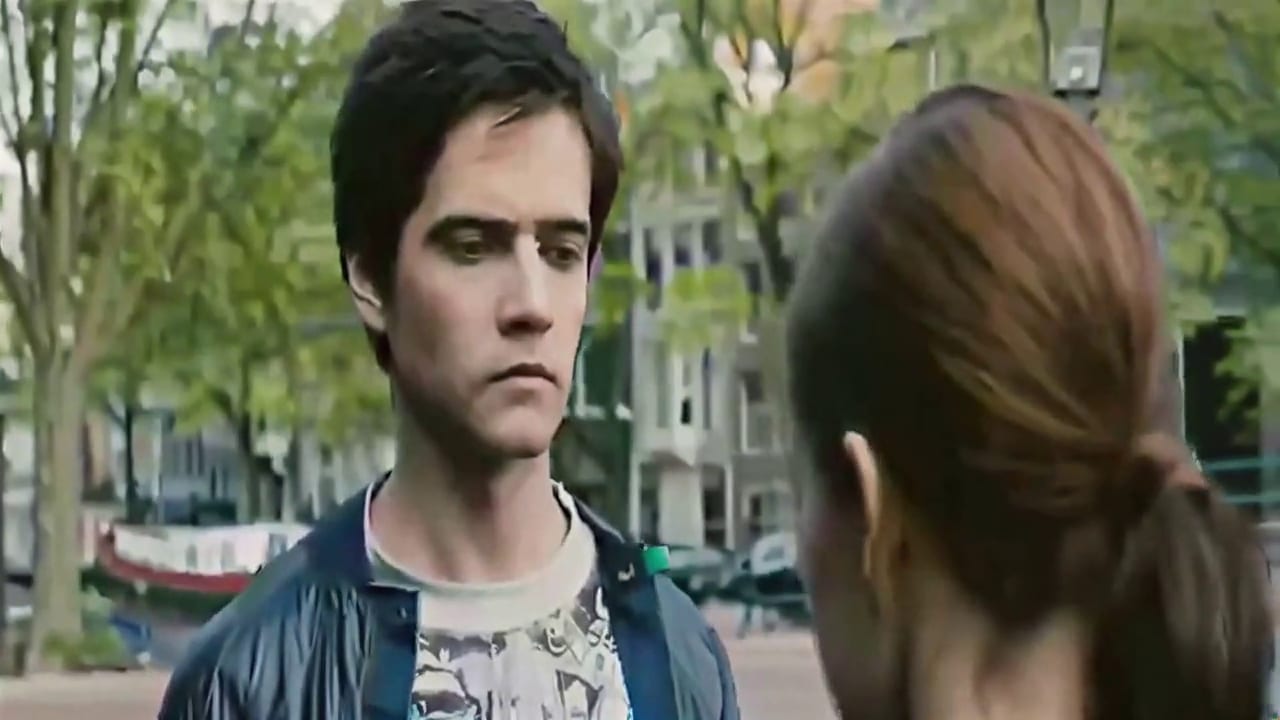
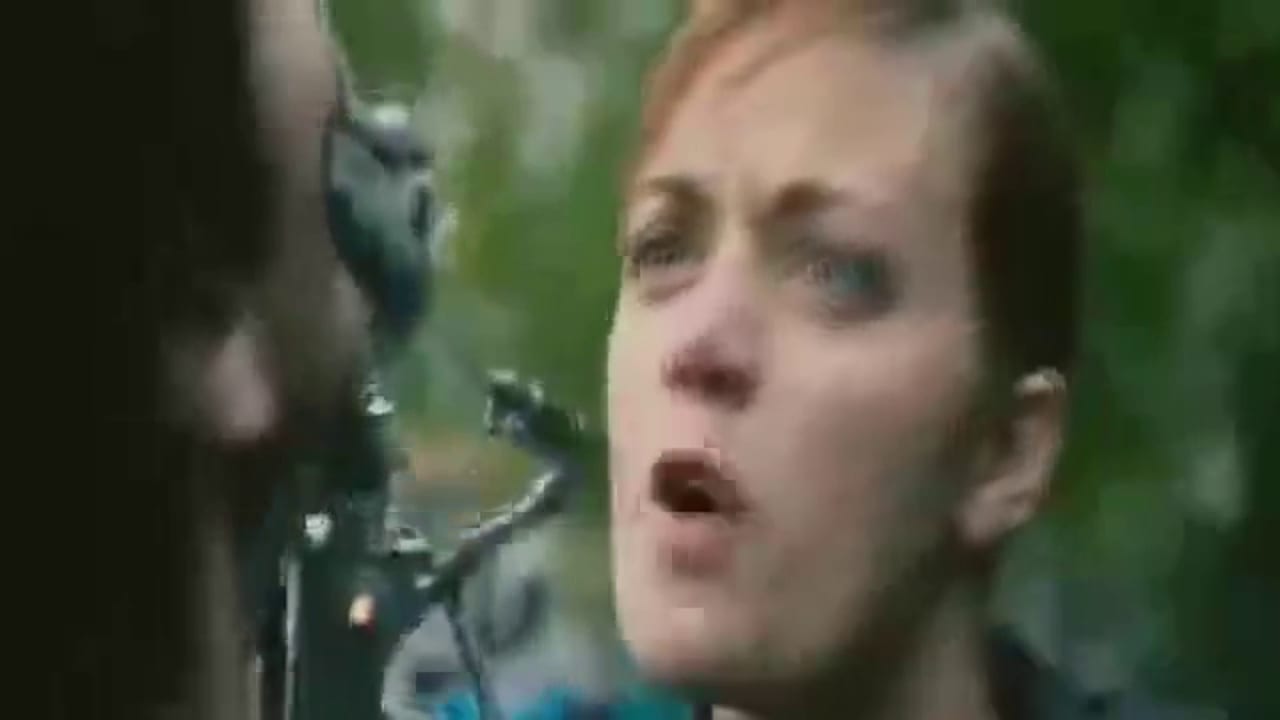
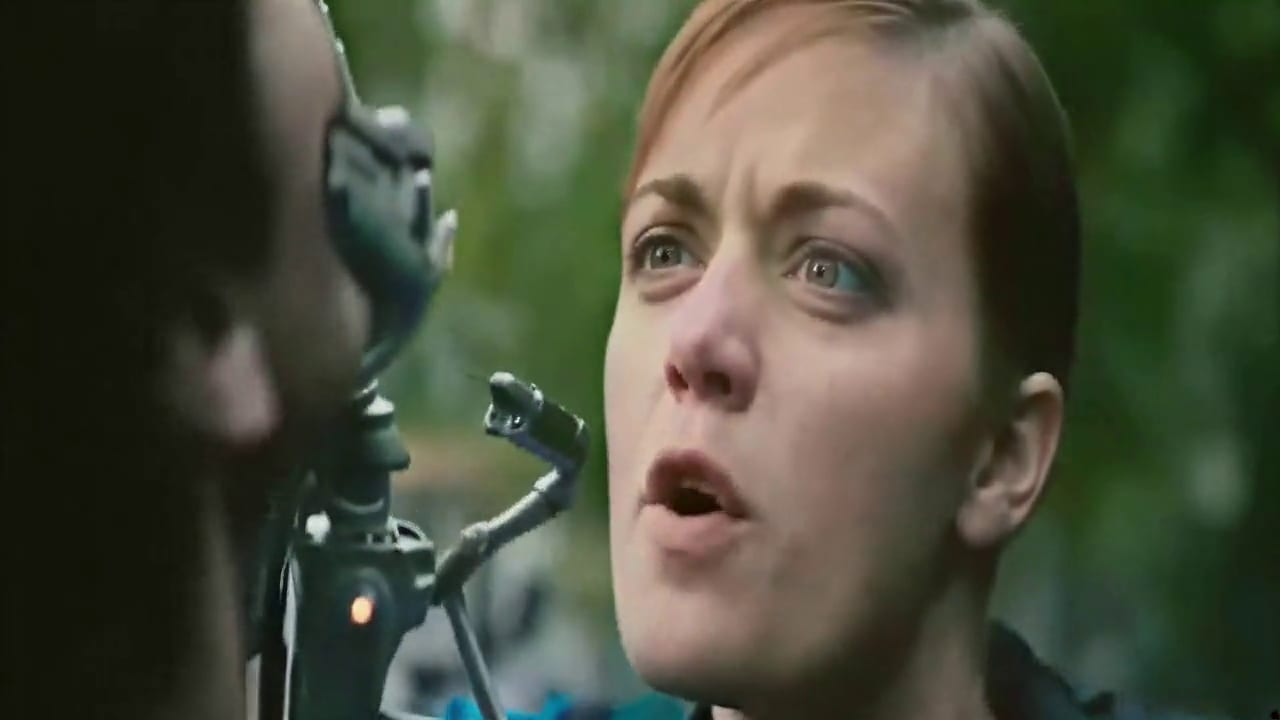

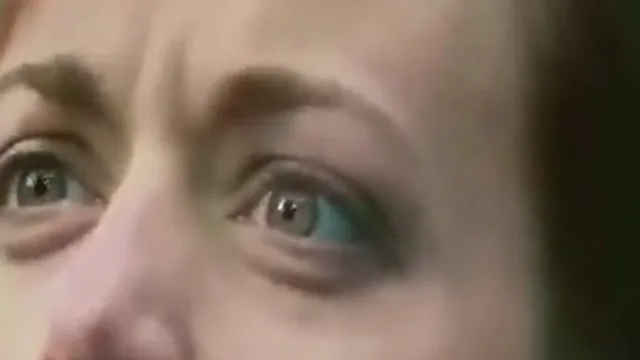
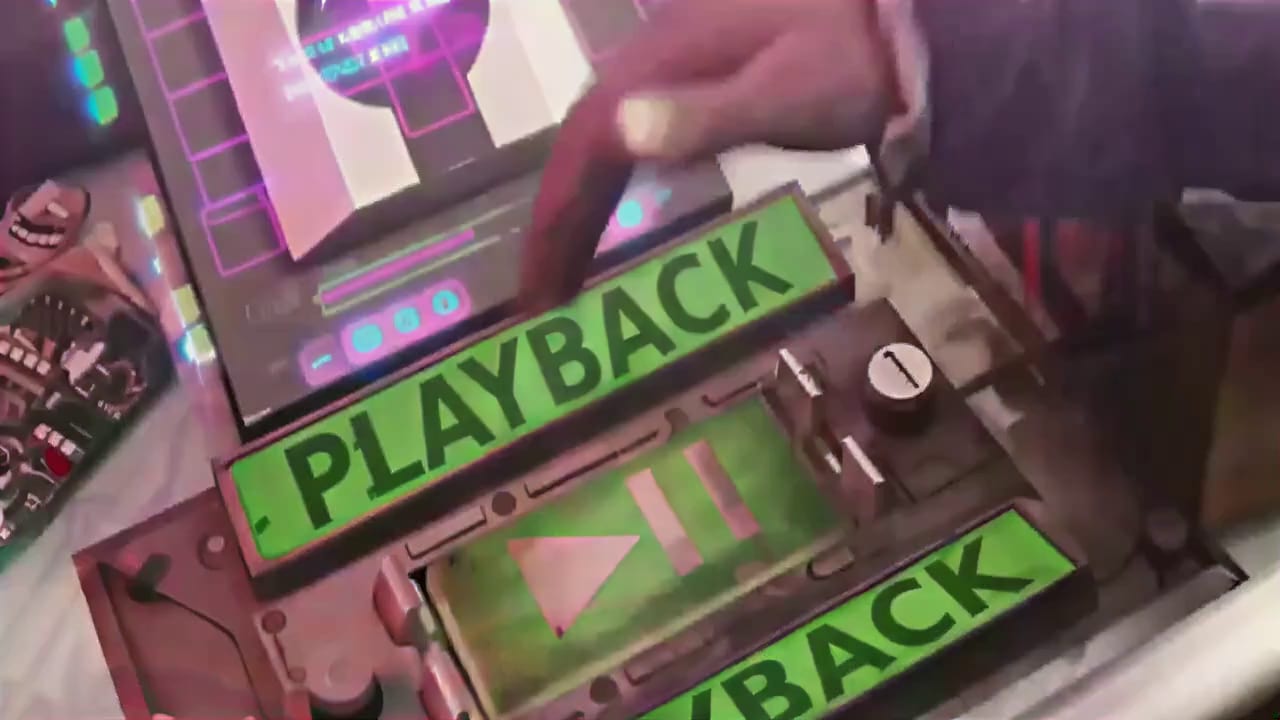
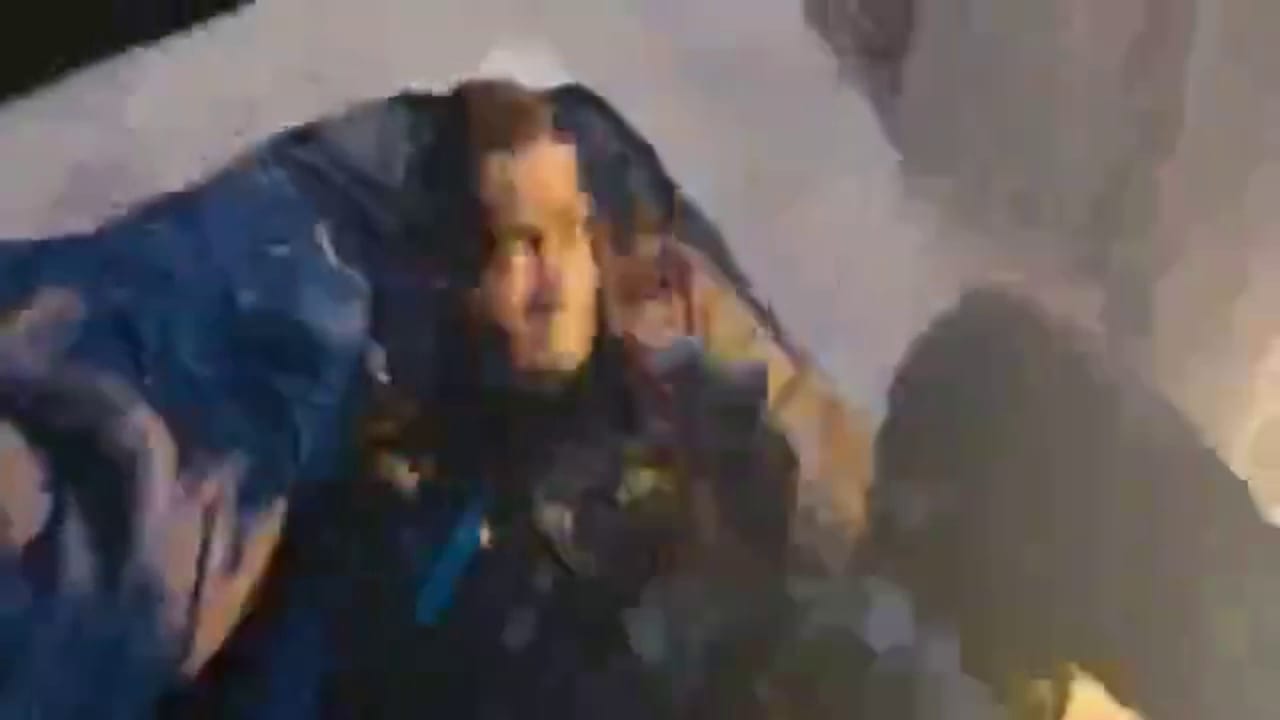
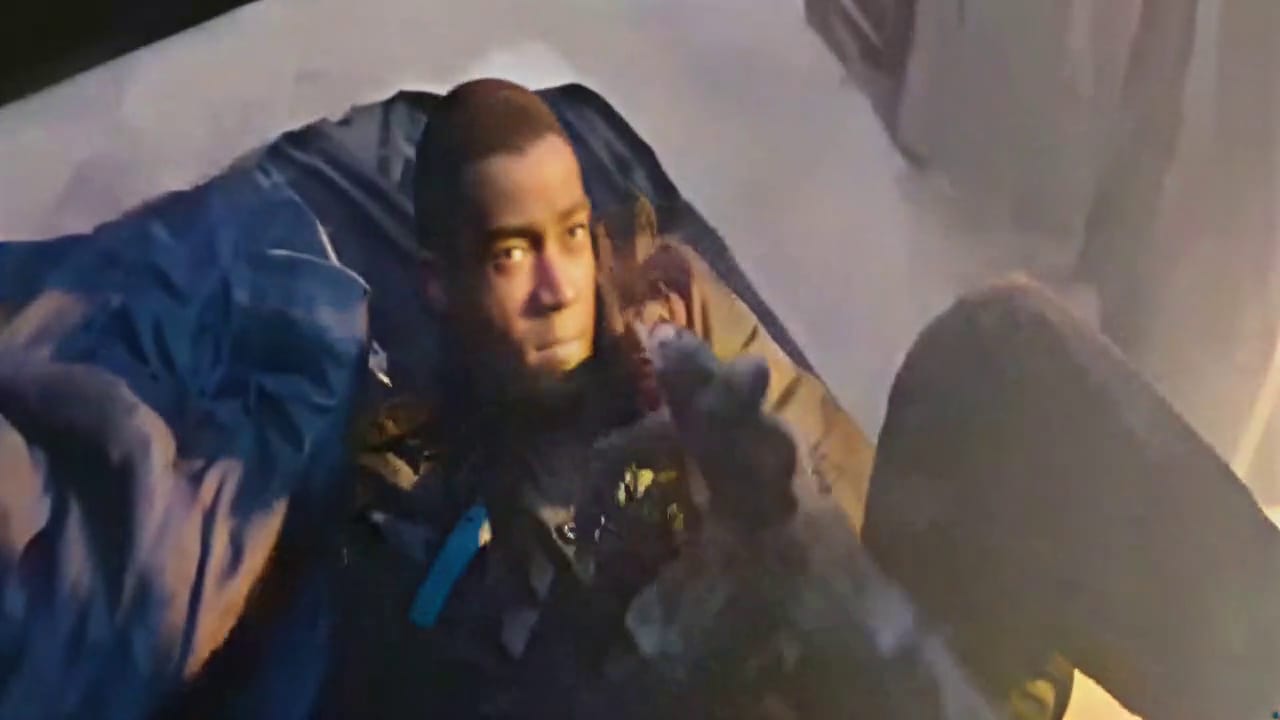

Real output of the same restoration your free preview uses. These test clips were degraded on purpose to blocky 240p-style video, then restored to 720p HD; your results depend on your footage. Footage: Tears of Steel, © Blender Foundation | mango.blender.org, CC BY 3.0.
From blocky to clear in four steps
You never pay for a guess. The preview is a real restoration of your own footage, so you know what you are buying.
Upload
Drop your video on the page. No signup. Big files go up in small resumable pieces so a weak connection is fine.
Watch the free preview
In about a minute you get a 15-second AI restoration with a before and after slider and a watermarked player.
Pay only if you love it
Single video, 3-pack or monthly plan. Secure checkout opens right on the page, with a 7-day refund guarantee.
Download in HD
The full video is restored and exported in up to 1080p with no watermark. Your link arrives on screen and by email.
More than a sharpen filter
Sharpening only makes blocks harder-edged. Restoration rebuilds what the compression threw away.
Removes compression blocks
The square artifacts that low-bitrate encoding leaves behind are rebuilt into smooth edges and real texture instead of being blurred over.
Restores detail with AI
SeedVR2, a diffusion-based video restoration model, rebuilds eyes, hair, foliage and fine text, and keeps it steady from frame to frame.
Cleans noise and smearing
Grain, mosquito noise and the waxy smeared look of over-compressed video are reduced without stripping out real detail.
Upscales up to 1080p
Small, soft footage is enlarged to HD with correct portrait and landscape framing. We stop at 1080p on purpose, where the gain is real.
Repairs damaged files
Broken indexes, truncated recordings and glitchy frames go through an automatic repair attempt before restoration starts.
Keeps your audio
Your original sound is carried over untouched, and the file is exported for fast start on phones and the web.
Honest limits. Compression throws data away for good. We make video cleaner, sharper and larger, and the AI will sometimes invent a detail that looks right but is not exactly what was filmed. That is why you see a preview of your own clip first. Read why videos pixelate to see what is realistic for yours.
Built for the videos people actually need to rescue
If the clip looks worse than the moment felt, this is for you.
Phone videos
Zoomed, low-light or over-compressed clips from iPhone and Android.
Learn more →
WhatsApp and chat apps
Videos that were squeezed to a few hundred kilobits in transit.
Learn more →
Instagram and TikTok
Reels and shorts that got re-compressed on upload.
Learn more →
Old family videos
Digitised tapes, early camcorders and 2000s phone footage.
Learn more →
Screen recordings
Code, slides and UI text that turned to mush.
Learn more →
Zoom and meeting recordings
Blocky faces and unreadable shared screens from a call.
Learn more →
Your video stays yours
We built the flow so you can test it with a clip you care about.
Deleted after 24 hours
Uploads, previews and results are removed automatically. Nothing is kept for training or marketing.
No account to try it
Upload and preview without signing up. We only create an account when you pay, from your checkout email.
Secure payments
Checkout by Polar, the merchant of record. Your card number never reaches our servers.
7-day refund guarantee
If the full video is not clearly better than the preview, email us and we refund you. Read the policy.
Simple pricing. The preview is always free.
Pay per video, save with a pack, or subscribe if you fix video every week. No hidden credits, no auto-upsell.
Single video
One video
One full-quality download of the video you just previewed.
- Full-length video, up to 1080p
- No watermark, audio kept
- Download link ready in minutes
- Pay once, no subscription
3-video pack
$6.66 per video
Three videos for the price of two. Credits do not expire.
- Three full-quality downloads
- Use them on any future upload
- Credits stay on your account
- Pay once, no subscription
Monthly
Up to 30 videos a month
For people who fix video every week. Cancel anytime.
- Up to 30 videos a month (fair use)
- AI restoration included on clips up to 2 min
- Videos up to 10 minutes each
- Cancel anytime from your account
How to fix a pixelated video, and what actually works
Pixelated video is one of the most common complaints in video, and it has one root cause: not enough data per frame. A video file is a stream of heavily compressed pictures. When the bitrate is generous, the compression is invisible. When it is not, the encoder groups pixels into blocks and approximates each block, and what you see is a mosaic of squares, smeared edges and mushy texture.
Why your video is pixelated
The cause decides what is fixable. Low bitrate is the most common: a screen recording, a WhatsApp forward or an export with the wrong settings. Repeated compression is next, where a clip is saved, uploaded, downloaded and re-uploaded, losing a little more each round. Upscaling makes a small video look blocky on a big screen because each pixel is stretched. Digital zoom crops into a sensor that never recorded the detail. And occasionally the file is damaged, so frames decode wrongly. If you are not sure which applies, our guide on why videos get pixelated walks through the tell-tale signs.
Why sharpening and upscaling filters fall short
The classic fixes are a sharpen filter, a denoiser and a bicubic upscale. They help a little, and every video editor has them. The trouble is that they can only work with the pixels that exist. A sharpen filter makes block edges crisper, which often makes pixelation look worse. A denoiser smooths blocks into a plastic blur. An upscaler enlarges the same damaged pixels. You end up with a bigger version of the same problem. If you want to try that route yourself, our FFmpeg guide shows the exact filters and their limits.
What AI video restoration does differently
A restoration model such as SeedVR2 is trained on huge numbers of clean and degraded video pairs. It has learned what eyelashes, brick walls, grass and printed text look like, and what compression does to them. Given your damaged frames, it predicts the clean version, using neighbouring frames so the result stays stable instead of shimmering. That is how a face goes from a smear to something with defined eyes, and how a code editor goes from fuzz to readable text. You can see it in the slider at the top of this page: those frames are unedited model output.
Think of it as an informed reconstruction, not a magic zoom. It is very good at plausible detail, and you should always check the preview.
What it can and cannot do
Restoration works best on footage that is blocky, soft or noisy but still contains the shapes of things: a phone video that was messaged around, a screen recording, a clip from an old camera, a meeting recording. It works less well when the source is a handful of pixels, extremely dark, or shot through heavy motion blur. Faces in particular can look slightly different from reality, because the model is filling in what it thinks should be there. For anything where accuracy matters, such as evidence or identification, you should not rely on AI-restored detail.
It also will not give you 4K. We cap output at 1080p because the extra step to 4K adds file size rather than real detail. If you want to understand where that line sits, read 720p vs 1080p and our guide to upscaling video to 1080p.
How to get the best result from your upload
- Upload the original file, not a screen capture of it or a version that has been through a chat app, if you still have it.
- Do not pre-sharpen or filter the clip. Restoration works best on the raw damage.
- Keep clips under two minutes if you can. That is the range where the AI restoration runs on the whole video; longer files use our standard cleanup pipeline.
- Check faces and text in the preview. They are the hardest things to restore and the first things you will notice.
- Pick the plan that matches your project. One clip is a single video; a small project is cheaper as a 3-pack; regular use suits the monthly plan.
Where this fits among your options
You have three realistic choices. You can re-export from the original project with better settings, which is always best if you still have the source. You can use desktop restoration software, which is powerful but needs a capable GPU, a licence and patience. Or you can use an online tool like this one, which needs a browser and a couple of minutes. We built this for the third case: people who have one or two clips they care about and no wish to learn a video suite. Our guides for iPhone, Android, Premiere Pro and CapCut cover how to avoid the problem in the first place.
When you are ready, upload a clip at the top of the page. The preview takes about a minute, costs nothing, and tells you whether the full restoration is worth it.
Questions people ask before uploading
How do I fix a pixelated video?
Upload it above and wait about a minute. You get a free, watermarked 15-second preview of the AI-restored result with a before and after comparison. If it looks right, pay once and download the full video in HD with no watermark.
Why is my video pixelated?
Almost always compression. The usual causes are a very low bitrate, a chat app or social network re-compressing the file, upscaling from a small resolution, heavy digital zoom, or a damaged download. Our guide on why videos pixelate helps you tell which one you have.
Can a pixelated video really be restored?
It can be made dramatically cleaner and sharper. A restoration model rebuilds plausible detail from what is left in the picture, so blocks, smearing and noise disappear. It cannot recover information that was never recorded, so a face that is only six pixels wide stays a guess. The free preview shows exactly what you will get.
Is the preview really free?
Yes. The preview is a watermarked 15-second AI restoration of your own video, with no signup and no card. Because each preview uses real GPU time, we limit how many one network or device can run per day.
What do I get when I pay?
The full-length video, restored by the same AI and exported in up to 1080p HD, with no watermark and your original audio. A single video is $9.99, a 3-video pack is $19.99, and a monthly plan covers up to 30 videos for $14.99.
Do I need an account?
Not to upload or preview. When you pay we create an account from your checkout email so you can come back to your downloads, remaining credits and receipts. Sign-in is by emailed link, so there is no password to forget.
What happens to my video after I upload it?
It is processed on our servers and deleted automatically 24 hours after upload. We do not watch, share or sell your videos, and we do not train models on them. The AI step runs through a private, temporary link for that one job.
What formats and sizes are supported?
MP4, MOV, WebM, AVI, 3GP, MKV and most other common formats, up to 500 MB and 10 minutes. AI restoration covers videos up to 2 minutes; longer files get our standard cleanup pipeline. Damaged files go through an automatic repair attempt first.
Does it upscale to 4K?
No. Output goes up to 1080p, because that is where restoration gives a real, visible gain. Enlarging an already soft video to 4K mostly makes a bigger soft video, and we would rather not charge you for that.
Does it work on iPhone and Android?
Yes. Open the site in Safari or Chrome, tap Choose a video and pick the clip from your library. Large files upload in small resumable pieces, so a weak connection does not ruin the upload.
What if I am not happy with the full video?
Email us within 7 days of payment and we will refund you if the full video is not clearly better than the preview or we could not deliver it. Details are on the refund policy page.
Is my payment secure?
Checkout runs on Polar, which acts as merchant of record and handles cards, taxes and receipts. Your card details never touch our servers.
Learn why it happens
Got a pixelated video? Try it free.
Upload it, watch 15 seconds of AI restoration, and decide after.
Fix my video →