Restore Old Home Videos and VHS Digitized Footage
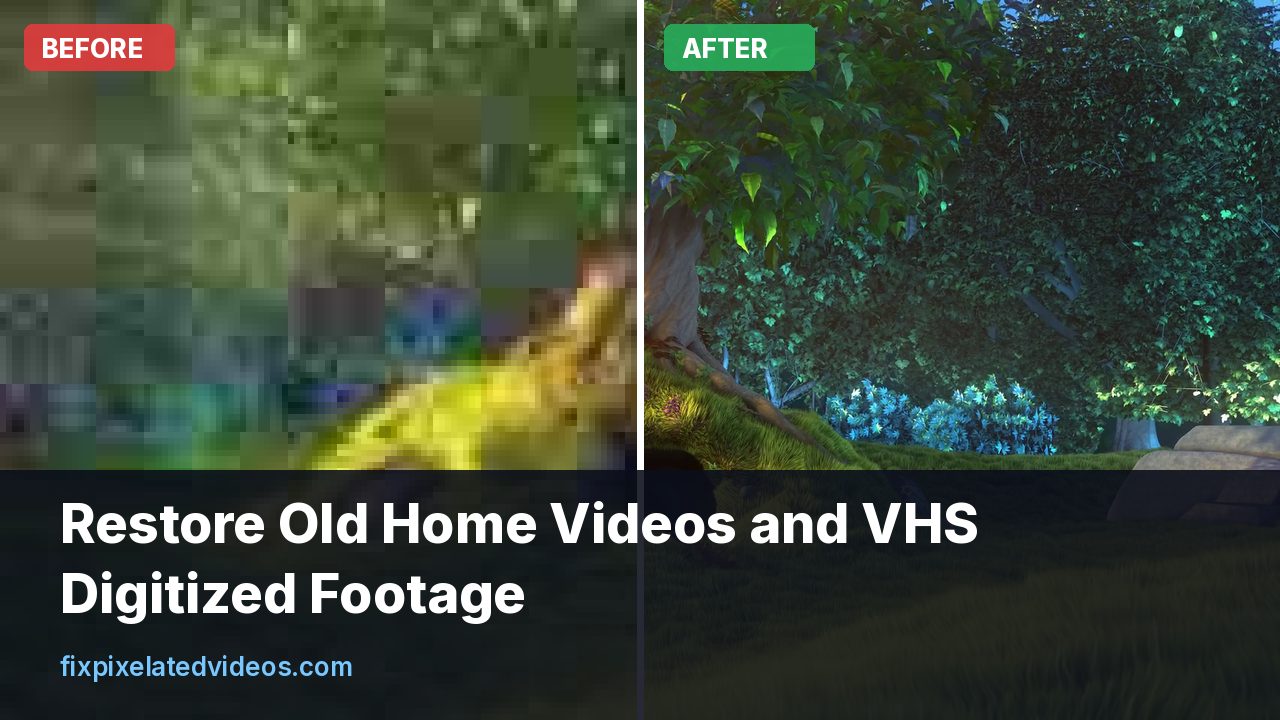
Somewhere there is a shoebox of tapes: a birthday, a wedding, a holiday from before phones had cameras. The tapes are getting older, the machines that play them are rarer, and the footage looks soft and noisy on a modern screen. People ask whether it can be made to look good.
It can be made to look better. It cannot be made to look like it was shot yesterday. This guide is about the middle ground: getting the footage off the tape without losing anything, cleaning the worst problems, and exporting a file that looks decent on a TV and survives a decade of file copying.
I will say clearly which parts come from my own tests and which come from general practice. I have measured how scaling filters and denoisers behave on video, and I use those numbers below. I did not digitize a stack of tapes for this article, so the tape-specific advice is the standard approach rather than a result of mine.
What is actually on the tape
A VHS tape stores analog video at a resolution that is, in practice, closer to 240 lines of horizontal detail than the 480 lines of the broadcast signal it came from. The color information is stored at much lower resolution than the brightness. The picture is interlaced, meaning that every frame is made of two fields: one with the odd lines and one with the even lines, captured a sixtieth of a second apart in NTSC regions, or a fiftieth in PAL regions.
So the raw material is soft, narrow in color detail, interlaced and noisy. Each of those has a specific remedy, and the order in which you apply them matters.
Digitizing does not add detail. A good capture preserves what is there. After that, cleaning decisions determine whether the result looks natural or processed.
Step one: get it off the tape well
Quality here is decided by hardware and by the state of the tape and the player.
The player. Use a machine in good condition. A VCR with dirty heads makes streaks and dropouts that no software will remove. Clean heads gently, and do not play a tape that smells of mold or has visible fungus, because it can damage the player and the tape. Such tapes need a professional.
The connection. If the player has S-Video output, use it over composite. S-Video keeps brightness and color separate and avoids some of the color bleeding of composite. If you use composite, use a good cable and keep it short.
The capture device. Cheap USB grabbers vary a lot. Some add heavy compression, crop the picture or drop frames. If you only have a few tapes, a service may be a cheaper route. If you have many, a dedicated capture card with a known chip and software that records uncompressed or lightly compressed video is better. Check that your device captures at 720 by 480 (NTSC) or 720 by 576 (PAL) and that it keeps audio in sync.
The format. Capture to a lossless or near-lossless codec. FFV1 is a free, lossless option that FFmpeg supports. Another common choice is a high-bitrate intraframe codec. The file will be large, around tens of gigabytes per hour, but disk space is cheap compared with a tape you cannot capture twice. Capturing straight to a small MP4 means every cleanup afterwards starts from a file that has already lost information.
The audio. Record it at 48 kHz, uncompressed. Tape audio is often the most precious part, a voice you want to hear again.
Do the capture once, carefully, and make a second copy of the capture file before you start editing.
Step two: look at what you have
Open the file and watch a minute of it. Take notes on what you see.
- Combing: horizontal teeth on moving edges means the video is interlaced and needs deinterlacing.
- Noise: grain, shimmering, colored speckles. This calls for denoising.
- Dropouts: short white or black horizontal streaks. These are tape damage. Software can hide them but not fully repair them.
- Head-switching noise: a distorted band at the bottom of the frame. It can be cropped.
- Color problems: a green or magenta cast, weak color, or color bleeding to the right of edges.
- Wobble: the picture shifts horizontally by a few pixels from line to line. This needs a time base corrector, which is hardware, or a software fix that exists but is limited.
- Audio hum or hiss: can be reduced with audio tools.
Not every tape has every problem. A well-kept tape from a good camcorder can look quite good.
Step three: deinterlace first
Interlaced video must be deinterlaced before scaling. Scaling combed frames spreads the combing across more lines, and then no filter can separate it. FFmpeg has two common deinterlacers, yadif and bwdif. Each can output either one frame per frame (halving the motion smoothness) or one frame per field (doubling the rate). The second option keeps the smooth motion that tape has:
ffmpeg -i capture.mkv -vf "bwdif=mode=send_field" -c:v ffv1 -c:a copy deint.mkvFor a tape, mode send_field gives you about 60 frames per second in NTSC countries and 50 in PAL ones. Many people keep this, though a half-rate output of about 30 or 25 frames also looks fine and gives smaller files.
I ran a quick test of this, and I want to report it honestly, because it did not show what I expected. I took 5 seconds of a 60 fps clip, scaled it to 720 by 480 and wove consecutive frames into interlaced 30 fps video. Then I deinterlaced with several settings and compared them with the original progressive frames using PSNR. The untouched woven video scored highest, 42.9 dB, ahead of yadif at 41.4 dB and bwdif at 41.9 dB. That does not mean deinterlacing is useless. The test clip had little motion, so there was almost no combing to repair, and half of each woven frame matched the original exactly, which rewards doing nothing. PSNR is a poor judge of combing. For this job, trust your eyes: watch a section with movement, such as a child running or a panning shot, and look for teeth on the edges.
If a clip is mostly still, deinterlacing costs a little sharpness and gains nothing. If it has movement, it is necessary.
Step four: crop the edges
Tape captures have a ragged border: a black band at the sides, noise at the bottom from head switching, sometimes a few lines of garbage at the top. Crop it before scaling so the later steps do not waste effort on it. For a 720 by 480 capture, a typical crop removes a few pixels from each side and about 8 to 10 from the bottom:
-vf "crop=704:464:8:0"Look at your capture and choose numbers that fit. It is better to crop slightly too much than to leave the noise band in.
Step five: denoise, gently
Tape noise is heavy, and compression likes a clean picture. A temporal-spatial denoiser handles most of it. In my noise reduction test, a strong hqdn3d setting brought a noisy clip to 38.7 dB against the clean original, and the smarter nlmeans filter reached 38.8 dB while taking about 30 times longer. For tape, hqdn3d is the practical choice:
-vf "hqdn3d=3:3:6:6"Start light and compare. Over-denoising makes faces look like wax and removes the film-like texture that tells the eye the picture is sharp. For hard material, such as a tape with a lot of chroma noise, you can denoise color more strongly than brightness, since the eye notices color noise sooner and misses color detail later.
If you need a much stronger result on a short, precious clip, nlmeans is worth the time. See the grain guide for more.
Step six: scale to a sensible size
Now scale. A 4:3 tape should stay 4:3. NTSC captures have non-square pixels, so a 720 by 480 file is displayed as 640 by 480, or the 4:3 shape. Use square pixel output to avoid distortion:
- 640 by 480 is the true square-pixel size.
- 960 by 720 is a 1.5 times upscale that fits in a 720p frame with bars.
- 1440 by 1080 is a 2.25 times upscale that fits in a 1080p frame with bars at the sides.
-vf "scale=1440:1080:flags=lanczos"In my scaling test, which shrank a 1080p clip to 480p and scaled it back, Lanczos beat bicubic and bilinear and left nearest neighbor far behind: 33.58 dB for Lanczos against 33.38, 32.71 and 31.53. Light sharpening added a little more, to 33.67 dB. On tape, sharpen sparingly. The noise and the soft edges respond badly to heavy sharpening, which creates halos.
Do not export at 4K from a tape unless a particular device needs it. The extra pixels carry no extra detail. See the honest 4K guide for why.
Step seven: color and levels
Tape colors fade and drift. Quick fixes often help more than any sharpening:
- Levels: old captures can look washed out, with blacks that are gray. A mild contrast and black point correction gives depth.
- White balance: many home videos have a color cast from indoor lights. A small correction toward neutral looks better.
- Saturation: tape color is weak, but do not oversaturate. Skin tones go orange quickly.
Use a video editor for this, such as DaVinci Resolve, which has free color tools, or FFmpeg’s eq and colorbalance filters for a fixed adjustment. Make the same correction to a whole tape if the camera did not change.
Step eight: the export
The master is the cleaned file in a lossless or high-quality format. From it, make copies for sharing. For H.264, a quality value of about 18 at 1080p keeps most of what is there:
ffmpeg -i cleaned.mkv -c:v libx264 -crf 18 -preset slow -pix_fmt yuv420p -c:a aac -b:a 192k home_video.mp4The CRF guide explains how the number maps to size. Footage this soft does not need a high bitrate. Because it is noisy, if you did not denoise, the file will be larger at the same quality value.
Dropouts, wobble and other tape damage
Some defects belong to the tape rather than to the picture, and software only gets part of the way.
Dropouts are short horizontal flashes where the tape lost contact with the head. A median-type temporal filter can hide a small one by borrowing from the previous and next frames. FFmpeg has filters that can help a little, but nothing fixes a bad tape completely. If the dropouts are severe, try a second pass of the tape in another machine, since different heads read the same tape differently. I have not tested these filters, so I will not claim a result here.
Wobbly lines at the top of the frame or on edges come from the timing of the tape. A time base corrector fixes this in hardware. Some higher-end VCRs have one built in. If your machine has a “line TBC” or “digital noise reduction” mode, try capturing with it on and off and compare.
Tracking noise is a band of static that scrolls up or down the picture. It is caused by a misaligned tape path, and adjusting the tracking control while playing often removes it. Do this during capture rather than afterward.
Color streaking is when color bleeds to the right of an object, and it is a limit of the format. Slightly reducing chroma saturation or using a chroma denoiser can reduce the visible edges.
Because these problems are separate, treat them in the order they happen: tracking during capture, wobble in hardware, then software for noise and levels.
What about AI upscalers?
Neural upscalers get used on old footage more than on any other kind, and for understandable reasons. A model trained on faces and textures can make a soft face look sharper, and a tape is full of soft faces.
The risk is that the model replaces missing detail with plausible detail. A grandmother’s face can come out looking like a stranger’s, with smoother skin and different eyes. In family footage, that is a bigger problem than a bit of softness. If you try one, use these rules:
- Work on a short clip first.
- Compare it frame by frame with a plain Lanczos upscale.
- Check faces of people you know, since you will notice small changes in them.
- Keep the original and the cleaned plain version.
- Do not run the model over a whole library without checking a sample from each tape.
I compare the two approaches in AI upscaler versus Lanczos, and the short version is that the model is useful on some material and not on others, and you should look before committing. The upload tool on this site uses the conventional filters described above by default.
Frame rate and aspect ratio mistakes
Two mistakes spoil many restorations.
Stretching 4:3 to 16:9. Tape is 4:3. If you export it as 16:9 without bars, everyone looks wide. Keep the shape and add black bars at the sides, or crop only if you are sure you will lose nothing important. Some people prefer a soft blurred background instead of black bars. That is a style choice and is fine for sharing, not for the master.
Changing the frame rate. NTSC tape is about 29.97 frames per second and PAL is 25. Converting to 24 or 60 by dropping or repeating frames creates judder. If your goal is smooth playback on a modern device, keep the native rate, or double it by deinterlacing with one frame per field. Avoid frame interpolation tools on old footage unless you check the results, since they smear fast motion.
Audio
Tape audio often has a hiss and a hum, and the voices are the point. Do these in this order:
- Capture it at 48 kHz and keep it uncompressed in the master.
- Normalize the level so that speech sits at a comfortable volume.
- Remove a steady hum with a notch filter at 50 or 60 Hz if you hear it.
- Apply light noise reduction with a tool such as Audacity’s noise reduction, using a sample of silence as a profile.
- Do not push it far. Over-processed voices sound robotic.
Check that audio and video stay in sync over the length of the tape. Cheap capture devices sometimes drift, so the sound is a fraction of a second out by the end of an hour. A drift of this kind can be corrected by a tiny change in speed, but it is better to check a short test capture first.
Organizing and keeping the files
Digitizing is only half of preservation. Plan for the files:
- Keep the capture master untouched and offline if you can.
- Keep the cleaned master in a high-quality format.
- Keep share copies in H.264 for phones and TVs.
- Store in at least two places, such as an external drive and a cloud service, and at least one in a different location.
- Name files with a date and a short description: 1994-07-birthday-tape-02.mkv beats Video_0023.
- Write down what you know about each tape. Names and dates are lost faster than pixels.
Check the drives once a year, and copy to a new one every few years.
A realistic workflow for a box of tapes
If you have many tapes, a standard recipe saves time:
- Clean the player, test it with one tape.
- Capture every tape in a lossless format, labeling the files as you go.
- Back up the captures before any editing.
- For each tape, make a 30 second test with deinterlace, crop, light denoise and Lanczos scaling, and watch it on the screen where the family will see it.
- Adjust the settings once, and apply them to the whole tape.
- Spot check three places in each result: the start, a moving scene and the end.
- Export share copies, and keep the notes.
Do not aim for perfection on every minute. The goal is footage people want to watch.
Where this site fits
The upload tool on this site works with ordinary video files. If your tape is already captured as an MP4, MOV or AVI, you can test the free preview on a short clip to see what a cleanup gives. It is aimed at fixing blockiness and softness in files, not at digitizing tapes or repairing tape defects. For a large collection, the FFmpeg workflow above, run on your own computer, gives you the most control. For a single clip you want to share, the low resolution guide and the make a blurry video clear guide cover what to expect.
Common questions
Should I upscale at all? If you will watch on a big screen, a clean 1080p container with a sharp Lanczos scale looks better than the TV’s built-in scaler for most people, though TVs have improved. If you will watch on a phone, the original size is enough.
Is it worth paying for a service? For a few irreplaceable tapes, a service with professional equipment can be worth it. For a large stack, doing it yourself is cheaper but takes time.
Should I fix every flaw? No. Some flaws are part of the memory. Light noise and softness make footage feel like what it is.
Summary
Old tapes hold less detail than people expect, and the best restoration is careful rather than dramatic. Capture to a lossless file, deinterlace before scaling, crop the ragged edges, denoise gently, scale with Lanczos to a size that keeps the 4:3 shape, correct color, and export a copy for sharing while keeping the master. Be wary of tools that invent detail in faces, and back up everything twice.
Got a pixelated video right now?
Upload it and see a free before and after preview in about a minute.
Fix my videoFrequently asked questions
Can I make a VHS home video look HD?
You can make it cleaner, steadier and better shaped for a modern screen, but the detail that was never on the tape cannot be recovered. Expect a clean standard definition look, not real HD.
What should I capture to?
A lossless or very high quality format, so you can experiment later. Compress only the copies you share.
Do I need to deinterlace old videos?
Tape video is usually interlaced. Deinterlace it before you scale it, or horizontal combing will show on motion.
What resolution should I export?
Keep the capture at its native size for the master. For sharing, 960 by 720 or 1440 by 1080 with correct 4:3 shape work well.
Is AI upscaling worth it for old tapes?
It can help with faces and edges, but it can also invent details. Use it on short clips and compare with a plain Lanczos version.
Keep reading
AI Video Upscaler vs Plain Lanczos: When It Pays
A practical comparison of AI upscaling and a traditional Lanczos filter chain: speed, cost, artifacts, and which clips justify the extra effort.
Video Noise Reduction: hqdn3d vs nlmeans, Measured
I added noise to a clean clip and denoised it with hqdn3d and nlmeans. Quality scores, file sizes and a 30x speed gap, with settings to copy.
How to Make a Low Quality Video HD (What Works)
Honest advice on turning a small, blurry video into HD: what upscaling can and cannot do, plus measured results for each scaling filter.
Upscaling Video to 4K: An Honest Guide
Does upscaling 1080p or 720p to 4K help? What it does, when it is worth it, and the settings I would use. No miracle promises.