Fix a Corrupted Video File: What Actually Worked
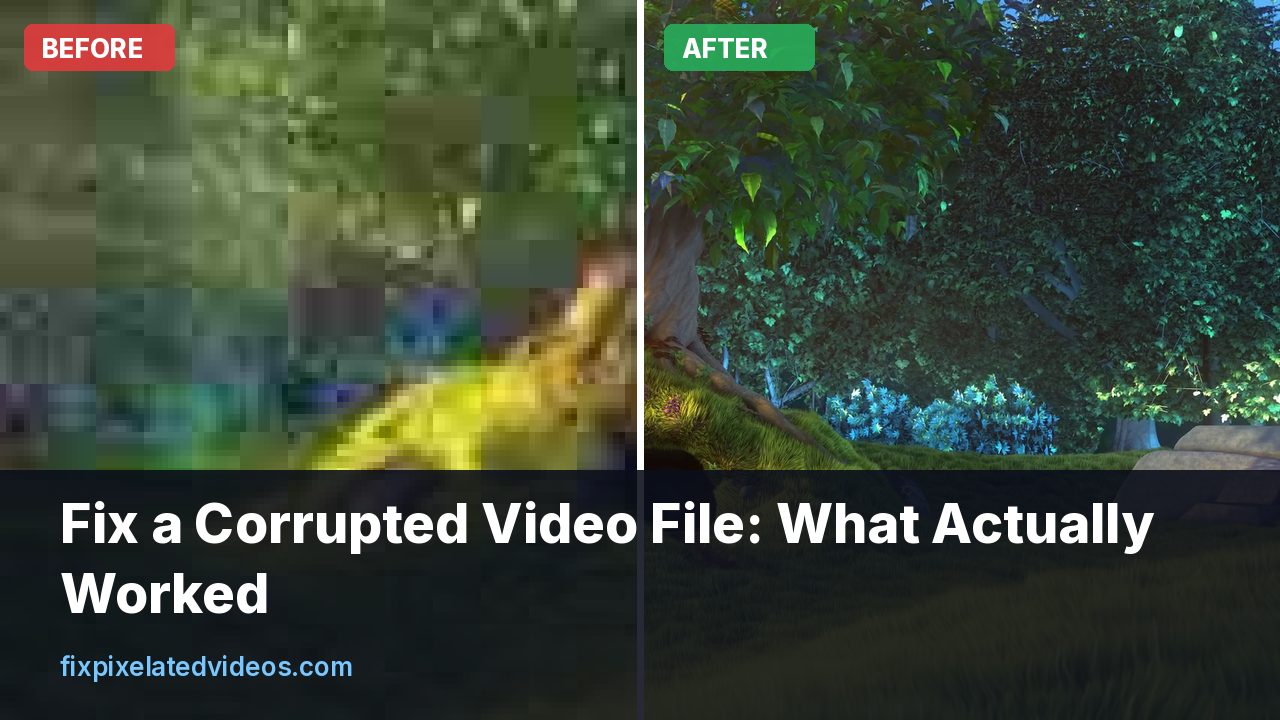
A video that will not open is one of the worst feelings in the digital world, especially if it is a recording that cannot be redone. A wedding, a once-in-a-lifetime trip, a three hour stream. The player says “file is corrupt”, or it plays and then turns into green and gray mush.
I do not like articles that say “just use this tool and it fixes everything”, because they are not true. Some damage can be fixed and some cannot. So I broke a video file in three different ways and tried to repair each one with FFmpeg, so I can tell you what works and what does not.
The test
I started with a 10 second, 1080p H.264 clip with AAC audio, 600 frames, about 4 MB. Then I damaged copies of it in the ways I see most in real life:
- Truncated normal MP4. I cut the file at 60 percent of its size, which is what happens when a camera or app dies mid-recording and the end of the file never gets written.
- Corrupted middle. I replaced 20 KB in the middle of the file with random bytes, which imitates a bad sector, a failing card or a botched copy.
- Truncated, but in other formats. I cut copies of the same video, stored as fragmented MP4, MPEG-TS and an MP4 with the index at the front, at 60 percent.
Here is what I found.
Case 1: a truncated MP4 is not recoverable by FFmpeg alone
A normal MP4 stores its index, the moov atom, at the end of the file by default. The index tells the player where every frame is and how to decode it. The media data comes first and the index is written when the recording stops.
If the recording stops uncleanly, the media data is there but the index is not. I cut my file at 60 percent. FFmpeg and ffprobe both refused to open it:
moov atom not found
Invalid data found when processing input
That is it. There was no partial playback, no remux that worked. The frames exist in the file, but without the index and the codec parameters (the SPS and PPS headers, which also live in the moov), there is nothing to tell a decoder how to read them.
Does that mean the file is gone? No, but it means you need a different tool. The standard answer is a program called untrunc. It takes a healthy video from the same camera or app, with the same settings, and uses it as a reference to learn the codec parameters and the layout of the data. Then it scans the broken file and rebuilds the index. It is often successful for phone and camera videos, and the project is open source with Windows, Mac and Linux builds. I did not run it for this article because building it needs development libraries that were not on my test box, so I cannot give you a success rate. I can tell you what it needs: a reference file, recorded with the same device and the same settings, and patience.
Two practical rules follow. First, when a recording is cut short, do not record anything else onto that card until you have copied the broken file off. Second, record a short test clip with the same settings right away. You may need it as the reference.
Case 2: a corrupted middle usually survives
The second test was more encouraging. I overwrote 20 KB in the middle of the file with random data. The container was intact because the index at the end was fine. I asked FFmpeg to play the whole thing and it reported errors in the decoder, but it kept going:
error while decoding MB 0 3, bytestream 304840I counted frames. The damaged file still had 600 frames, the same as the original. Remuxing with error tolerance, using -err_detect ignore_err and -c copy, produced a file that also had 600 frames. Re-encoding with the same option gave a clean file with 600 frames as well. In other words, FFmpeg could read through the damage and produce a playable result, and the damage was limited to a short stretch.
What does the damage look like? In an H.264 stream, most frames depend on earlier ones. If the data for one frame is destroyed, the next frames that reference it inherit the error until the next keyframe, an “I-frame”, which carries a full picture. That is why damage tends to show up as a smear of green or gray blocks that gradually clears up, rather than a single flipped frame. The longer the gap between keyframes, the longer the mess lasts. Phone video usually has a keyframe every one or two seconds. A screen recorder might use ten.
The cleanest fix for this case is to re-encode:
ffmpeg -err_detect ignore_err -i damaged.mp4 -c:v libx264 -crf 18 -preset slow -c:a aac fixed.mp4The new file will not repair the damaged frames, but it will have a consistent structure, which fixes players that refuse the original. If a stretch of video is unwatchable, trim it out in an editor. You cannot unbreak data that is gone.
Case 3: other containers shrug off truncation
The third test is the useful one if you control how a recording is made. I took the same video and stored it three ways, then cut each at 60 percent:
- Fragmented MP4 (made with
-movflags +frag_keyframe+empty_moov): 351 of 600 frames were readable. FFmpeg printed that it was a “partial file” and gave me everything that had been written. - MPEG-TS: 352 frames recovered. TS is built from small packets, so a cut just ends the stream.
- MP4 with the moov at the start (
+faststart): 351 frames recovered, because the index at the front lists every frame, even ones that were never fully written. The player simply plays until it runs out of data.
So the same cut that destroyed the standard MP4 left more than half the footage in every other layout. For a lot of work, that is a real reason to change a setting. If you record with OBS, switch the recording format to Fragmented MP4 or MKV, which can survive a crash, rather than regular MP4. If you stream or record long events, MPEG-TS is a robust choice. Many professional cameras write fragmented or segmented files for the same reason.
This is not magic: 351 frames is 60 percent of the video, exactly what I kept. It shows that nothing written before the cut was lost.
A decision tree for a file that will not play
Here is the order I would work in, starting with the least invasive.
- Copy the file. Work on a copy. Every attempt below can overwrite things.
- Try a different player. VLC and mpv are more tolerant than the default players. A file that “will not open” in one app sometimes plays fine in another.
- Run ffprobe.
ffprobe -hide_banner file.mp4tells you whether the container is readable, the codecs, and the duration. If it says “moov atom not found”, you are in case 1. - If the container opens, try a remux with error tolerance:
ffmpeg -err_detect ignore_err -i in.mp4 -c copy out.mp4. This rewrites the index without touching the video data. - If that still looks broken, re-encode: the command shown above. It gets you a clean file at the cost of one generation of compression.
- If the container does not open at all, look for a reference-based tool such as untrunc, or a commercial repair service. Have a healthy clip from the same device ready.
- If the file is from a damaged card, stop writing to the card and make a full image of it with a recovery tool before you do anything else.
What not to do
Do not keep recording on the card. New data overwrites the space where the lost footage may still live.
Do not run a repair on the only copy. Repair tools write files and sometimes make mistakes.
Do not trust “free video repair” websites with private footage. If you upload family videos, check the privacy terms first. On this site, uploads are processed on a server and deleted automatically after 24 hours, and the privacy page says so, but the principle applies everywhere.
Do not assume the problem is the video. Sometimes the file is fine and the player lacks a codec. Try another player before you start a repair.
How this site handles broken files
The upload pipeline on this site tries a ladder when a file will not decode cleanly. It starts with the normal path. If that fails, it tries reading with errors ignored and remuxing, then salvaging whatever frames can be read, then guessing a raw H.264 or HEVC stream, and finally MPEG-TS. If none of these produce frames, it tells you in plain language that the file may be truncated and suggests re-exporting or trying another copy.
I tested that last case on the live site with a truncated MP4 and a fake file, and both failed cleanly with that message instead of hanging. A glitched but readable clip, which I made by corrupting part of a preview clip, went through to a normal free preview. That matches what the experiment above would predict: readable damage can be worked around, an index-less file cannot.
If you have a clip that plays badly rather than not at all, you can upload it for a free preview and see whether a cleanup pass helps.
Reading the error messages
FFmpeg’s messages look like noise, but a handful of them tell you exactly what kind of damage you have. Here are the ones I met while testing, and what they mean.
moov atom not found means the index is missing, which is the truncation case. The video data may exist, but nothing explains how to read it. This is the one that needs a reference-based tool.
Invalid data found when processing input is the general complaint when the container cannot be parsed. Combined with the previous message, it points to truncation. On its own it can mean the file is not a video at all, or that it is encrypted or protected.
error while decoding MB (followed by numbers) means the decoder hit bad data inside a frame. The container is fine, the frame is not. A few of these lines are normal on a damaged file, and the playback usually continues. Hundreds of them across the whole file suggest the whole stream is damaged or the codec is being misread.
partial file means the file ends before the index says it should. It is a good sign in a way, because the player is telling you that it will play up to the cut. That is what I saw on the fragmented and index-first files.
missing picture in access unit and Invalid NAL unit size mean a frame was cut in half. You will see these at the very end of a truncated file, and they are harmless. The last frame is simply incomplete.
non-existing PPS referenced or no frame! at the start of a raw stream means the decoder has not received the codec parameters yet. Those parameters are sent at the start of the file or at each keyframe. If you cut a file in the middle and try to play it, the beginning can look broken until the next keyframe arrives.
Audio and video that drift apart
A repaired file sometimes plays with the sound out of sync. This happens because damaged sections have missing frames, and the player tries to keep the clock in step with the audio. If the sync problem grows over time, the cause is often variable frame rate rather than damage.
A reliable remedy is to re-encode with a constant frame rate:
ffmpeg -err_detect ignore_err -i damaged.mp4 -vf fps=30 -c:v libx264 -crf 18 -c:a aac fixed_cfr.mp4Change fps=30 to the frame rate your camera used. If a stretch of video is missing but the audio continues, the sync will jump at that point, and no automatic tool will place the missing seconds correctly. You will need to decide in an editor whether to cut or to fill.
When the problem is the card and not the file
If more than one file is broken, or the files are fine but the card produces errors when copied, the card is the problem. Reading a failing card over and over makes it worse. The right approach is to stop, make a raw image of the card once with a tool built for that, such as ddrescue on Linux, and work on the image. If the footage matters a lot, a professional data recovery service is expensive but sometimes worth it.
Cards that have been formatted but not overwritten often still contain the old footage. Recovery programs can scan for video signatures and pull out the data. They work best on files that were not fragmented and cards that were not reused. Again, stop using the card right away.
What counts as a success
It is worth being honest about expectations. A repair is a success if you can watch the footage you care about, even if parts are missing. A corrupted second in a ten minute video is a fine result. A truncated recording where you recover the first 60 percent is better than nothing, but you should not pretend it is the whole.
The most reliable approach is to treat the repair as a salvage operation. Get what you can, put it together, and then use a cleanup pass to make the salvaged clip nicer to watch. If you are lucky, the damage is limited to a short stretch and the rest is untouched. If you are not, you will learn why a backup habit is cheaper than a repair.
Preventing the problem
The best repair is not needing one. A few habits help.
Stop recording properly. Press stop and wait for the device to confirm. Pulling a battery or a card during a write is the main cause of truncated files.
Use good cards. Cheap cards are slow and fail more. Use a card rated for video, and replace it every couple of years.
Choose a crash-safe format when you can. Fragmented MP4, MKV or TS survive interruptions.
Copy files soon and check the copy. Do not leave footage only on the card. When you copy, play a few seconds of the copy before you format the card.
Keep two copies of anything important. Cloud and local, or two drives.
Record a short test clip with each new setup. If you ever need a reference file, you will have one.
Summary
Of three kinds of damage I tried, a truncated standard MP4 was the only one FFmpeg could not touch, because the index is gone. A corrupted middle was handled with error-tolerant reading, and the same video stored as fragmented MP4, TS or with the index up front kept every frame that had been written before the cut. If your file will not open, copy it, try another player, check it with ffprobe, remux with error tolerance, re-encode if needed, and use a reference-based tool for missing indexes. And change your recording format before the next important event.
Got a pixelated video right now?
Upload it and see a free before and after preview in about a minute.
Fix my videoFrequently asked questions
Can a video file with a missing moov atom be repaired?
Only with help. A normal MP4 that was cut off before its moov atom was written has no index, and plain FFmpeg cannot open it. Tools like untrunc can rebuild it if you give them a healthy file from the same camera.
Why does my video show green blocks or gray frames?
Damaged data in the middle of the file makes the decoder lose track of reference frames. Everything after the damage, up to the next keyframe, can be wrong.
Does FFmpeg fix corrupted video?
It can often play through or remux damaged files with the error tolerance options, and it can re-encode to produce a clean file. It cannot rebuild missing indexes without a reference.
Which formats survive truncation best?
MPEG-TS and fragmented MP4 keep everything written before the cut, because they do not depend on an index at the end. Standard MP4 and MOV are the most fragile.
How do I stop my camera from losing recordings?
Use a card with enough write speed, stop recording before the battery dies, and if your device offers a fragmented or segmented recording mode, use it.
Keep reading
How to Enhance Dashcam Footage (What Is Realistic)
What you can and cannot recover from dashcam video: denoising, brightening night footage, cropping in, and why plates stay unreadable.
OBS Recording Pixelated When Moving? Fix It
OBS recordings turn blocky during fast motion when bitrate, encoder or rate control is wrong. Settings that work, with real numbers.
Why Snow, Confetti and Grass Ruin Video Quality
Random detail is the hardest thing for a video encoder. A measured demo of how noise multiplies bitrate, and what to do about busy scenes.
Why Is My Video Pixelated After Exporting?
The editor preview looked fine, the export did not. Here are the real causes, in the order I check them, and how to fix each one.