720p vs 1080p: Does the Difference Matter?
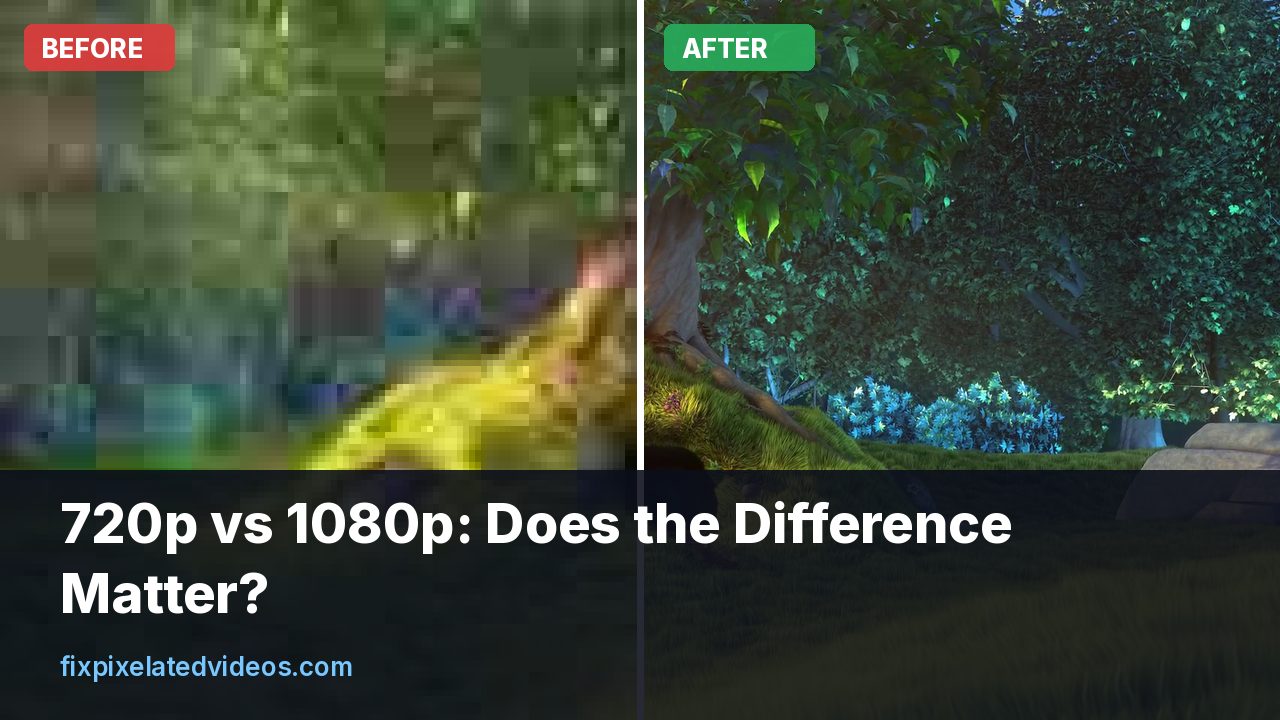
People argue about 720p versus 1080p as though one number settles it. It does not. The picture you see depends on the resolution, the bitrate, the screen size, the viewing distance and the scaler, and these interact in ways that give surprising results. Sometimes 720p looks better than 1080p.
I ran a test to put numbers on it, and then I will explain how to use the answer in practice.
The basic arithmetic
A 1080p frame is 1920 by 1080, which is about 2.07 million pixels. A 720p frame is 1280 by 720, about 0.92 million. So 1080p has 2.25 times as many pixels. That gives it the capacity for more detail, but every one of those pixels needs data. At a fixed bitrate, a 1080p encode has less than half as many bits per pixel as a 720p one.
That is the heart of the question. More pixels help only if you can afford to describe them.
My test: same bitrate, two resolutions
I took a 5 second 1080p clip (an animated film excerpt with plenty of detail) and made two sets of encodes with x264 at the medium preset. One set was encoded at 1080p. The other was first scaled down to 720p with lanczos, then encoded, then scaled back up to 1080p with lanczos so that it could be compared fairly with the original. I measured PSNR and SSIM against the original 1080p clip.
| Bitrate | 1080p PSNR | 1080p SSIM | 720p upscaled PSNR | 720p upscaled SSIM |
|---|---|---|---|---|
| 1 Mbps | 31.05 dB | 0.822 | 31.70 dB | 0.845 |
| 2 Mbps | 34.40 dB | 0.910 | 33.91 dB | 0.906 |
| 4 Mbps | 38.33 dB | 0.961 | 35.75 dB | 0.942 |
| 8 Mbps | 42.44 dB | 0.984 | 37.00 dB | 0.960 |
At 1 Mbps, the 720p version scored higher. At 2 Mbps, the two were close, with 1080p slightly ahead on PSNR and equal on SSIM. From 4 Mbps up, 1080p pulled clearly ahead, and at 8 Mbps the gap was more than 5 dB.
The reason is what you would expect. At a very low bitrate, the 1080p encoder is overwhelmed and spreads its bits thin, producing blocks. The 720p encode has fewer pixels, so each gets a larger share, and the loss from scaling back up is smaller than the damage from starving the larger picture. At a higher bitrate, the 720p version has a ceiling: whatever detail was removed by the downscale cannot come back, so its quality stops improving while the 1080p one keeps going.
Some caveats. This was one clip, 5 seconds long, an animated film with clean lines and large flat areas, and a different kind of footage would shift the crossover. PSNR and SSIM are imperfect measures of how video looks to people. And I compared both at 1080p, which favors the full-size encode when bitrates are high. On a small screen, the differences would shrink. Still, the shape of the result, with a crossover at a low bitrate, is the useful part.
What this means for streaming
Streaming services use this logic. They offer a ladder of resolution and bitrate pairs and switch between them according to your connection. Netflix states that it needs about 3 Mbps per stream for 720p HD and 5 Mbps for 1080p, and 15 Mbps for 4K. On a slow connection, dropping to 720p gives a cleaner picture than forcing 1080p at too low a bitrate. That is one reason a well-behaved player falls back to a lower resolution rather than showing a blocky 1080p.
If you control the settings, such as in a video call, a screen share or a recording, the lesson is the same: do not choose a higher resolution than your bitrate can support. A clean 720p beats a starved 1080p. I look at the streaming case in why Netflix looks pixelated.
When 1080p is clearly better
Big screens. On a TV or monitor, more pixels mean more visible detail, as long as the bitrate backs them up.
Text and fine lines. Screen recordings, slides and graphics with thin lines benefit from higher resolution, because text becomes legible and edges stay crisp.
Cropping and reframing. A 1080p source lets you zoom in 150 percent into a 720p delivery without enlarging, which is a practical use of extra pixels.
Future viewing. A 1080p master gives you more options later than a 720p one.
Higher bitrates. At 4 Mbps and above in my test, the lead was clear.
When 720p is fine, or even better
Small screens. On a phone held at normal distance, 720p and 1080p can look much alike, particularly in motion.
Slow connections. A lower resolution at a safe bitrate beats a higher one at a starved bitrate.
Video calls and live streams. Live encoders have limited time and bitrate. A steady 720p tends to look better than a struggling 1080p.
Small file targets. If you must stay under a size cap, such as a chat app limit, 720p at a decent bitrate may look better than 1080p squeezed to fit. See compressing video for email without losing quality for the arithmetic.
Low-powered devices. Old computers and phones decode 720p more smoothly.
What about recording?
Phones and cameras offer a choice of recording resolution. A lower resolution saves space, but it throws away information you cannot get back, and it also limits cropping later. If storage is the concern, a better move is often to record at 1080p and compress it later at a sensible bitrate, since the resolution decision can be made with the footage in front of you.
For screen recordings with text, record at the native resolution of your screen, or at least 1080p. Downscaling text to 720p softens it, and the viewer cannot read small interface elements.
Bits per pixel: the number that explains the crossover
Bitrate alone does not tell you whether a file is generous or starved. A more useful measure is bits per pixel per frame: the bitrate divided by the number of pixels per frame and the frame rate. It tells you how much data each pixel gets.
Here are the numbers for a few cases at 30 fps:
| Resolution | Bitrate | Bits per pixel |
|---|---|---|
| 1080p | 1 Mbps | 0.016 |
| 720p | 1 Mbps | 0.036 |
| 1080p | 4 Mbps | 0.064 |
| 720p | 4 Mbps | 0.145 |
| 1080p | 8 Mbps | 0.129 |
At 1 Mbps, a 1080p stream has less than half the bits per pixel of the 720p one, which is why it fell behind in my test. At 4 Mbps, 1080p has about 0.064, which is a workable level for moderate content, and the extra resolution then pays off. Note what happens at 60 fps: the same 4 Mbps at 1080p60 gives only about 0.032 bits per pixel, so frame rate eats into the budget in the same way as resolution does.
There is no magic threshold. Calm content such as slides or interviews looks fine at a low value, and busy footage such as grass, water or confetti needs several times as much. But if you work out the bits per pixel of a file or a plan and find a number below 0.03 for typical footage, expect trouble. The article on what bitrate you need for 1080p goes deeper into reading these numbers.
How the test was run
If you want to repeat my comparison, this is what I did, using FFmpeg and a short clip:
# 1080p at 4 Mbps
ffmpeg -i clip.mp4 -c:v libx264 -preset medium -b:v 4M -an a1080.mp4

# 720p at 4 Mbps, then back up to 1080p for measuring
ffmpeg -i clip.mp4 -vf scale=1280:720:flags=lanczos \
  -c:v libx264 -preset medium -b:v 4M -an a720.mp4
ffmpeg -i a720.mp4 -vf scale=1920:1080:flags=lanczos -c:v ffv1 a720up.mkv

# compare each to the original
ffmpeg -i a1080.mp4 -i clip.mp4 -lavfi "[0:v][1:v]psnr" -f null -
ffmpeg -i a720up.mkv -i clip.mp4 -lavfi "[0:v][1:v]psnr" -f null -
Using the same preset and a single-pass average bitrate keeps the comparison simple, though it is not the most efficient way to encode. A two-pass or constant-quality encode would shift the numbers a little but not the overall shape. The measure is not a substitute for looking, so after you have the numbers, play both files on the screen you care about.
Frame rate also competes for bits
At a fixed bitrate, a higher frame rate leaves fewer bits for each frame. If you are tempted to choose 1080p at 60 fps on a limited connection, think about whether 720p at 60, or 1080p at 30, would look better. For fast gameplay, smooth motion matters more, and 720p60 can feel clearer than 1080p30 on a phone. For talking heads and slides, 30 fps is enough, and the saved bits make 1080p look cleaner.
The same logic applies in video calls and live streaming, where the software lowers resolution or frame rate automatically when the connection weakens. If you ever see your call go soft, that is the system trading pixels for stability, and it is usually the right trade.
Names and labels, decoded
The labels are confusing, so here is a short reference.
- HD usually means 720p, sometimes 1080p. Check the number.
- Full HD or FHD is 1080p.
- 2K or QHD is often 1440p (2560 by 1440), though “2K” is also used loosely for 1080p.
- 4K or UHD is 2160p (3840 by 2160).
- The “p” means progressive scan, not interlaced. A label like 1080i is interlaced, with half the lines updated each pass.
Also remember that a video’s width can differ from the standard for its label. A vertical 1080 by 1920 video is called 1080p by some and 1920p by others. When in doubt, look at the actual pixel dimensions.
Common questions people get wrong
“Higher resolution is always sharper.” Not if the source was never that sharp. A blurry 1080p film is just a blurry picture with more pixels. Resolution is a ceiling for detail, not a guarantee.
“720p cannot be good.” A well-lit, well-encoded 720p video looks clean. Plenty of broadcast content has used it.
“If it says 1080p, it is 1080p quality.” The label describes the frame size. The quality depends on the source, the encoder and the bitrate.
“My phone shoots 4K, so I should always use it.” If you never watch or share at 4K, you pay for files that are four times larger with little benefit. A 1080p setting is reasonable for everyday clips, with 4K reserved for moments you may crop or show on a big screen.
The choice for creators
If you publish videos, the safest approach is to make the master at the highest resolution you can afford and let platforms create the lower versions. YouTube, for example, produces several resolutions from your upload, and viewers on slow connections see the smaller ones. If your master is 720p, there is nothing above it. For the platform side, see best export settings for YouTube.
Scaling a 720p video up
If you have a 720p file and want it to look as good as possible on a larger display, scaling up with a good filter and mild sharpening helps a little. In my earlier scaling comparison (480p up to 1080p), lanczos beat bilinear by roughly 0.9 dB and nearest neighbour by about 2 dB. That is a small gain, and the real limit is the missing detail. For more, see how to make low quality video HD.
You can try this on a short clip with the free preview. The tool cleans compression blocks, scales with lanczos and sharpens lightly, and you can judge whether the result is better than what your player does.
Viewing distance and screen size
The eye’s ability to resolve detail depends on how far away you are. As a rough rule, a typical viewer cannot separate pixels of a 1080p image at about 1.5 to 2 times the screen height away. Closer than that, the pixel structure begins to show. This is why 720p looks fine on a phone or a laptop at arm’s length, and poor on a monitor you sit at 60 centimeters from.
These figures are a rule of thumb, not an exact law, and people differ. The practical advice: judge by looking at your own screens from your own viewing position. If you cannot tell the difference, use the smaller file.
How to check what you have
If a video looks soft and you wonder whether it is 720p, check the resolution in the file properties. On a computer with FFmpeg:
ffprobe -v error -select_streams v:0 \
  -show_entries stream=width,height,bit_rate -of default=nw=1 video.mp4
A file labeled 1080p can be a 720p video that was enlarged, and then it looks soft. The bit rate matters just as much: 720p at 3 Mbps is healthy, and 1080p at 1 Mbps is not.
A fair way to test it yourself
You do not have to take my numbers on trust, and your footage may differ from mine. A simple home experiment: take one clip that represents what you usually film, about ten seconds long. Encode it at 720p and 1080p at the same bitrate, once at a low value and once at a generous one. Then watch all four on the screen where you normally watch, from your normal seat, and rank them without looking at the file names.
If you cannot reliably tell 720p from 1080p at the generous bitrate, you have learned that your screens and habits do not benefit from the extra resolution, and you can save space. If you can, you know which bitrate is worth paying for. Either way, the answer comes from your eyes and your content, not from a rule.
Keep the test honest by using the same clip, the same preset and the same audio settings for every version, and by changing only the resolution and bitrate. If you change several things at once, you will not know which one made the difference. Write the results down, since next year you will not remember them.
A decision guide
- If the bitrate is under about 2 Mbps, choose 720p.
- If it is 4 Mbps or more, choose 1080p.
- If the main viewing is on phones, 720p is often enough, but 1080p is a safer master.
- If the content is text-heavy, choose 1080p or more.
- If you are not sure, record high, deliver at the resolution that your bitrate supports.
Summary
720p versus 1080p is really a question about bitrate and screens. In my test, 720p matched or beat 1080p at about 1 Mbps, they were close at 2 Mbps, and 1080p won clearly at 4 Mbps and above. Choose the resolution your bitrate can afford, keep a high resolution master when you can, and check the result on the screens that matter.
Got a pixelated video right now?
Upload it and see a free before and after preview in about a minute.
Fix my videoFrequently asked questions
Is 1080p much better than 720p?
At a generous bitrate, yes, and the gap is large. At a very low bitrate, a 720p video can look as good or better, because the encoder has fewer pixels to feed.
Which bitrate makes 1080p worth it?
In my test, 1080p pulled ahead of upscaled 720p from about 2 Mbps upward, and by 8 Mbps the gap was over 5 dB.
Will I notice 720p on a phone?
On a small screen held at normal distance, many people will not notice a difference from 1080p, particularly in motion.
Should I record in 720p to save space?
It saves space, but you lose cropping room and quality on big screens. Lowering the bitrate of a 1080p file is often a better way to save space.
Does 720p look bad on a 4K TV?
It is enlarged three times in each direction, so it looks soft. A good TV scaler helps, but it cannot add detail.
Keep reading
What Bitrate Do You Need for 1080p Video?
I encoded the same 1080p clip at six bitrates and measured the damage. Here is what each one costs you, and the number I would actually use.
1080p Video Looks Bad on a 4K Monitor? Why and Fixes
Why 1080p video looks soft or blocky on a 4K display, what the player and monitor do to it, and how to improve it without a new file.
How to Make a Low Quality Video HD (What Works)
Honest advice on turning a small, blurry video into HD: what upscaling can and cannot do, plus measured results for each scaling filter.
Netflix Looks Pixelated or Blurry? How to Fix It
Streaming video looks blocky when bandwidth, Wi-Fi, playback settings or your TV are the problem. A step by step check with real bitrate numbers.