1080p Video Looks Bad on a 4K Monitor? Why and Fixes
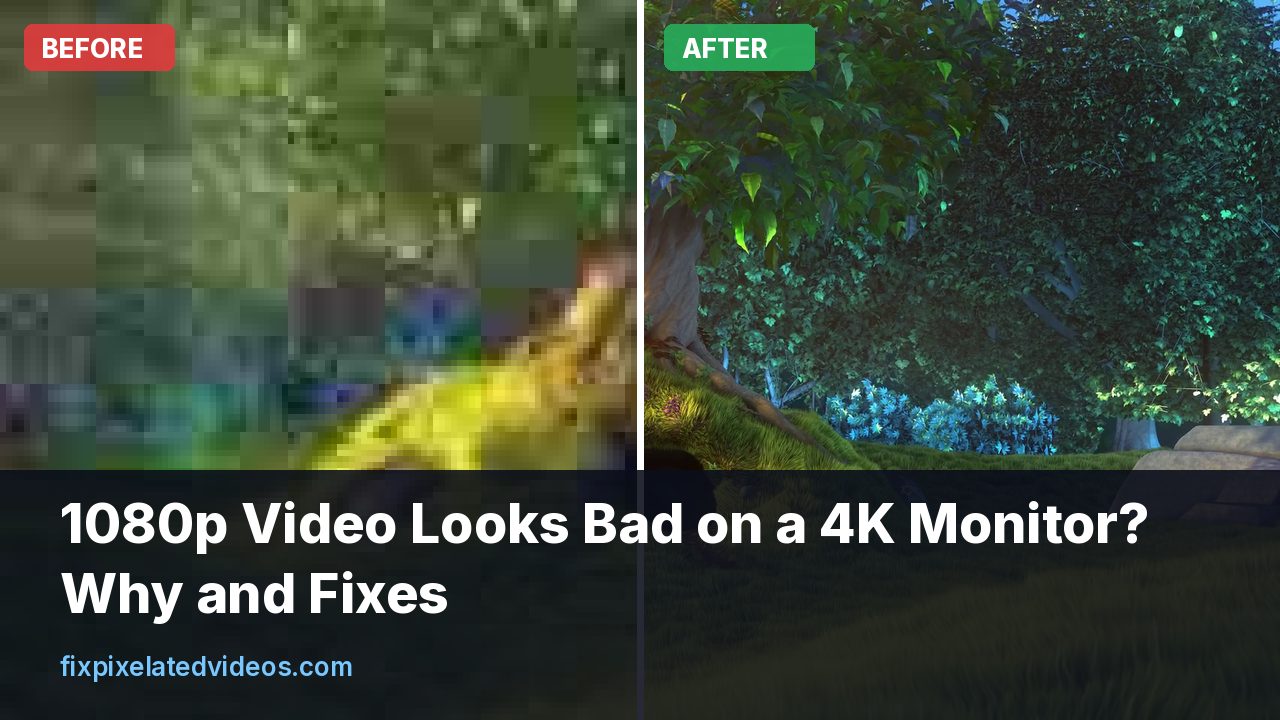
You bought a 4K monitor, and your old 1080p videos looked fine on the old screen. Now they look soft, a bit blocky, and somehow “digital”. It is a common complaint, and the cause is a mix of simple physics, how your player enlarges the picture, and compression that was always there but is now easier to see.
This article walks through what is happening and what actually helps. I ran a scaling test with real numbers to put some of the folklore to rest.
The pixel arithmetic
A 4K (UHD) screen has 3840 by 2160 pixels. A 1080p video has 1920 by 1080. That is exactly double in each direction, four times the pixel count. To fill the screen, the player has to invent three new pixels for each pixel in the video.
Pixel density matters just as much. A 27 inch monitor at 1080p has about 82 pixels per inch. The same size at 4K has about 163. On the 4K panel, the pixels are half as big, so any softness, noise or blockiness in the video is spread over more of them and you can see finer detail in the flaws. A flaw that was invisible on the old screen is now readable, which is why the same video seems to have gotten worse. Often it has not. Your display just got better at showing what was always there.
Integer scaling is not the whole story
Because 4K is exactly twice 1080p, you might expect clean scaling. If the player simply doubles every pixel (nearest neighbour), the picture looks sharp but blocky, since each original pixel becomes a visible 2 by 2 square, especially on diagonal edges and text. If the player blends them (bilinear, bicubic and similar), edges look smoother but softer.
I tested scaling filters in a controlled way. I took a 1080p clip, shrank it to 480p, then scaled it back up to 1080p with different filters, and compared each result with the original:
| Scaling filter | PSNR | SSIM |
|---|---|---|
| Nearest neighbour | 31.53 dB | 0.880 |
| Bilinear | 32.71 dB | 0.899 |
| Bicubic | 33.38 dB | 0.913 |
| Lanczos | 33.58 dB | 0.917 |
| Spline | 33.56 dB | 0.916 |
| Lanczos plus mild sharpen (cas 0.5) | 33.67 dB | 0.919 |
The step from nearest neighbour to bilinear is about 1.2 dB, from bilinear to lanczos is about another 0.9 dB, and from bicubic to lanczos only 0.2 dB. So choosing a decent filter matters, while arguing over the finer points of bicubic versus lanczos is a small gain. The scale factor was different from your case, so the absolute values will not transfer, but the ordering is a reliable guide.
The takeaway: any player that uses nearest neighbour or plain bilinear will look worse than one that uses bicubic or lanczos. The difference between a browser tab and a good video player can be larger than you expect.
Which part of your chain is doing the scaling?
Several things can scale your video:
The video player. VLC, mpv, the Windows media app, a browser and a streaming app each scale differently. Quality varies a lot.
The graphics driver. Some drivers offer “image scaling” or sharpening options.
The operating system. When the desktop runs at a scaled size (for example 150 percent), a video window can be enlarged again by the system.
The monitor or TV. If you send a 1080p signal to a 4K screen, the monitor scales it with its own, often basic, scaler. Never run your desktop at 1080p on a 4K monitor. Set the desktop to native 4K and let the player do the video scaling.
If you watch a 1080p video in a window on a 4K desktop with the OS scaled up, you may be paying for two rounds of scaling.
Players and settings that make a difference
mpv. It offers scaling profiles, and its default scaler is good. You can raise it with the scale=ewa_lanczossharp or profile=gpu-hq options, which cost some GPU power. This is the best option for a free, high quality local scaler.
VLC. Recent versions have a video scaling option in the preferences, and hardware decoding settings. If the picture looks soft, check that you are not using an overly cheap output mode.
Browser. Streaming sites in a browser use the browser’s scaler, which is fine but not special. Fullscreen usually looks better than a large window with scaling.
TV apps and smart TVs. Many smart TVs have their own upscaling options, sometimes called AI upscaling or detail enhancement. They can improve soft video a little and add halos or over-sharpening. Compare on and off.
If a particular file looks bad in one player and fine in another, you have found the culprit.
Compression is the other half
Scaling is half the story. The other half is that 1080p files are often compressed more than you would expect. A 1080p streaming video at 5 Mbps (about what Netflix lists for its 1080p tier) holds a lot less detail than a Blu-ray. When you enlarge a compressed picture, the compression damage is enlarged too: the small blocks and the smudged textures become bigger and easier to see.
My bitrate test on a 10 second 1080p clip gave 31.3 dB at 1 Mbps, 34.7 dB at 2 Mbps, 38.7 dB at 4 Mbps and 42.7 dB at 8 Mbps. At the lower end, the loss is visible even at native size. On a bigger, denser display, it is worse. If the file is a low bitrate encode, a better scaler will help only so far. More on why bits matter in what bitrate you need for 1080p.
Should you upscale the file to 4K yourself?
For playback on your own monitor, usually no. A good player does the same job on the fly and keeps your file small. Creating a 4K file from 1080p adds no real detail. It only moves the scaling step from the player to your computer and makes a bigger file.
There are reasons to do it anyway: you need to upload 4K to a platform because its 4K tier gets a better codec and bitrate, you want a file that plays well on a device with a poor scaler, or you want to apply sharpening and cleanup that you control. I describe the approach and its limits in upscaling video to 4K, an honest guide.
If you do it, scale with lanczos, add only a mild sharpen, and encode at a high enough quality that you do not add new artifacts. A simple command:
ffmpeg -i input_1080p.mp4 -vf "scale=3840:2160:flags=lanczos,cas=0.4" \
  -c:v libx264 -preset slow -crf 18 -c:a copy output_4k.mp4
My test of lanczos with mild sharpening gave 33.67 dB against 33.58 for lanczos alone, a small but consistent gain, and sharpening harder than that tends to emphasize blocks.
Can AI upscaling help?
AI upscalers can add convincing texture to some content, and they can also produce an artificial look. They are slow and can be inconsistent from frame to frame on video. I compare them with conventional scaling in AI video upscaler versus FFmpeg lanczos. For casual watching of old 1080p files, a good conventional scaler is a sensible default. For a clip you care about, with a lot of blur, an AI path can be worth trying on a short sample.
Monitor settings that change how video looks
Not everything is about the file.
Sharpness control. Many monitors have a sharpness setting in the on-screen menu. A value that is too high makes edges look crunchy, and one that is too low makes everything soft. Try the middle, or the manufacturer’s default.
Resolution and refresh settings. Make sure the display is running at its native resolution, 3840 by 2160, and not a lower mode.
Connection. A poor cable or port may limit you to 4K at 30 Hz, or force chroma subsampling, which blurs colored text and fine edges. Use a certified cable and check the display settings for the refresh rate and color format. For video watching, 30 or 60 Hz are both fine, but the chroma subsampling setting matters for text.
Color mode and HDR. Turning on HDR for an SDR video can make it look washed out or oddly processed. If a video looks flat, check the HDR toggle in Windows or macOS.
Image enhancement modes. Some monitors have modes with names like “game”, “movie” and “text”. Comparing them shows what each does.
Windows and macOS display scaling, explained briefly
On a 4K monitor, most people run the desktop with an interface scale of 150 to 200 percent, since otherwise text would be tiny. This is separate from video scaling, but it can interact with it.
When a video player draws into a window, it usually asks the system for the actual physical pixels, and it scales the video once. A well-behaved player is not affected by the interface scale. An app that does not declare itself “high DPI aware” is instead drawn at a lower resolution and then enlarged by the system. That produces a blurry window, and video inside it is scaled twice. If one app looks fuzzy and the others do not, check its compatibility properties, where you can override the high DPI scaling behavior, or look for an updated version.
On macOS, the system renders at a “looks like” resolution and scales to the panel. A 4K display set to “looks like 1080p” is rendered at 4K internally and shown pixel-doubled, which is crisp. Other settings use fractional scaling, and a few inbetween choices make everything slightly soft. If your Mac gives you a choice, a “looks like” setting that gives an exact factor of two is the sharpest.
Distance and size change what you notice
Your eyes resolve a limited amount of detail at a given distance. At a typical desk distance of about 60 to 80 centimeters, a 27 inch 4K screen is dense enough that individual pixels disappear, and that includes the pixels of the screen. A 1080p video on it looks like what it is: a smaller amount of information stretched across the same area. At a distance of three or four meters on a TV, a 1080p source looks acceptable on a 55 inch 4K set, since you cannot resolve the difference in detail.
This is why the complaint is most common on computer monitors: you are close, and the screen is dense. If you can, increase the distance a bit, or reduce the video window size to something near its natural size. A 1080p video displayed in a window of about 1080p’s size on a 4K desktop shows the original pixels one to one, if the player and operating system handle it properly (this may require setting the scale to 100 percent for that window).
Is it really 1080p?
Sometimes the label and the content disagree. A file named 1080p may be an upscaled 720p or even 480p copy, and it will always look soft. How to check without guessing: open the file’s properties for the true resolution, and look at a frame at full size. Fine text, hair and foliage should show real detail. If edges look ringed or smeared at 100 percent zoom, the file was probably scaled up from a lower resolution or compressed hard.
You can read the stream information from the command line:
ffprobe -v error -select_streams v:0 \
  -show_entries stream=codec_name,width,height,bit_rate,r_frame_rate \
  -of default=nw=1 input.mp4
A 1080p video with a bit rate below about 3 Mbps will look thin on a large 4K screen no matter what you do. Treat the number as a guide, not a rule, since efficient codecs such as HEVC need less for the same quality.
Interlaced and old formats
Older videos, such as recordings from TV or camcorders, may be interlaced. On a modern display without proper deinterlacing, you see combing: horizontal lines at moving edges. A 4K monitor shows it more clearly. Most good players deinterlace automatically, but if not, switch on a deinterlace mode in the video settings. Standard definition content, at 480 or 576 lines, needs a big enlargement of about four and a half times on a 4K screen, and no scaler hides that. For old home videos, see restoring old home videos.
Frame rate and motion
A 24 fps film shown on a 60 Hz monitor needs a frame cadence conversion. Without it, motion looks uneven, which people sometimes call stutter or judder. Some players can match the display refresh rate to the video, which smooths playback. Motion smoothing on TVs creates the “soap opera effect”. It has nothing to do with pixelation, yet it gets lumped into “the video looks bad”, so rule it out by turning the feature off and seeing what changes.
Why 4K streams on the same screen look better
A 4K stream is not only more pixels. It usually has a much higher bitrate, a more efficient codec and sometimes HDR. Netflix, for example, lists about 5 Mbps for 1080p and about 15 Mbps for 4K. So when you compare a 1080p file and a 4K stream of the same film, the difference you see is partly resolution and partly the larger bit budget behind the picture. That means a real 4K source is better than anything you can make from a 1080p copy. It also explains why a 1080p stream on a 4K television can look worse than the same stream on an old 1080p set: the high resolution of the panel is unforgiving.
Mild sharpening: how much is enough
If you scale a file yourself, a touch of sharpening restores some of the crispness that scaling softens, and too much makes a crunchy, haloed mess. In my test, adding contrast adaptive sharpening at 0.5 to a lanczos upscale raised PSNR slightly, from 33.58 to 33.67 dB, which is a hint that mild sharpening helps rather than hurts on a clean source. On a source with block edges or noise, I would keep the value lower, around 0.3 to 0.4, or clean first and sharpen after. Sharpening noisy video makes noise stand out.
When the file itself is the problem
If a video looks bad even on a small window, it is a source issue. Common culprits are old downloads, screen recordings and phone videos shared over messaging apps. For those, cleaning the video before scaling helps more than any player setting. Deblocking removes the edges of compression blocks, denoising removes the flicker, and a good scaler with mild sharpening gives a cleaner result. You can see what that does to a short clip with the free preview on the home page, and decide whether it is worth processing the whole file.
A short checklist
- Run the desktop at native 4K.
- Use a player with a good scaler, such as mpv or recent VLC.
- Check monitor sharpness and the HDR toggle.
- Compare a different player on the same file.
- Check the file’s bitrate. If it is low, the compression is the limit.
- Consider cleaning and upscaling the file only if you need a 4K copy.
Summary
1080p looks worse on 4K for three reasons: smaller pixels reveal flaws, the player’s scaler may be basic, and compression damage gets enlarged. A better scaler, a native desktop resolution and sensible monitor settings help the most. Making a 4K copy adds no detail, although it can improve compatibility. For low quality sources, cleaning the file before scaling gives the best result.
Got a pixelated video right now?
Upload it and see a free before and after preview in about a minute.
Fix my videoFrequently asked questions
Why does 1080p look worse on a 4K monitor?
A 4K screen has four times as many pixels, so each 1080p pixel is spread over a 2 by 2 block or blended. The smaller pixels on a 4K panel also make softness and compression easier to see.
Is 1080p on 4K blurry because of non-integer scaling?
Not for 1080p to 4K, since 3840 by 2160 is exactly twice 1920 by 1080 in each direction. The softness comes from the scaling filter and from the visible compression.
Which player upscales 1080p best?
Players that let you choose a scaling algorithm, such as mpv or VLC with high quality scaling, give better results than a browser or a TV app that uses plain bilinear.
Should I upscale the file to 4K myself?
Only if you need a 4K file. A good player scales on the fly. A real 4K file made from 1080p adds no detail and is bigger.
Does a 4K monitor make 720p look terrible?
It makes it look worse than on a 1080p screen, since a 720p image has to be enlarged three times in each direction.
Keep reading
How to Make a Low Quality Video HD (What Works)
Honest advice on turning a small, blurry video into HD: what upscaling can and cannot do, plus measured results for each scaling filter.
Upscaling Video to 4K: An Honest Guide
Does upscaling 1080p or 720p to 4K help? What it does, when it is worth it, and the settings I would use. No miracle promises.
AI Video Upscaler vs Plain Lanczos: When It Pays
A practical comparison of AI upscaling and a traditional Lanczos filter chain: speed, cost, artifacts, and which clips justify the extra effort.
720p vs 1080p: Does the Difference Matter?
A measured comparison of 720p and 1080p at the same bitrates, plus when the extra pixels pay off and when a lower resolution looks better.