AI Video Upscaler vs Plain Lanczos: When It Pays
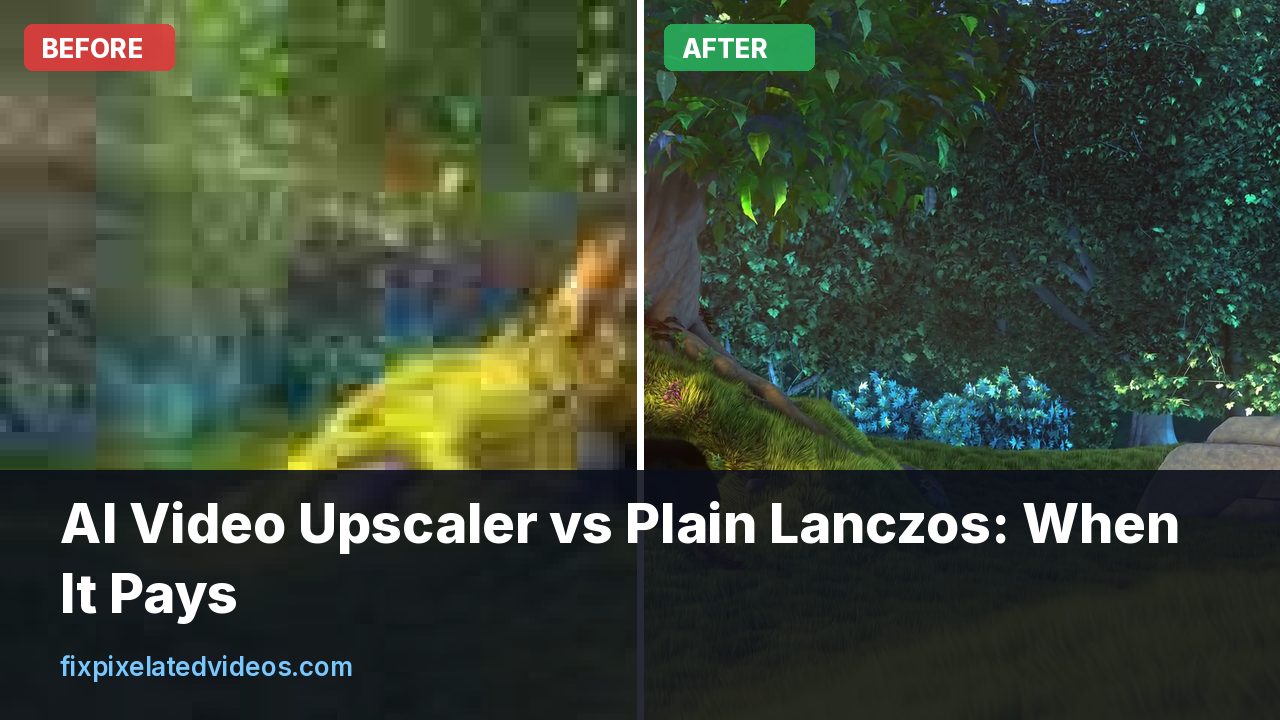
Every few months a new video upscaler appears with a before and after that looks like magic. A blurry face becomes a sharp face. A faded VHS tape becomes a crisp 4K clip. If you look closely, though, the comparison is usually chosen carefully, and the failures are not shown.
I have no interest in telling you that AI upscaling is a gimmick, because it is not. I also do not want you to spend a weekend and a graphics card’s worth of electricity on a clip that a plain filter would handle in a minute. So here is how I think about the choice, what the real differences are, and a way to test both on your own file.
One note on honesty. For the numbers in this article, I measured the traditional side myself: scaling filters, denoisers, timing. I did not run a neural model on the same test, so where I talk about AI behavior I am describing what is documented by the projects and what users consistently report, not a benchmark of my own. I will say so each time.
What a traditional filter actually does
A scaling filter such as bicubic or Lanczos computes each new pixel as a weighted average of nearby original pixels. Lanczos uses a wider window, with positive and negative weights, which keeps edges crisper than bicubic. It never creates content. It only interpolates between what is there.
That has good and bad sides. The good side is that it is predictable: no hallucinated detail, no changes in a person’s face, no flicker from frame to frame, and it runs fast. The bad side is that it cannot make an edge sharper than the original information allows. It makes a smooth, slightly soft bigger picture.
In my test, which shrank a 1080p clip to 480p and scaled it back, Lanczos reached a PSNR of 33.58 dB and SSIM of 0.917 against the original, ahead of bicubic at 33.38 dB and 0.913, and well ahead of nearest neighbor at 31.53 dB and 0.880. A little sharpening added a bit more, to 33.67 dB. The details are in how to make a low quality video HD.
What a neural upscaler does differently
A model such as Real-ESRGAN, which is the open source network behind many of the popular tools, has been trained on large numbers of image pairs: a clean image and a degraded version of it. During training it learns what typical degradations look like and how to reverse them. At run time it takes your frame and produces a larger one with details that look plausible.
“Plausible” is the key word. If the model sees a blurry patch that looks like eyelashes, it draws eyelashes. If it sees blurry text, it may draw letters, and they may be the wrong letters. This is why AI looks so good on typical content and so strange on unusual content.
Some practical consequences:
- Faces and hair. Often improved. Occasionally they look slightly plastic or too smooth.
- Text and logos. Can be sharper, but can also be altered. Do not trust AI to recover a license plate or a document. It can produce a confident wrong answer.
- Cartoons and line art. Usually excellent. Some models are trained specifically for anime.
- Nature textures. Grass, foliage and water can come out painterly or with repeating patterns.
- Film grain. Often smoothed away, which changes the look of the footage.
Speed and cost
This is where the two approaches differ most, and it is also where the choice usually gets made.
A traditional chain of denoise, Lanczos scale and sharpen runs on an ordinary CPU. On a modern machine, 1080p output encodes at around real time or faster with a quick preset. On the 4 CPU server behind this site, a 12 second preview from a typical file takes a few tens of seconds including analysis.
A neural upscaler is bound to the graphics card. Published numbers for Real-ESRGAN style models on a consumer GPU are in the range of a few frames per second at 1080p output, and slower at 4K output. At 25 frames per second, a ten minute video is 15,000 frames. At three frames per second that is well over an hour of continuous GPU work, and more if the model is larger. On a CPU it is much, much worse.
If you use a hosted service, the cost shows up in the bill. A cloud GPU is billed by the second, so a long video is a real expense. That is why this site keeps the AI option optional and off by default: the ffmpeg chain pays for itself on most clips, and the AI option is only worth it where it makes a clear difference.
The two problems AI does not solve well
Compression blocks. An upscaler trained on blur and noise does not necessarily know what a block is. On a heavily compressed clip, the model can treat the edge of a block as a real edge and sharpen it. So you get crisp blocks. That is why I deblock and denoise at the original size first, and why I would feed the model a cleaned clip rather than the raw one.
Temporal consistency. Most image models process each frame independently. Tiny differences from frame to frame make textures shimmer, particularly on grass, water, hair and brick walls. You do not notice it in a still frame comparison, which is how most before and after images are made. You notice it when you play the video. Video-aware models and post-processing reduce the effect, but it is something to watch for.
A fair way to compare the two on your own clip
Do not trust a comparison on a stranger’s footage. Test with your own. Here is what I would do.
- Cut a 10 second segment containing your hardest material: faces, motion, text, or whatever matters.
- Run the traditional chain. For example:
hqdn3d=3:2:4:3,scale=-2:1080:flags=lanczos+accurate_rnd,cas=0.4. - Run the AI model on the same segment, at the same output size.
- Export both at the same bitrate or CRF so the encode does not bias the comparison.
- Play them side by side at full screen, not paused. Watch for flicker, odd textures and anything that has changed shape.
- Pause on three or four frames and zoom to 200 percent. Check the faces, the text and the edges.
If the AI result is clearly better and does not flicker, use it for the final. If it is only a little better, the speed and predictability of the plain chain usually win. If it is worse on any frame with a face or text, that is a red flag.
What the combination looks like
In practice, the best results often come from combining both. Here is the order I would use:
- Deinterlace if needed.
- Denoise and deblock with a traditional filter, at the original size.
- Run the AI model on the cleaned video.
- Apply a very mild sharpen, or none, since AI output is often already sharp.
- Encode with a decent bitrate.
The cleaning step reduces the artifacts that the AI would otherwise amplify. The reasoning is simple. The model was trained on blur and noise, so you want to give it blur and noise, not blocks.
Which clips justify the extra effort?
Think of three questions: how important is the clip, how short is it, and what is in it.
Worth trying AI:
- A short wedding or family clip with faces that matter.
- Animation or line art where the model’s training is a good fit.
- A 480p or 720p source being prepared for a big screen.
- A clip you plan to show publicly where the extra polish counts.
Probably not worth it:
- Long recordings like lectures and meetings, where a clean filter chain is plenty.
- Footage with a lot of text or numbers that must stay exact.
- Dashcam or security clips, where invented detail could mislead. For evidence, never use AI enhancement. See dashcam footage enhancement for what is and is not appropriate.
- Anything where flicker would be distracting, like a long landscape shot with foliage.
How this site handles it
The default pipeline here is the traditional chain: severity analysis, deblock and denoise, Lanczos upscale, contrast adaptive sharpen, and a decent x264 encode. The free preview always uses this chain. If the operator turns on the optional AI step by adding a Replicate API key, the paid full render for shorter clips can be handed to a hosted Real-ESRGAN video model, then scaled to the final size and muxed with the original audio. If anything in that path fails, the server quietly falls back to the ffmpeg chain, so a customer never ends up with nothing. It is off unless the key is configured, which keeps costs under control. I have not benchmarked that model against the chain, so I am not going to claim it wins on your clip.
You can see what the default chain does to your file with the free preview on the home page. The preview is limited to 12 seconds at a low resolution with a watermark, so you can judge the cleanup before you decide anything.
Cost thinking
A simple way to decide is to price your time and the compute. A traditional clean-and-scale pass on a 5 minute clip takes a couple of minutes of CPU. An AI pass on the same clip could take half an hour to several hours of GPU time. If the gain is small, that is not a good trade. If the gain is large, and the clip matters, it is worth it.
Also consider the risk of wasting it. A clean 1080p from a traditional chain is a safe deliverable. An AI result is a gamble that mostly pays but occasionally produces something you have to throw away, and you only find out after waiting.
Questions to ask before you pay for an AI tool
The market for these tools is crowded and the marketing is loud. A few questions help cut through it.
What is the real output resolution, and is it a crop? Some tools claim 4K but output a 1440p frame with a stretch. Check the properties of the exported file.
Does it process audio? Many do not. You will need to mux the original audio back in, which is easy but should not be a surprise.
What happens to frame rate and aspect ratio? A tool that resamples to 60 fps without telling you is adding interpolated frames. Some people like the look. Others find it unnatural.
Is there a watermark in the trial, and does the trial show the full-length result? A five second trial that looks stunning proves nothing about a 20 minute export that flickers.
Where does your video go? If it is uploaded to a cloud service, read the privacy policy. Family videos and client footage deserve at least a sentence about deletion. On this site, uploads are deleted automatically after 24 hours, and the privacy page says so.
Is the model deterministic? If you run the same file twice, do you get the same result? For most models, yes, but for some tools with random seeds, no. That matters if you plan to process a long video in segments, because you do not want the style to drift between chunks.
Common failure patterns and what to do about them
The same handful of problems turn up again and again with image-based models, and they are worth knowing before you start.
Waxy skin. The model smooths the face too much. Reduce the strength if the tool allows it, or blend the AI output with the original at 70 to 30 in an editor. A partial blend often looks more natural than the full effect.
Crawling texture. Hair, grass and fabric shimmer. A light temporal denoise after the upscale helps. So does a lower strength.
Banding in the sky. Upscalers sometimes create flat bands in smooth gradients. Add a touch of fine grain at the end, or export in 10-bit.
Text changes. Letters morph. Mask the text region, or avoid AI for footage where the text must be exact.
Blocks turned into texture. The clip was not cleaned first. Go back and deblock at the original size.
Color shifts. A few models change contrast or saturation. Compare a neutral gray area before and after, and correct it with a quick color adjustment.
None of these problems is fatal, but they explain why a quick side by side on your own clip beats any marketing demo.
A note on ethics and evidence
There is one more reason to be careful. A neural upscaler produces what looks plausible, not what is true. If you are enhancing footage that might be used as evidence, such as a dashcam recording of an accident or a security camera clip, do not use AI enhancement to read a plate or identify a face. Courts and insurers increasingly treat AI enhanced images as unreliable, and rightly so, because the “detail” can be invented. If you need to improve evidence, use conservative filters, keep the original untouched, and document every step.
For ordinary family videos and creative projects, this is not a concern. Just know the difference between a prettier picture and a more accurate one.
A simple decision table
If you like rules of thumb, here is mine in plain words. When the clip is long, the content is mostly talking or screen capture, and you want it done today, use the filter chain. When the clip is short, faces or drawings are the subject, and you can wait, test an AI model against the chain and keep whichever one holds up in motion. When the clip could be used as proof of anything, use neither as a basis for reading details, and keep the untouched original next to any enhanced copy.
Both methods are tools, not verdicts. The best result is usually the one you tested on your own footage, with the original saved in a folder you will not touch.
One more practical point is storage. AI upscaled files are bigger than their sources, sometimes by a factor of ten, because the new detail has to be encoded too. If you plan to process a whole archive of home videos, do the arithmetic first. Two hundred clips at an average of 800 MB each is 160 GB, and that is before you keep the originals. Pick a delivery setting such as CRF 20 at 1080p, which is perfectly good for family viewing, and resist the urge to export everything at the highest quality you can find.
The bottom line
Use a good traditional chain as your default. It is fast, honest and often good enough. Try a neural upscaler when the source is small, the clip is short, faces or line art matter, and you can afford the processing time. Clean the clip first either way. And check the result in motion, not only on a still frame, because that is where the differences show up.
If you are not sure which camp your clip falls into, start with the cheap test. Twenty seconds of footage and an honest side by side will tell you more than any marketing page.
Got a pixelated video right now?
Upload it and see a free before and after preview in about a minute.
Fix my videoFrequently asked questions
Is an AI video upscaler always better than a normal filter?
No. AI models often look better on faces, text and clean lines, but they are slow, can invent odd textures, and can sharpen compression blocks instead of removing them. A good filter chain is faster and more predictable.
What is Real-ESRGAN?
Real-ESRGAN is an open source neural network for restoring and upscaling images. Video tools run it frame by frame, sometimes with extra steps to keep frames consistent.
Why does AI upscaled video sometimes flicker?
Most image models process each frame on its own. Small differences between neighboring frames show up as shimmering textures. Video specific models and some post filters reduce it.
How much slower is AI upscaling?
On a typical consumer GPU it can run at a few frames per second for 1080p output, versus real time or faster for a normal filter chain. On a CPU it can be painfully slow.
Which should I try first?
Start with the traditional chain: denoise, Lanczos, light sharpen. If the result is not enough for a short, important clip, try an AI model on a test segment and compare.
Keep reading
How to Make a Low Quality Video HD (What Works)
Honest advice on turning a small, blurry video into HD: what upscaling can and cannot do, plus measured results for each scaling filter.
Upscaling Video to 4K: An Honest Guide
Does upscaling 1080p or 720p to 4K help? What it does, when it is worth it, and the settings I would use. No miracle promises.
Video Noise Reduction: hqdn3d vs nlmeans, Measured
I added noise to a clean clip and denoised it with hqdn3d and nlmeans. Quality scores, file sizes and a 30x speed gap, with settings to copy.
How to Enhance Dashcam Footage (What Is Realistic)
What you can and cannot recover from dashcam video: denoising, brightening night footage, cropping in, and why plates stay unreadable.