How to Make a Low Quality Video HD (What Works)
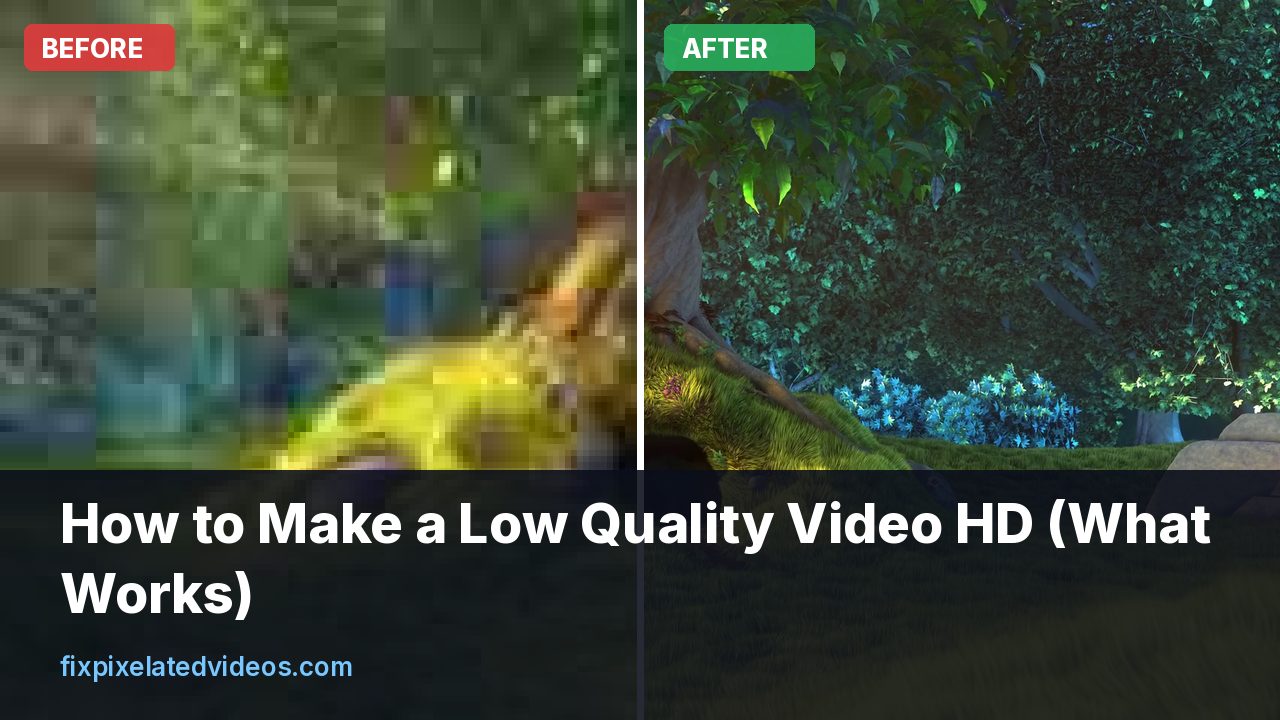
Somebody sends you a clip from 2009. Or you find an old screen recording, a cropped phone video, or a download that was never more than 360p. You want it in HD so it does not look like a postage stamp on your monitor. You search “how to make a low quality video HD” and find a hundred tools that promise miracles.
Here is the plain version. Nothing can recover detail that was never recorded. What you can do, and what is worth doing, is a set of steps that make the video look cleaner, sharper and more comfortable to watch at a larger size. I will show what each step does, with numbers from my own test, so you can decide how much effort a given clip deserves.
What “HD” can and cannot mean for an old clip
A 640 by 360 video has about 230 thousand pixels per frame. A 1920 by 1080 video has about two million. When you convert one into the other, there are nine times as many pixels in the output as in the input. Eight out of every nine pixels have to be made up from their neighbors.
Basic upscaling invents those pixels by blending. Smarter upscaling blends better. AI upscaling makes educated guesses about what the picture probably looked like. None of these brings back the true original. They give you a larger image with smoother edges.
So the right goal is not “make it look like it was filmed on a modern camera”. The right goal is “make it look good at full screen, with no visible blocks, and without the harsh jagged edges you get from naive resizing”. That is achievable.
The order of operations matters
I use the same sequence for almost every clip:
- Repair, if the file is damaged or will not play cleanly.
- Deblock and denoise at the original size.
- Scale up with a good filter.
- Sharpen lightly at the new size.
- Encode at a sensible bitrate.
The reason for cleaning first is simple. Compression blocks in a small video are, say, 8 by 8 pixels. If you enlarge the video three times first, they become 24 by 24 pixel squares that look like part of the image and are much harder to remove. If you remove them while they are small, there are fewer of them and the filter sees them as the artifacts they are.
Sharpening goes last because sharpening noise or blocks just makes them more visible.
What I tested
I wanted to know which scaling filter is worth using, so I ran a small experiment. I took a 5 second 1080p reference clip, shrank it to 480p and to 360p with a high quality encode, then scaled each back up to 1080p with different filters. Then I compared each result to the original 1080p frame using PSNR and SSIM. Both measure how close two images are. Higher is better. SSIM runs from 0 to 1.
This is a fair way to compare filters because we know the true answer. It is not a test of how good any particular enhancement app is, and it is a gentle test, since the small versions were encoded at a high quality. A real old video is worse than this.
Here is the result starting from 480p:
| Method | PSNR (dB) | SSIM |
|---|---|---|
| Nearest neighbor | 31.53 | 0.880 |
| Bilinear | 32.71 | 0.899 |
| Bicubic | 33.38 | 0.913 |
| Lanczos | 33.58 | 0.917 |
| Spline | 33.56 | 0.916 |
| Lanczos + light sharpen | 33.67 | 0.919 |
And from 360p:
| Method | PSNR (dB) | SSIM |
|---|---|---|
| Nearest neighbor | 30.39 | 0.839 |
| Bilinear | 31.16 | 0.854 |
| Bicubic | 31.62 | 0.870 |
| Lanczos | 31.76 | 0.874 |
| Spline | 31.74 | 0.873 |
| Lanczos + light sharpen | 31.83 | 0.876 |
Let me tell you what I take from this.
First, the filter you choose matters a lot at the low end. Going from nearest neighbor, which is what you get when a video player blows up a small video without smoothing, to Lanczos is worth more than two dB and about 0.04 in SSIM. That is a visible difference. Edges stay clean instead of turning into stairs.
Second, the top three or four filters are close. Bicubic, Lanczos and spline are all in the same neighborhood, and Lanczos wins by a small margin. If your editor only offers bicubic, you are not losing much.
Third, a light sharpening pass helped a little in both cases. It did not transform anything, which is what you should expect. Sharpening gives you perceived crispness more than it gives you new information, and too much of it creates halos.
Fourth, the 360p source recovered noticeably worse than the 480p one: 31.8 dB against 33.7 dB. Less to start with means less to end with. The information you throw away when shrinking never comes back.
Step by step with FFmpeg
If you are comfortable with a command line, this is the basic recipe:
ffmpeg -i input.mp4 \
  -vf "hqdn3d=3:2:4:3,scale=-2:1080:flags=lanczos+accurate_rnd,cas=0.4" \
  -c:v libx264 -crf 18 -preset slow -c:a copy output.mp4
What each part does:
hqdn3d=3:2:4:3is a light denoiser that looks at neighboring pixels in space and time. It is quick and gentle. For a really noisy clip you can raise the numbers.scale=-2:1080:flags=lanczos+accurate_rndresizes to 1080 pixels tall, keeping the aspect ratio, using the Lanczos filter. The-2keeps the width divisible by two.cas=0.4is a contrast adaptive sharpen, and 0.4 is on the mild side. I used 0.5 in the test above.-crf 18asks for visually near-lossless output. Because you are scaling up, you want to keep what is there.
For blocky sources, you can add a deblocking filter in front. The spp filter, or pp=ha/va/dr, softens the edges of blocks. They are blunt tools. I use them only when the blocks are obvious, and I only apply them at the original size, never after upscaling.
I wrote a longer walkthrough in the FFmpeg guide.
Doing it without the command line
If a terminal is not your thing, you have a few options.
Your video editor. Most editors have a scaling setting that you can set to a higher quality. In DaVinci Resolve, look at the image scaling options in the project settings and choose Lanczos or Sharper. In Premiere, scale the sequence to 1080p and let the “Scale to frame size” setting do the work, with maximum render quality turned on. Add a light denoise and a very mild sharpen. These are decent for a one-off.
HandBrake. It is free and has a resolution limit and filters for denoise, deblock and sharpen. You can set the output to 1080p and apply a “Light” denoise, and it uses a reasonable scaler.
An online tool. This is what this site does. You upload a clip, we run the repair, denoise, scale and sharpen chain on a server, and you get a free watermarked preview of the first 12 seconds before you decide. You can try it on your own file. The preview is deliberately small and watermarked. The full version is the paid step.
What about AI upscalers?
Neural upscalers are the other approach. They have been trained on pairs of low and high resolution images and learn to guess missing detail. On the right material they are impressive: faces, text, cartoons and clean line art often come out sharper than any traditional filter can manage.
They also have downsides. They are slow, often 10 to 100 times slower than a plain filter, so a long video can take hours. They can create odd textures, such as skin that looks plasticky or grass that looks painted. And on heavily compressed input they sometimes sharpen the blocks rather than remove them, which is why cleaning first still applies.
I wrote about when each makes sense in AI video upscalers versus a plain Lanczos filter. My rule is to try the traditional chain first, since it is fast and predictable, then try an AI model on a short clip if you still want more.
Three things people forget: interlacing, aspect ratio and frame rate
Old footage often has quirks that have nothing to do with resolution, and if you ignore them the upscale will look wrong no matter how good your filter is.
Interlacing. Video from old camcorders, DVDs and broadcast TV is often interlaced, meaning each frame is stored as two half-height fields captured a fraction of a second apart. When something moves, you see fine horizontal combing lines along the edges. Scaling that up makes the combs bigger. The fix is to deinterlace first. In FFmpeg the yadif filter is the usual choice, and bwdif is a newer one that is often a bit cleaner. Put it at the very start of the chain, before denoise and scale. If you never see combing on moving objects, the clip is progressive and you can skip this.
Aspect ratio and pixel shape. DVD video is 720 by 480 or 720 by 576, but it does not display as that shape. It uses non-square pixels and flags the video as 4:3 or 16:9. If a tool ignores the flag, your upscaled video looks squashed or stretched. Check the display aspect ratio in the file’s properties and make sure the output matches what the original looked like on a TV. For 4:3 footage going to a 16:9 screen, the clean approach is to keep it 4:3 with black bars on the sides. Stretching it to fill the screen makes everyone look wide.
Frame rate. Old clips are often 15 or 24 or 25 or 29.97 fps. Leave the frame rate alone. Tools that interpolate extra frames to reach 60 fps can look smooth, but on low quality sources the interpolation guesses wrong around moving edges and creates a rubbery look. If you want the video to feel smoother, try it on a short test and decide whether you like the effect. Most of the time, keeping the original rate is the better choice for a restoration.
How long will it take?
Time depends on the chain you pick. A traditional filter chain like the one above processes a 1080p output at somewhere between realtime and several times realtime on an ordinary computer, depending on the encoder preset. On the server that runs this site, the free preview of 12 seconds finishes in tens of seconds for most files, and a long upload that is large to transfer takes longer mostly because of the upload itself. AI upscaling is another story: a minute of video can take many minutes even on a good graphics card, and on a laptop CPU it can take hours.
That is a good reason to test on a short range and only commit to the full file once you like the result.
Set expectations by source quality
A rough guide to what you can hope for:
Source 720p or better, mild compression. Upscaling to 1080p looks good. You will gain smoothness and a bit of crispness. A true 4K from this is mostly a bigger file.
Source 480p, DVD-like quality. Upscaling to 1080p looks clearly better than letting the TV or player blow it up. It will not look like a Blu-ray, but it is pleasant.
Source 360p, web video from 2010 to 2014. You get a cleaner picture with smooth edges. Fine detail like text is likely to be unreadable if it was unreadable before.
Source 240p or lower, or heavily blocky. The best you can do is reduce the ugliness. Expect a soft, painterly look. If this is a one-of-a-kind family video, it is still worth doing, because a cleaner version is easier to show to relatives.
When to give up and when to keep going
There is a point of diminishing returns, and it is worth knowing where it is before you spend an evening on a clip. If after the clean, scale and sharpen steps the picture looks calm and watchable at full screen, stop. More tweaking will not rescue it, and every extra filter adds a risk of making it look processed.
If the clip still looks unwatchable, ask what is actually wrong. Is it the blocks? Try a stronger deblock at the original size, and check that the first pass did not use a low bitrate. Is it the noise? Try a stronger temporal denoise. Is it the color? A quick levels or contrast adjustment can do more for a washed-out old video than any sharpening. A lot of “this looks bad” is flat, faded color and not a lack of pixels.
And if the answer is “the footage is simply too small, too dark or too damaged”, accept it and share it at the size it deserves. A clean 480p presented honestly is often more pleasant than a heavily processed 1080p that looks fake.
Mistakes I would avoid
Upscaling to 4K for no reason. If your source is 480p, a 4K output just stores the same detail with four times the pixels. Stop at 1080p. There is a separate article on this: upscaling to 4K, the honest guide.
Heavy sharpening. The video looks crisp for the first five seconds, then starts to look brittle and fake. Use the minimum that makes the picture feel finished.
Over-denoising. Strong denoising removes noise, but also removes skin texture and fine detail, leaving faces waxy. Use temporal denoising lightly, and check a frame at 100 percent.
Re-compressing at a low bitrate. All your effort goes into producing a clean picture, and then a 2 Mbps encode ruins it. Use a good setting for the output. In the bitrate article I give numbers: what bitrate for 1080p.
Ignoring the audio. Make sure the audio track survives. With -c:a copy it passes through untouched. If the audio is poor too, a separate cleanup will help the viewing experience more than the picture does.
A realistic workflow for a family video
Say you have a 20 minute video from an old camcorder or early phone, saved as a 3GP or small MP4. This is how I would approach it.
First, copy the original somewhere safe. Never work on the only copy. Second, run a 20 second test on the busiest part. Look at it at 100 percent on your monitor. Third, adjust: if the picture is blocky, add a deblock; if it is grainy, raise the denoise a notch; if it is soft, a touch more sharpen. Fourth, run the whole clip. Fifth, watch a few random minutes, not just the start, because problems tend to appear in the dark or fast parts.
A 20 second test costs a minute and saves an afternoon. The same logic is behind the free preview on this site: look at a short sample before you commit to a full processing run.
Summary
You cannot make a low quality video truly high definition. You can make it look cleaner and more watchable at a bigger size, with a sequence that is easy to remember: repair, clean at the original size, scale with Lanczos, sharpen a little, encode with a good bitrate. In my measurements, the choice of scaling filter alone moved SSIM by around 0.04 between the worst and best option, and the extra sharpen added a small but consistent gain. Everything else is about avoiding the mistakes that undo the work.
If you have a clip you care about, start with a short test. Whether you use FFmpeg, an editor or an online tool, you will learn more from twenty seconds of real footage than from any list of settings.
Got a pixelated video right now?
Upload it and see a free before and after preview in about a minute.
Fix my videoFrequently asked questions
Can you really turn a low quality video into HD?
You can make it larger, cleaner and nicer to watch, but you cannot add detail that was never recorded. A good pipeline reduces blocks and noise, scales with a quality filter and sharpens lightly. The result looks better, not truly high definition.
Which scaling method gives the best result?
In my test going from 360p and 480p back to 1080p, Lanczos scored best of the common filters, ahead of bicubic and bilinear, and a light contrast adaptive sharpen after it gave a small extra gain.
Should I clean the video before or after upscaling?
Before. Remove blocks and noise at the original size, then upscale. If you upscale first, you enlarge the artifacts and the denoiser has a harder job.
Is AI upscaling better than normal upscaling?
On faces, text and clean lines it often looks better because it guesses plausible detail. It can also invent textures that were not there, and it is far slower, so it is worth trying on short clips and checking carefully.
What resolution should I upscale to?
1080p is the sensible target for most sources. Going to 4K from a 360p or 480p source mostly makes a bigger file with the same amount of detail.
Keep reading
Upscaling Video to 4K: An Honest Guide
Does upscaling 1080p or 720p to 4K help? What it does, when it is worth it, and the settings I would use. No miracle promises.
AI Video Upscaler vs Plain Lanczos: When It Pays
A practical comparison of AI upscaling and a traditional Lanczos filter chain: speed, cost, artifacts, and which clips justify the extra effort.
What Bitrate Do You Need for 1080p Video?
I encoded the same 1080p clip at six bitrates and measured the damage. Here is what each one costs you, and the number I would actually use.
Video Noise Reduction: hqdn3d vs nlmeans, Measured
I added noise to a clean clip and denoised it with hqdn3d and nlmeans. Quality scores, file sizes and a 30x speed gap, with settings to copy.