Make iPhone Video Quality Better: Settings and Sharing
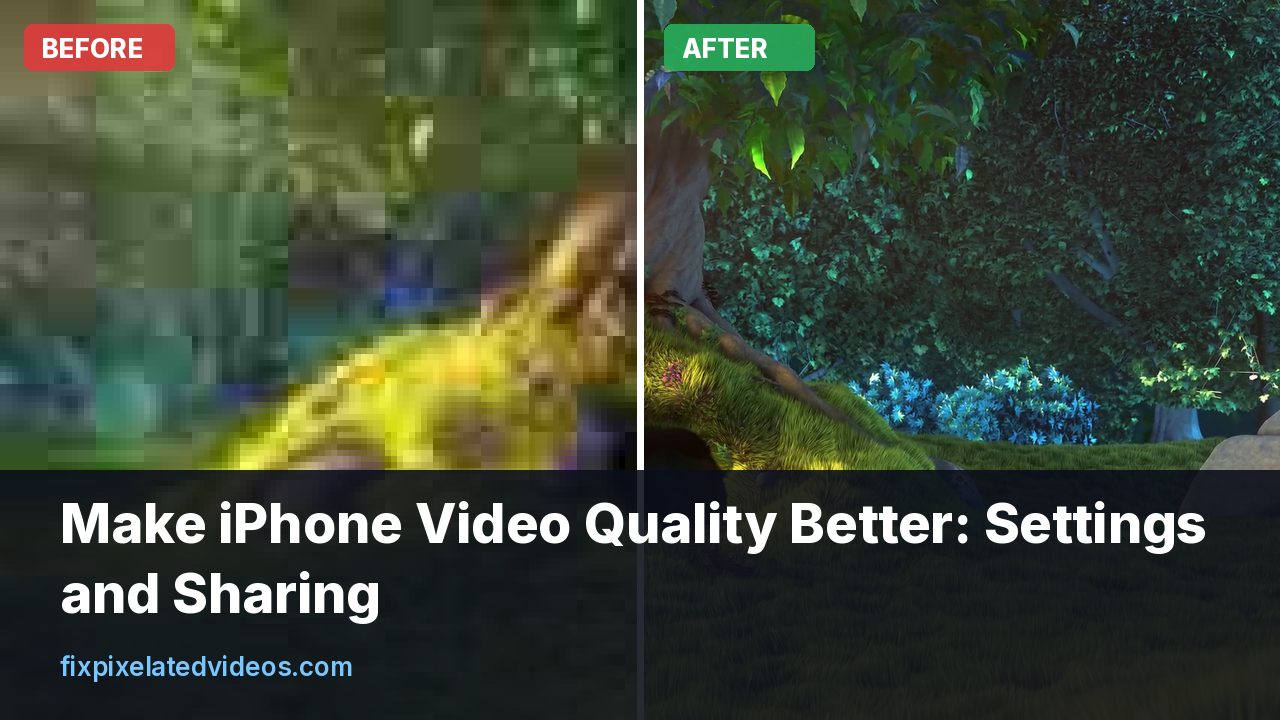
An iPhone is a good video camera. It is also a very compressed one, and most of the complaints about iPhone video fall into two groups. One group is footage that is soft, noisy or blocky in the original, because of light, settings or a dirty lens. The other is footage that looked fine on the phone and turned bad after it was sent, uploaded or edited.
You need to know which group you are in, because the fixes are different. This guide goes through both, in order. Where I have my own measurements I give them, and where I am using Apple’s published figures or general practice I say so. I tested compression and filters on a computer, not on an iPhone, so the camera menu advice is based on Apple’s documentation and the way the settings are labelled in current versions. Names move around slightly between iOS releases.
Where to check first
Before changing anything, work out where the problem appears.
- Play the original in the Photos app on the phone. Is it sharp there? If yes, the problem came after recording.
- Look at a still frame. Pause on a frame with detail, zoom in. Soft everywhere suggests focus, a dirty lens or motion. Blocky in the dark parts suggests low light and compression.
- Check the same clip on a computer. A phone screen is small and hides flaws.
If the original looks bad, you need better shooting habits. If the original is good and the copy is bad, you need a better way to send it.
The camera settings that matter
Apple’s guidance lists the formats your phone can record in Settings, Camera, Record Video, and notes that faster frame rates and higher resolutions mean larger files. The choices that matter most are resolution, frame rate and format.
Resolution
4K gives you more detail and more room to crop. It also gives the compressor more pixels to deal with, and in low light the phone can look noisier at 4K than at 1080p. For general shooting, 4K at 30 fps is a good default on a modern phone. Choose 1080p if storage is tight or if you are shooting in dim light.
If your final destination is a phone or a social app that will downscale anyway, 1080p is usually enough. If you will watch on a big TV or crop in the edit, 4K is worth the space.
Frame rate
30 frames per second looks normal. 24 gives a film look and slightly smaller files. 60 makes motion smoother and helps with sports and kids at play, at the cost of bigger files and, in dim light, a shorter exposure time, so the picture is darker or noisier. My own test on frame rate showed a modest size effect: one clip encoded at a fixed quality was 3,028 kB at 15 fps and 4,039 kB at 60 fps, about a third more. Phone encoders work to a bitrate, so the quality effect is that each frame gets fewer bits at higher rates.
If the scene is dim, prefer 30 over 60. If the scene is bright and fast, 60 is a good choice.
Format: High Efficiency or Most Compatible
In Settings, Camera, Formats, High Efficiency records HEVC, also called H.265, and Most Compatible records H.264. Apple’s support page says HEVC offers better compression than H.264, so it uses less storage while keeping the same visual quality. That matches my H.264 versus H.265 test, where x265 files were about 9 percent smaller at CRF 24 and 22 percent smaller at CRF 28.
For quality, High Efficiency is the right choice. The only reason to choose Most Compatible is that you share often with devices or software that cannot read HEVC. In that case, converting a copy later is better than recording worse files.
What the files cost
The per-minute estimates are shown next to each option in the Record Video menu on the phone. Third-party summaries of Apple’s older figures list roughly 60 MB per minute for 1080p at 30 fps with HEVC, about 170 MB for 4K at 30 fps, and about 400 MB for 4K at 60 fps. These vary by model and scene. Expressed as bitrates, they are about 8 Mbps, 23 Mbps and 53 Mbps. Compare these with my bitrate ladder for a 1080p clip, where 8 Mbps scored 42.7 dB and 16 Mbps scored 45.7 dB: the phone’s default 1080p setting is already in the territory where the picture is good, and the weakness is in low light and fast motion rather than in the overall budget.
HDR video and other toggles
Recent iPhones can record HDR video, which looks richer on the phone and on compatible screens. If you share to places that do not handle HDR properly, colors can look washed out or too dark. If you see strange colors after sending a clip, try recording with HDR video off for a test. Other options, such as Cinematic mode, use extra processing and may soften edges around subjects. Use them when you want that look, not as the default.
Lock and stabilization
Action mode and standard stabilization smooth the picture, using a crop of the sensor. Stabilization is great for walking shots. It can soften the picture slightly in low light. If you are on a tripod, stabilization is not needed.
Light decides more than any setting
The sensor in a phone is small. In bright light it produces clean images. As light drops, the phone raises its gain and the picture becomes noisy, then the compressor treats noise as detail and smears it, which makes blocks and mush. My noise tests showed how expensive noise is: a noisy clip encoded to 9.4 MB at a constant quality, against 5.4 MB after a strong denoise.
Practical steps:
- Shoot facing the light, not into it. A face with a window behind it becomes a silhouette, and the phone brightens it with noisy gain.
- Move closer to the light. Even one lamp helps.
- Avoid digital zoom in the dark. Zoom enlarges noise.
- Tap to focus and set exposure on the subject, and hold to lock if the phone offers it.
- At night, expect softness and keep the phone steady.
Clean the lens
It sounds silly and it is the most common cause of soft phone footage. A thumbprint on the lens spreads light, makes a haze and gives streaky flares around bright lights. Wipe it with a clean microfiber cloth. If the phone lives in a pocket, do it before each shoot.
Hold it steady
Motion blur and shake make compression harder, because every part of the frame changes. Hold with both hands and tuck your elbows in. Move slowly when you pan. If you can lean on something, do it. A small tripod or a stand costs little and improves footage more than any setting.
Where quality is lost after recording
This is the most common reason that iPhone clips look worse for other people than for you.
Messaging apps. Apps shrink video to save data. Some let you choose a quality level, and some do not. If you must use a messaging app, look for the setting that sends in higher quality, and keep in mind that large files may still be compressed. In my guide on WhatsApp I describe what to expect there.
Social platforms. Instagram, TikTok and others re-encode everything. Start with the best original you can. The posts on Instagram story blur and TikTok quality go into the details of what they do.
Email and small attachment limits. Email clients and some apps limit size, so you may be asked to shrink. Use a link to a cloud copy instead. See compressing for email if you must shrink it.
Editing apps. Exporting from a phone editor at a low setting or with a low bitrate throws away quality. Check the export resolution and quality options before you save.
Screen recordings and screenshots of video. A recording of a video playing on a screen is a copy of a copy.
My generation test shows what repeated copying costs: encoding a clip five times in a row at CRF 23 kept lowering the quality, each pass throwing away detail that the next one could not recover.
Ways to share without losing quality
If the clip matters, avoid the paths that recompress it.
- AirDrop between Apple devices sends the file as it is. It is the easiest way to move a full-quality clip to another iPhone, iPad or Mac.
- A shared link from iCloud or another cloud service. The recipient downloads the original file. Large files are fine, and nothing is shrunk on the way. Check that the link allows downloads, not only viewing, since an in-browser preview may be a smaller version.
- A cable or a card reader to a computer, then copying the file out. This is the most reliable way for long clips.
- A shared album, which keeps quality in most cases, but check the settings of the album and the viewer’s app, because previews can be reduced and downloads can differ.
If you have to use a messaging app, expect a smaller, more compressed copy. Send a short clip rather than a long one, since long ones are compressed harder. And keep the original on your phone.
A small trick that helps in several apps: before you send, look at the file size shown on the share sheet or in the Files app. If the size dropped a lot after you attached it, the app shrank it.
iCloud and storage settings
Phones often keep a smaller local copy of media when storage is tight. With iCloud Photos and the optimize storage setting, the full-quality original lives in iCloud and the phone shows a lighter copy until needed. Most of the time that is fine. If you export or share from a device that holds only the lighter version, make sure the original is downloaded first. Opening the clip and waiting for the download to finish before you share avoids sending a lower-quality copy.
When you move files to a computer, copy the original files, not screenshots or screen recordings.
Editing without damage
Many people trim or add music in an app on the phone. Some tips to keep quality:
- Trim in Photos when you only need to cut the start or end. It is quick and does not touch the quality of the rest.
- Choose the highest export setting in any editing app. If the app offers a resolution and a quality option, pick the same resolution as the source and the highest quality.
- Do not export, then edit the export, then export again. Each re-encode takes some quality away. My five-pass test lost more than 1 dB at each step, enough to see in soft areas by the end.
- Filters and stabilization apps that re-render the video count as a re-encode.
- Keep the original and work on a copy.
On a computer, the choice is wide. For editing programs, see the guides for iMovie, CapCut and Premiere Pro. All three have an export step where quality is easy to lose.
Audio matters too
Poor sound makes a clip feel low quality in a way that people notice faster than blocks. Get close to the subject, avoid covering the microphones with your fingers, and in wind, turn your back to it or shield the phone. For interviews, a small wireless microphone is a modest cost with a large effect. Quality of picture and sound together make a clip feel professional.
A few shooting habits that help
- Shoot in the same orientation as the place you will watch. For social stories, vertical. For a TV, horizontal. Rotating later crops or adds bars.
- Avoid digital zoom beyond the optical lenses. When you zoom beyond what the lenses offer, the phone enlarges pixels, which is the same as upscaling and looks soft. Walk closer when you can.
- Keep fine patterns away when possible. Fences, grass, confetti and bright water are hard for compressors. My test on snow, confetti and grass explains why.
- Do short takes. A series of clips is easier to handle than one long file, and a mistake or a full storage does not take the whole shoot with it.
- Check storage and battery before you start. A phone that is hot or low on storage may reduce quality or stop recording.
- Test your setup once at the place and time of day you will shoot, and watch the result on a big screen before the important event.
When you only have the bad clip
Maybe the event is over and the footage is soft or blocky. You cannot add what the camera did not capture, but you can improve it:
- Start from the original file, not a copy that came through a chat app.
- Deblock and denoise gently, then upscale with a good scaler, such as Lanczos, and apply light sharpening. That is the chain the tool on this site uses for its preview.
- Compare before and after at full size. If faces look waxy, back off the denoising.
- Keep the improved copy next to the original.
You can see what that does to your clip with the free preview. The page on fixing pixelated iPhone video covers the same ground with more of the common iPhone cases, and why a video is pixelated explains the basic causes.
Common questions
Should I turn on 4K 60 fps for everything? No. It uses a lot of storage, needs more light, and creates files that are harder to share. Use it when you need smooth motion at a high resolution.
Is ProRes worth it? On models that offer it, ProRes records much larger, less compressed files that are good for serious editing and colour work. For casual video, High Efficiency is enough, and the files of ProRes are very large. If you do not edit seriously, skip it.
Why is the front camera worse? It has a smaller sensor and a simpler lens, so it is noisier and less sharp, especially at night. Use the main camera when you can.
Do I need a third-party camera app? Not for most people. Apps that give manual control and higher bitrates exist, and they can help for specific work, but I have not tested them here.
Why do slow-motion clips look soft? The frame rate is high and the shutter is short, so each frame has less light, and the sensor works hard. Use plenty of light.
A checklist before you press record
- Wipe the lens.
- Pick 4K at 30 fps, or 1080p at 30 fps, with High Efficiency on.
- Check the light on the subject.
- Hold the phone with both hands or use a support.
- Tap to focus and set the exposure.
- Record a few seconds and play it back on the phone.
- Keep the original, and share it by AirDrop or a download link.
Summary
Better iPhone video starts with light, a clean lens and steady hands, and then with sensible settings: 4K or 1080p at 30 frames per second in High Efficiency format for most things, 60 only for fast action. Most visible damage happens after recording, when apps recompress the clip, so send the original through AirDrop or a link, avoid repeated exports, and keep the source file. If you are stuck with a blocky clip, a gentle cleanup helps, but the best fix is the one you make before you press record.
Got a pixelated video right now?
Upload it and see a free before and after preview in about a minute.
Fix my videoFrequently asked questions
What are the best iPhone video settings?
For most people, 4K at 30 fps with High Efficiency format on, or 1080p at 30 fps if storage is tight. Choose 60 fps only for fast action.
Why does my iPhone video look worse after I send it?
Messaging apps and social platforms recompress video. Send the original with AirDrop, a shared iCloud link or a cloud folder when quality matters.
Is High Efficiency or Most Compatible better for quality?
High Efficiency (HEVC) gives the same quality in less space. Most Compatible (H.264) is easier to play on old devices.
Does cleaning the lens matter?
Yes. A greasy lens softens the whole picture and makes bright lights flare. Wipe it with a clean cloth before you shoot.
Can I fix a pixelated iPhone video afterward?
A little. A deblock, denoise and upscale pass reduces blocks, but footage shot with better light and settings is always cleaner.
Keep reading
Why Instagram Stories and Reels Look Blurry (Fixes)
Instagram compresses every upload. These export settings, the media quality toggle and a few filming habits keep Stories and Reels sharper.
TikTok Video Quality Bad After Upload? What to Do
Why TikTok makes videos blurry or blocky, the Upload HD setting, the export settings creators use and how to avoid double compression.
Discord Video Pixelated? Fit the Size Limit Cleanly
Discord videos look blocky when you squeeze them under the upload limit badly. Do the bitrate math and compress cleanly with real test numbers.
What Bitrate Do You Need for 1080p Video?
I encoded the same 1080p clip at six bitrates and measured the damage. Here is what each one costs you, and the number I would actually use.