TikTok Video Quality Bad After Upload? What to Do
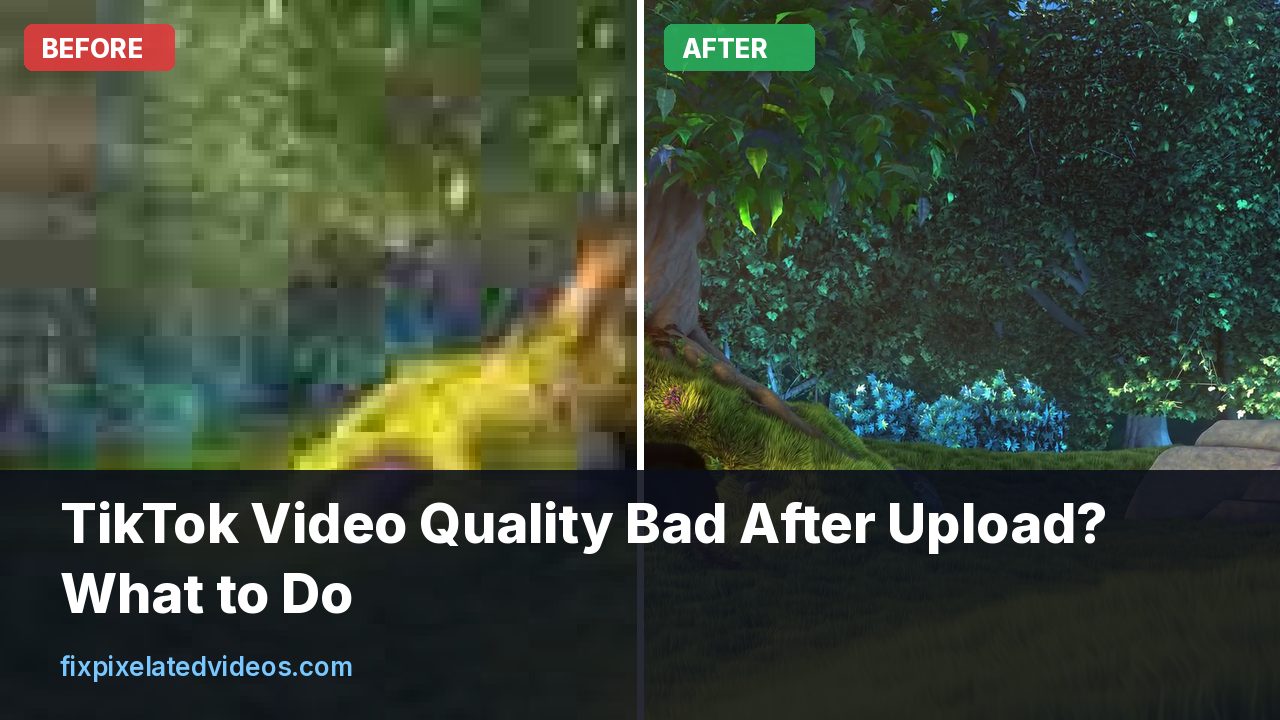
You edit a clip until it looks right, post it to TikTok, and the version on the app looks like a screenshot of itself. Skin is smooth in a way it was not before, text has a halo, and any detail with movement turns to mush.
TikTok is not special in this. Every large platform compresses uploads. What differs is how much, and how much you can influence the outcome. Here is what is known, what is a reasonable inference, and what I would do.
The setting to check first
TikTok has an option on the posting screen that allows higher quality uploads. TikTok announced “Upload HD” support in a 2021 newsroom post, and creators still point to it under “More options” on the post screen. App versions and regions differ, so the exact name and position may have changed. Look for something that mentions high quality or HD uploads, and turn it on.
Without it, the app may send a reduced copy, particularly on mobile data, and then TikTok’s servers compress that again. It costs you ten seconds to check.
What TikTok accepts, and what that tells you
TikTok’s developer documentation, which describes what its posting API will take, lists MP4 as the recommended container, with H.264 recommended and H.265 and VP8 accepted. Frame rates run from 23 to 60 fps, picture sizes from 360 to 4096 pixels on a side, and files up to 4 GB. Those are limits for what gets accepted, not recommendations for best quality. TikTok publishes no recommended bitrate for regular posts.
Because of that gap, most advice about bitrate comes from creators and guides. Several of them land on the same range: 1080 by 1920, 9:16, about 8 to 12 Mbps at 30 fps, and about 12 to 16 Mbps at 60 fps. I treat these as experienced guesses rather than rules from TikTok, but they are consistent with how I would reason about it, and I tested the underlying relationship between bitrate and quality on my own clips. At 4 Mbps, a 1080p clip I tested was at 38.7 dB PSNR and at 8 Mbps it was at 42.7 dB, a large visible gap, while the next doubling to 16 Mbps brought it to 45.7 dB, a smaller one.
The reason to go to 10 Mbps and not 100 is that TikTok will re-encode anyway. As one of the guides puts it, uploading a 50 Mbps file just means a longer upload. A clean 10 Mbps file gives the platform good raw material and nothing more.
Why 4K does not help here
You may be tempted to upload 4K. TikTok accepts it, but guides report that it re-encodes everything, and viewers get versions sized for their device and connection. So a 4K upload is a bigger file without being a sharper video for viewers. Where 4K does help is as a source: when you film in 4K and crop to vertical, you keep more real pixels. A 4K frame cropped to 9:16 is about 1215 pixels wide, which then shrinks to 1080 with no enlargement, while a 1080p frame cropped the same way is only about 607 pixels wide and has to be stretched up. If you film horizontally and reframe to vertical, shoot in 4K for that reason.
Match the format
Make the video the size TikTok will display, so that no one has to scale it for you.
- Resolution: 1080 by 1920, vertical.
- Container and codec: MP4 with H.264, and AAC audio.
- Frame rate: 30 fps for most content, 60 fps for fast gameplay or sports.
- Color: standard SDR, Rec. 709. HDR uploads may be converted in ways that dull the colors.
If your editor offers a TikTok preset, check what it exports. Some presets pick small files over good quality. Look at the bitrate, and if it is under about 5 Mbps for 1080 by 1920, raise it.
Avoid stacking compression
Quality drops each time a video is re-encoded. I measured this by encoding one clip five times in a row at a typical CRF 23 setting. The PSNR against the original went from 41.57 dB after the first pass to 39.88, 38.84, 38.09 and then 37.50 dB. The file got smaller each time, which tells you detail was being thrown away.
On TikTok, the chain can be long. A video downloaded from a platform, sent through a chat app, edited in an app that exports at a low bitrate and then uploaded has been through at least three rounds before TikTok starts its own. Shorten it:
- Edit from original files.
- Export once at a good setting.
- Upload that export directly to TikTok, not a copy that was shared through another app.
- Avoid screen recording another app’s playback.
If you use TikTok’s own editor on top of your edited video, check whether it adds another pass. Filters, effects and text overlays added inside TikTok are rendered with TikTok’s settings, and many creators prefer to do the final look in their own editor.
Make the video easy to compress
An encoder with a fixed budget treats different content differently. Smooth, calm, well lit footage survives. Noisy, busy and fast footage does not. You can help by making the video easier to compress, without making it worse to look at.
Light. Film in good light, since noise from dark scenes becomes blocks. If you must film dark, reduce the noise before export. In my test, a stronger denoise reduced the encoded size by about 43 percent at the same CRF, which leaves more bits for what matters. See fixing grainy low-light video.
Camera movement. Smooth moves are cheap to encode. Random shake is expensive. In my own test, a steady pan of a clean source cost almost the same as a static shot at the same CRF (3,290 kB against 3,272 kB), so steady movement is not the enemy. The things that hurt are unpredictable detail: confetti, foliage in wind, rain, heavy grain.
Effects. Glitch, grain and shake effects add the kind of random change that the encoder struggles with. Use them in short bursts. The principle is explained in why snow, confetti and grass ruin video quality.
Text. Keep it large, with a shadow or a solid box behind it. Thin, small text smears.
Shoot and frame with the app in mind
TikTok’s interface covers parts of the frame with the caption, buttons and profile information. Keep faces and key text in the middle, away from the bottom and right edges. When a viewer sees text hidden behind the interface, they notice and may judge the video as sloppy. It is not a quality setting, but it affects the impression of quality.
Also think about the first frame. The thumbnail and the first seconds are shown while the video is still loading, and during that time, the platform may show a lower quality version before the full one arrives. A strong, clean opening frame helps.
Test before you commit
If a video matters, post it privately first. TikTok lets you set the visibility to private, so you can see how it looks on your own phone after processing. Watch it at full brightness, compare with the original, and look at the part of the video that is hardest to compress. If it is bad, change one thing, such as the bitrate or a noisy effect, and test again. You will see what works for your style of content in a few tries.
What the viewer sees is not always what you posted
When a video looks bad on someone else’s phone, the cause may be on their side. Platforms deliver different versions depending on the device, the connection and the data saver settings. A viewer on a weak mobile connection may get a lower quality stream, and the app may switch while the video plays. A phone with a battery saving mode may limit playback quality as well.
This matters for how you judge your own posts. Check them on your own phone, on Wi-Fi, with the app’s data saving options off, and ask a friend to look at them on their phone. If your version looks fine and theirs looks soft, you cannot do much beyond making the file as easy to compress as possible.
Reposting the same video on several platforms
Many creators post the same video on TikTok, Instagram and YouTube Shorts. The cleanest approach is to export one master at 1080 by 1920 and about 12 to 15 Mbps, and upload that same file to each platform from your device. The worst approach is to download the TikTok version and upload it to the others, because that file has already been compressed by TikTok, and the next platform compresses it again. A downloaded TikTok video may also carry a watermark, which looks sloppy elsewhere.
Keep the master file. If you post it to several places, the master gives each platform a fresh start. If you do not have the master any more, ask yourself whether the video is worth re-exporting from the project.
If you want to see how much a second platform pass costs, my five-generation test shows the pattern: about 1.7 dB lost on the second pass alone, at a typical setting. Platforms tend to use their own, usually more aggressive settings, so their losses may be bigger.
Special cases that behave differently
Slideshows and photo posts. Photos are not compressed like video, and a photo slideshow may look sharper than a video made from the same images. If your content is images with captions, a photo post may be the better format.
Screen recordings. Text and thin lines suffer under compression. Record at a high resolution, avoid scaling by odd amounts, and zoom in on what matters. If your recording has a lot of small text, crop to the interesting part rather than showing the whole screen at once.
Green screen and cutouts. The edges of a cutout are fine detail. Compression makes them shimmer. Use a clean, evenly lit background, and avoid very thin hair edges if you can.
Duets and stitches. These combine clips, sometimes of different quality. The final video is only as good as the weakest part.
Text-heavy videos. The first thing to go in compression is thin text. A bold font, a larger size and a contrasting background make a difference you can see.
Dark, moody videos. Dark scenes are the hardest for gradients, and banding appears in smooth dark areas. Adding a very small amount of grain before export can break up banding, though it also raises the bitrate cost. Test both ways.
Frame rate surprises
Phones record variable frame rate video, which means the frame rate changes with the scene, to save power. Some editors handle it badly and produce stutter or uneven motion, which makes a video feel low quality even when the picture is sharp. If you notice stutter in an exported video, convert the original to a constant frame rate before editing:
ffmpeg -i phone_clip.mov -r 30 -c:v libx264 -crf 14 -preset slow \
  -c:a copy phone_clip_30fps.mp4
The CRF 14 setting keeps the copy very close to the original. It costs space, but it gives the editor a stable timeline.
Do not export at a frame rate above the source. A 30 fps clip exported at 60 fps has duplicated frames, not extra smoothness, and it spends bitrate on nothing.
Audio is half of the impression
A video with clean, loud enough, well balanced sound feels higher quality, even when the picture is imperfect. Viewers forgive soft picture more easily than bad sound. Export AAC audio at 48 kHz and a high bitrate, check that speech sits above the music and avoid clipping. If you record in a noisy place, use a lavalier or a phone close to the speaker. A clean voice recording makes a larger difference than a clean pixel.
What changes over time
Platforms change their encoding settings, their apps and their menus without warning. A trick that worked last year may do nothing this year, and a setting that moved may be missed. Treat any advice, including mine, as a starting point and test on your own account. Keep a small notebook of what you tried and what you saw. A repeatable test, such as posting the same ten second clip privately with two settings and comparing, turns guesses into knowledge.
One caution on third-party advice. Many articles about “the best TikTok settings” repeat each other, and some of their numbers are unverified. Where I quote a range here, I say it comes from creator guides. Treat the specific numbers as reasonable defaults and check them against your own results.
A checklist for your next post
- Original footage, shot in good light, 4K if you plan to crop.
- Edit in one app, with restrained effects, large text.
- Export 1080 by 1920, 30 or 60 fps, MP4 H.264, about 10 to 12 Mbps, AAC audio.
- Transfer the file directly to your phone, without a chat app.
- Turn on the HD or high quality upload setting in TikTok.
- Post privately first and review on the phone.
- Publish, and keep the master file.
If your source is poor
If the footage is low resolution, blocky or noisy to begin with, the platform will not rescue it. You can clean it before the upload: reduce blocks and noise, scale it to 1080 by 1920 with a good filter and sharpen mildly. That gives TikTok’s encoder a cleaner, correctly sized file, and avoids platform-side enlargement, which is soft. The free preview on this site shows what a cleanup does to a short clip, and you can compare the preview with your original. It is not a miracle for badly damaged footage, and I would not expect it to restore detail that is not there.
If a clip is a keeper, spend the extra few minutes on a proper export and a private test post. It is a small cost compared with having a good video look poor in front of an audience.
A command line recipe for TikTok
For readers who like FFmpeg, this prepares a clip with sensible settings. It scales and crops a horizontal clip to fill a vertical frame, which is only right if the subject is centered:
ffmpeg -i input.mp4 \
  -vf "crop=ih*9/16:ih,scale=1080:1920:flags=lanczos" \
  -c:v libx264 -preset slow -crf 17 -maxrate 14M -bufsize 28M \
  -r 30 -pix_fmt yuv420p -c:a aac -b:a 256k -movflags +faststart \
  tiktok.mp4
CRF 17 with a 14 Mbps ceiling gives high quality while staying within the range creators recommend. If the file is bigger than you want, raise CRF to 19 or 20.
Summary
TikTok compresses everything, so you cannot avoid it, but you can control what you feed it. Turn on the HD upload option, export at 1080 by 1920 with a bitrate of about 10 Mbps, avoid passing the file through other apps, reduce noise, keep text large and test with a private post first. For a weak source, clean it before you upload so the platform starts from the best possible file.
Got a pixelated video right now?
Upload it and see a free before and after preview in about a minute.
Fix my videoFrequently asked questions
Why is my TikTok video blurry after I upload it?
TikTok re-encodes every upload. A low resolution or low bitrate file, the upload quality setting being off, or an extra round of compression from another app can all make the posted video look soft.
Where is the Upload HD setting in TikTok?
On the posting screen, under More options, look for an option to upload in high quality. TikTok has used the label Upload HD, and the exact wording and location can vary by app version and country.
What export settings are best for TikTok?
1080 by 1920, 9:16, MP4 with H.264 and AAC audio. Guides from creators suggest about 8 to 12 Mbps at 30 fps or 12 to 16 Mbps at 60 fps.
Does uploading 4K help on TikTok?
Not for viewers. TikTok re-encodes uploads, so a 4K file is bigger without being sharper. 4K is useful as source footage for cropping.
Why does text look fuzzy on TikTok?
Thin text and fine lines suffer most from compression. Use bigger fonts with a shadow or a solid shape behind them.
Keep reading
Why Instagram Stories and Reels Look Blurry (Fixes)
Instagram compresses every upload. These export settings, the media quality toggle and a few filming habits keep Stories and Reels sharper.
How to Make Video Quality Better in CapCut
CapCut export looks soft or blocky? Practical settings for resolution, frame rate, bitrate and effects, plus the habits that protect quality.
What Bitrate Do You Need for 1080p Video?
I encoded the same 1080p clip at six bitrates and measured the damage. Here is what each one costs you, and the number I would actually use.
Why Snow, Confetti and Grass Ruin Video Quality
Random detail is the hardest thing for a video encoder. A measured demo of how noise multiplies bitrate, and what to do about busy scenes.