H.264 vs H.265: I Measured the Quality Difference
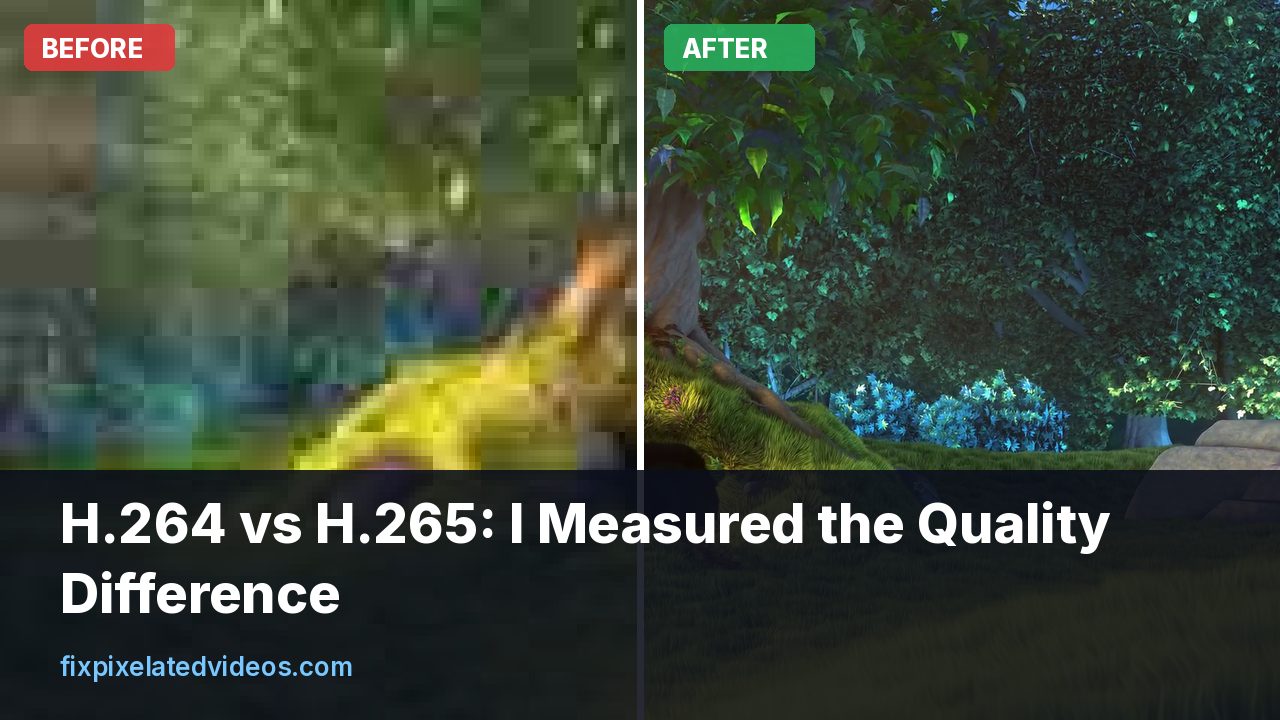
Ask which codec to use and you will get a confident answer. “H.265 is twice as efficient.” “H.264 is fine, nobody needs HEVC.” “Use AV1.” Most of the people saying these things have not measured anything on their own footage.
I did not want to repeat a slogan, so I encoded the same 5 second 1080p clip with x264 and x265 at three CRF values and compared size, quality and time. The result is less dramatic than the marketing, and more useful.
What the two codecs are
H.264, also called AVC, has been the default video codec for about two decades. Nearly every device made since 2010 can play it, and nearly every editor can export it. Its best-known free encoder is x264.
H.265, also called HEVC, was designed as its successor and promises the same quality at about half the bitrate. It uses larger coding blocks and more prediction modes. The free encoder is x265. It is used in 4K Blu-ray, streaming services, and the default recording format of recent phones.
The promise of “half the bitrate” comes from tests at low bitrates, where the newer codec has the most room to improve. At high quality, the gap narrows.
The test setup
The clip is a 5 second, 1080p piece of an open-source animated film with fur, foliage and fast camera moves. I used the medium preset for both encoders and tried CRF 20, 24 and 28. For each result I measured the average PSNR and SSIM against the source, and the wall-clock encoding time. All encoding ran on the same eight-thread machine, which was also doing other work, so the times are only indicative.
The results
| Setting | File size | PSNR | SSIM | Time |
|---|---|---|---|---|
| x264 CRF 20 | 5.5 MB | 43.5 dB | 0.9866 | 6.4 s |
| x265 CRF 20 | 5.6 MB | 42.8 dB | 0.9846 | 7.3 s |
| x264 CRF 24 | 3.4 MB | 40.8 dB | 0.9771 | 5.8 s |
| x265 CRF 24 | 3.1 MB | 40.7 dB | 0.9755 | 5.9 s |
| x264 CRF 28 | 2.1 MB | 37.7 dB | 0.9555 | 5.1 s |
| x265 CRF 28 | 1.6 MB | 38.2 dB | 0.9579 | 5.3 s |
Reading it carefully:
At CRF 20 there was no benefit. x265 produced a slightly larger file with slightly lower scores. At that quality level, the two encoders do about the same job, and x264 even looks a little better by the numbers.
At CRF 24, x265 saved about 9 percent in file size with a small drop in score (0.002 in SSIM). That is roughly a tie, with a modest size advantage for HEVC.
At CRF 28, x265 saved about 22 percent and scored higher. This is where the codec earns its keep. When you push the bitrate down, HEVC holds up better.
So the saving is real, but it is not 50 percent at normal quality settings. It grows as the bitrate shrinks. If you are making high-quality masters or uploads, the practical difference is small. If you are squeezing a big archive of videos to save disk space, the gain is real.
I should explain the caveats. This is one 5 second clip of animation, which is easier to compress than live action with sensor noise. PSNR and SSIM are not the same as human perception, and I did not run a subjective test. And the x265 results depend on the preset: slower presets close more of the gap. Take the pattern more seriously than the exact percentages.
Encoding time
Software x265 at the medium preset used to be many times slower than x264. On this eight-thread machine it was within about 15 percent, because x265 spreads work across many cores well. On a machine with fewer cores, or at slower presets, the gap grows significantly. If you have a weak laptop, test a short clip before you commit to a two-hour movie.
Hardware encoders are a separate story. Your graphics card or phone chip can encode H.264 and H.265 much faster than software, but at lower efficiency. A hardware HEVC encode at a given bitrate often looks about like a software x264 encode at the same bitrate, which wipes out the codec’s advantage. If you use hardware encoding for speed, use higher bitrates than you would with software.
Compatibility is the real issue
Quality is not the only question. Whether a file plays matters more.
H.264 plays on everything. Old TVs, browsers, phones, web editors, social platforms, car stereos.
H.265 plays on most modern things. Recent iPhones and Androids, recent smart TVs, and Windows and Mac computers with the right extensions. Browser support is inconsistent: Safari supports it, Chrome and Edge support it when the hardware decoder is present, and Firefox has historically lagged. If you embed video on a website, H.264 is the safe choice.
Social platforms re-encode anyway. When you upload to YouTube, Instagram or TikTok, they decode your file and encode their own versions. The codec you upload matters less than the quality and bitrate. A clean, generous H.264 upload is as good a starting point as an H.265 one.
Editing is smoother in H.264. H.265 is more demanding to decode, which makes timelines laggy on weaker computers.
10-bit, HDR and why HEVC is hard to avoid there
There is one situation where H.265 is not optional. If you shoot or deliver HDR, or want 10-bit color, HEVC is the practical route. Recent iPhones record HDR video in HEVC with a 10-bit pipeline. Most HDR television formats expect HEVC or AV1. H.264 can carry 10-bit video, but almost no consumer device decodes it, so it is a trap for anyone who is not a specialist.
The benefit of 10-bit even for ordinary SDR video is smoother gradients. The classic failure of 8-bit encoding is banding in skies and dark backgrounds: visible stripes where there should be a smooth fade. Because a 10-bit file has four times as many levels per channel, the encoder can describe a gradient without steps. If your footage has a lot of blue sky or dark studio backdrops, a 10-bit HEVC encode at CRF 22 can look cleaner than an 8-bit H.264 at the same size. With x265, the option is -pix_fmt yuv420p10le, and the profile will be Main 10. Test it on your playback devices before you rely on it.
Hardware encoders in one paragraph
Graphics cards and phone chips include dedicated encoders. NVIDIA calls theirs NVENC, Intel’s is Quick Sync, AMD’s is VCE or VCN, and Apple’s is VideoToolbox. They are fast, often ten times faster than software at comparable settings, and they use almost no CPU. The price is efficiency: at the same bitrate, they usually look a little worse than a slow software encode, with most of the loss in dark areas and fine texture. Newer generations are close to software at medium presets. If you need speed, such as for a screen recording, a stream, or a quick edit export, use hardware and raise the bitrate by 20 to 30 percent. If you need the smallest file at the best quality, use software and be patient.
What the savings mean for a real archive
Percentages are abstract, so here is a concrete case. Suppose you have 500 GB of home videos in H.264 that you would like to shrink. At the 22 percent saving I measured at a low quality setting, converting everything to H.265 would free roughly 110 GB. At the 9 percent I measured at a medium setting, you would free about 45 GB. At high quality settings there might be no saving at all.
That is a real benefit if disk space is tight, but it comes with costs: hours of encoding, a small generation of quality loss because you are re-encoding already compressed video, and the risk that some device in the family cannot play the new files. For many people, buying a bigger drive is cheaper than the time spent re-encoding. If you do convert, test the whole chain: encode a few files, play them on every device you use, and keep the originals until you are sure.
Re-encoding an already compressed file always loses something. If you must do it, use a quality setting that is higher than you would use for a first encode, such as CRF 20 rather than 24, and make sure the first encode was not already starved.
Tagging and container details that trip people up
A few small details cause most of the “my H.265 file will not play” reports.
On Apple devices, an HEVC file in an MP4 or MOV needs the hvc1 tag to be recognized. FFmpeg writes hev1 by default, which some Apple software refuses. Add -tag:v hvc1 to the command, as in the examples above.
Some older Windows computers do not have the HEVC extension installed, and the Microsoft Store version used to cost a small fee. A file that plays on your phone may not play in the default Windows player on a different machine. VLC plays it without any extra install.
Web browsers differ. If you need a video to play in a web page, produce an H.264 version for compatibility, and optionally add an H.265 or AV1 version as an alternative source.
Finally, remember that audio is separate. Use AAC for compatibility, and keep the audio bitrate at 128 to 192 kbps for stereo. Do not spend time on the video codec and leave the audio at a low bitrate.
Licensing, briefly
H.264 and H.265 are covered by patent pools. For most people this is invisible. If you make software or run a streaming service, it can matter, which is part of why royalty-free AV1 exists. If you are a person converting your own files with a free tool, you do not have to think about it.
When to choose each
Choose H.264 when:
- You are sharing a file with other people and cannot control their device.
- You are uploading to a platform that will re-encode.
- You are embedding video on a website.
- You are editing, and want fast playback.
- You want predictable results with minimal fuss.
Choose H.265 when:
- You are archiving a large library and need to save disk space.
- You are delivering 4K, where the bitrate saving is substantial.
- You know the playback devices support it, such as your own TV or a phone.
- You need a file to fit a tight size limit and care about quality at low bitrates.
For 4K at low bitrates, the advantage grows because the larger frame has more redundancy to exploit.
Does H.265 fix a pixelated video?
This question comes up a lot. The answer is no. If your video is blocky because it was compressed too hard, re-encoding it as H.265 does not remove the blocks. They are part of the picture now. A re-encode at a higher bitrate will faithfully reproduce them. A re-encode at a lower bitrate will add new damage.
What helps with blocky video is a cleanup: deblocking, denoising and a good upscale, then a re-encode at a good quality in whichever codec you prefer. I wrote about the sequence in how to make a low quality video HD.
Commands for a fair comparison on your own footage
Here are the settings I used, so you can reproduce the test:
ffmpeg -i source.mp4 -c:v libx264 -preset medium -crf 24 h264.mp4
ffmpeg -i source.mp4 -c:v libx265 -preset medium -crf 24 -tag:v hvc1 h265.mp4
And a quick scoring command:
ffmpeg -i h265.mp4 -i source.mp4 -lavfi "[0:v][1:v]ssim;[0:v][1:v]psnr" -f null -Use a segment of your own footage, preferably the hardest ten seconds. Then compare the files at the same size on screen. If you cannot tell them apart, choose the smaller or the more compatible one.
A fair way to decide for yourself
If you are still unsure, run a ten minute experiment. Pick three clips that represent your usual work: something easy such as a talking head, something average such as a walk through a street, and something hard such as water or crowds. Encode each with x264 at CRF 20 and with x265 at CRF 24, both at the slow preset. Write down the file sizes and the time it took. Then watch the pairs at full screen on the device where you normally watch.
Three outcomes are common. If the x265 files are clearly smaller and look the same, and you know they will play where you need them, switch. If the sizes are close, stay with x264 and enjoy the compatibility. If the x265 files look slightly softer in the hard clip, lower the x265 CRF by two points and run it again. That last result teaches you the most, because it shows you the real conversion factor for your own footage rather than a rule of thumb from a forum.
Whichever you choose, write the settings down. Next year, when a new device or a new app arrives, you will want to know what you used and why, and you will not have to run the whole thing again.
What about AV1?
AV1 is newer still, royalty-free and efficient, and many recent devices have hardware decoders for it. YouTube and Netflix use it widely. Software encoders are slow, though recent ones like SVT-AV1 have closed much of the gap. For personal use, AV1 makes sense if you know your viewers can play it and you do not mind waiting. I have not tested it on this clip, so I will not quote numbers for it.
Settings I would use
For most people, my advice is plain:
- Use H.264, CRF 18 to 20, preset slow for anything you keep or upload.
- Use H.265, CRF 24 to 26, preset medium for archives where space matters and you know playback is fine.
- Add
-pix_fmt yuv420pand-movflags +faststartfor web files. - Test a short clip first.
The CRF article has the size and quality numbers for the full range, and the YouTube export guide covers platform settings.
Summary
In my test, H.265 saved little at high quality, about nine percent at CRF 24 and 22 percent at CRF 28. Its advantage lies at low bitrates and high resolutions, and its cost is compatibility and heavier playback. For most uploads and shared files, a well-set H.264 is the practical choice. For archives and 4K at a tight budget, H.265 is worth it. And neither will repair a video that is already damaged.
One last practical note. If you have already encoded a library in H.264 and everything plays fine, there is no emergency. Codec advice tends to arrive with a sense of urgency that is not justified for personal video. Choose the format that plays on your devices today, keep your originals, and revisit the question the next time you buy a drive or a TV.
Got a pixelated video right now?
Upload it and see a free before and after preview in about a minute.
Fix my videoFrequently asked questions
Is H.265 better quality than H.264?
At the same file size, H.265 usually looks cleaner, but the gain depends on the content, the encoder and the settings. In my test it saved about 9 percent at CRF 24 and 22 percent at CRF 28, with no gain at CRF 20.
Does H.265 fix pixelated video?
No. Re-encoding a blocky video as H.265 does not remove the blocks. It only helps if you are encoding from a clean source at a low bitrate.
Why is the same CRF different between x264 and x265?
The two encoders map the CRF number to quality differently. A rough rule is that x265 CRF 28 aims for something like x264 CRF 23.
Will H.265 play everywhere?
Most phones, TVs and recent computers play it, but support in browsers and older devices is patchy, and some platforms re-encode it anyway. H.264 plays on nearly everything.
Should I upload H.265 to YouTube?
YouTube accepts it, and the platform will re-encode regardless. A high bitrate H.264 or an H.265 at a generous bitrate both work.
Keep reading
CRF Explained: Compress Video Without Losing Quality
What CRF means in x264 and x265, which value to pick, and measured file size and quality for CRF 18 to 33 on a real 1080p clip.
What Bitrate Do You Need for 1080p Video?
I encoded the same 1080p clip at six bitrates and measured the damage. Here is what each one costs you, and the number I would actually use.
Best Export Settings for YouTube Without Blockiness
Export settings that survive YouTube's re-encode: resolution, bitrate, codec, frame rate and the mistakes that cause blocky uploads.
HandBrake Output Pixelated? Settings That Fix It
HandBrake video looks blocky or blurry after conversion? Check quality mode, preset, filters and framerate settings with real CRF numbers.