HandBrake Output Pixelated? Settings That Fix It
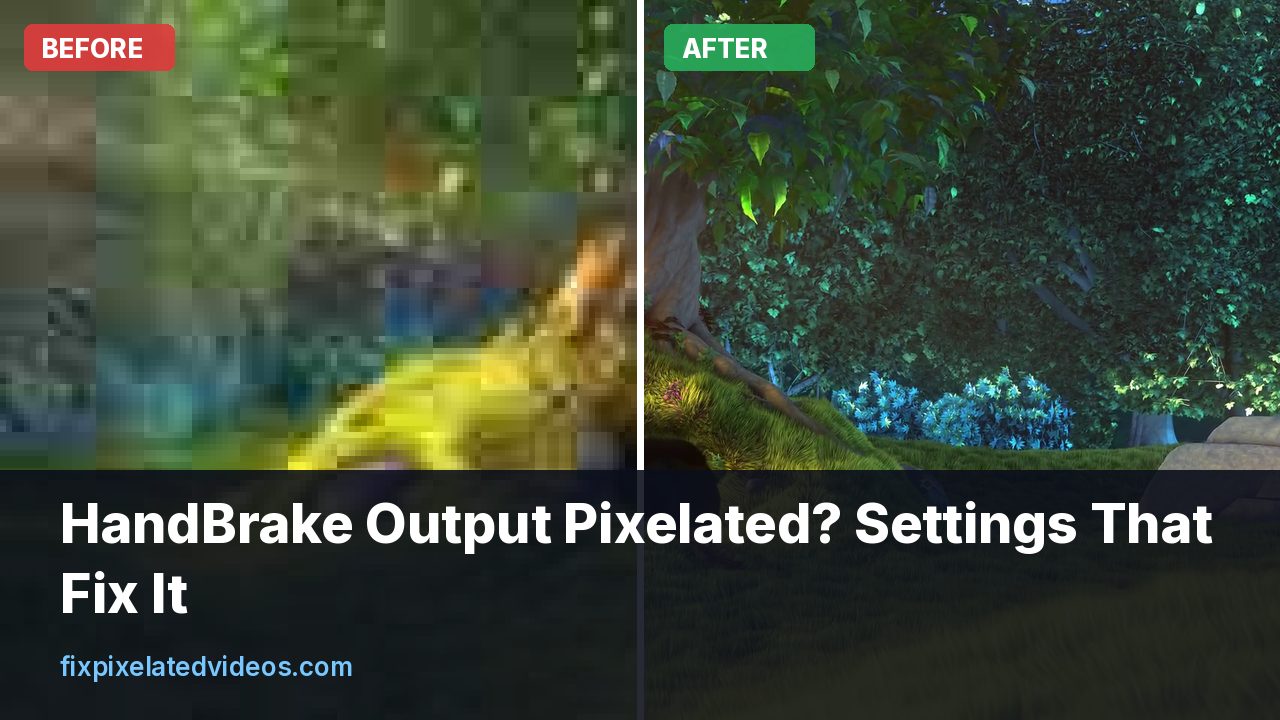
HandBrake is free, trusted and capable of excellent results, which makes it frustrating when a conversion comes out blocky. The tool is rarely at fault. The default settings are a reasonable compromise, and the places where people get pixelated output are a short, predictable list.
I ran a set of encodes on a 1080p test clip with x264, the encoder behind HandBrake’s H.264 option, to give you real numbers instead of folklore. The quality slider in HandBrake, RF, corresponds to the CRF value in x264, and I used FFmpeg for the test so I could measure exactly. The pattern carries over directly.
The first suspect: the quality slider
HandBrake’s default video encoding mode is constant quality. You drag the RF slider, where lower numbers mean higher quality and bigger files. If your output is blocky, the first thing to check is that the number is not too high.
Here is what I measured on a 10 second 1080p clip, encoded with x264 at the medium preset:
| RF (CRF) | File size | PSNR | SSIM |
|---|---|---|---|
| 18 | 7,177 kB | 44.82 dB | 0.9894 |
| 21 | 4,841 kB | 42.92 dB | 0.9848 |
| 24 | 3,391 kB | 40.85 dB | 0.9771 |
| 27 | 2,366 kB | 38.50 dB | 0.9622 |
| 30 | 1,613 kB | 36.22 dB | 0.9388 |
| 33 | 1,107 kB | 34.19 dB | 0.9060 |
Going from 18 to 33 shrank the file about 6.5 times, and the picture quality fell by more than 10 dB. The numbers on their own are abstract, so I also looked at the frames. At 18 and 21, I could not tell the encode from the source without a magnifier. At 27, flat areas began to show a faint grain and edges got soft. At 33, gradients turned into steps and small details such as foliage became smudges.
So the practical rule: if your output looks blocky and RF is above 24, lower it. For a high quality 1080p conversion, I would start at RF 20 and move from there. For archival work, 18. If you are shrinking a file for a messaging app, 24 to 26 is a compromise, and 30 is a visible loss.
An important caveat: these values depend on the content. A calm talking head at RF 28 can look fine, while a noisy night scene at RF 20 may still show artifacts. The number is not a fixed quality, it is a target relative to the encoder’s idea of difficulty.
The second suspect: average bitrate mode
If you chose “Avg Bitrate” rather than constant quality, the encoder tries to hit a file size. With a single pass, it has to guess how hard the video will be, and it often starves the hard scenes while wasting bits on easy ones. The result is a video that looks fine in quiet parts and falls apart in action.
If you really need a target size, use the 2-pass option. HandBrake then analyzes the video first and distributes the bits better. But the safer approach is to use constant quality and check the size. If it is too large, raise RF by 2 and run again, since each increase of about 3 in RF reduces the file by roughly a third.
Also check the number. A 1080p video at an average of 1,500 kbps is going to look bad regardless of any other setting. My bitrate ladder on a 10 second 1080p clip showed 0.5 Mbps as a paint-like smear, and 2 Mbps as noticeably soft. The reasoning on bitrate is in what bitrate you need for 1080p.
The third suspect: the encoder preset
The slider labeled Preset (ultrafast to veryslow) controls how hard the encoder works. At constant quality, a faster preset gives a bigger file for similar looks, or a worse looking file at the same size, depending on how you compare.
My timing test at CRF 23 showed this clearly:
| Preset | Size | PSNR | Time |
|---|---|---|---|
| ultrafast | 19,136 kB | 37.74 dB | 1.0 s |
| veryfast | 2,543 kB | 38.32 dB | 1.6 s |
| medium | 3,806 kB | 41.57 dB | 4.4 s |
| slow | 3,754 kB | 41.72 dB | 5.8 s |
| veryslow | 3,402 kB | 41.65 dB | 14.5 s |
Two lessons. First, very fast presets give visibly worse quality for a given RF: veryfast was more than 3 dB lower than medium in this test, and ultrafast spends enormous amounts of data for a poor result. Second, beyond medium, the gains are modest: slow and veryslow reached about the same quality as medium, but with a smaller file (about 1 percent smaller for slow, and 11 percent smaller for veryslow), and veryslow took more than three times as long.
My advice: use medium or slow. If you have been using a “Very Fast” preset to save time, change it first. That is a common cause of “HandBrake looks worse than my other converter.”
The fourth suspect: the built-in presets
HandBrake’s presets such as “Fast 1080p30” and “Very Fast 720p30” combine resolution, preset, RF and other options. They are fine for casual use, but “Very Fast” and 720p presets are built for speed. If your source is 1080p and you pick a 720p preset, the picture is reduced in size by design, and it will look softer on a big screen. That is not pixelation exactly, but people describe it as quality loss.
The fix is to start from a preset that matches your source (for example, “HQ 1080p30 Surround”), then check the dimensions tab to confirm the output resolution is what you want.
The fifth suspect: filters set too strong
HandBrake offers filters: deblock, denoise, sharpen, detelecine, deinterlace, grayscale, chroma smooth, and more. Used lightly, they help. Used heavily, they cause a plasticky or smeared look that people confuse with pixelation.
- Denoise (NLMeans or HQDN3D). A light setting cleans grain and helps compression. A strong one erases skin texture. In my noise test, a mild hqdn3d setting improved the PSNR of a noisy clip from 34.15 dB to 35.83 dB, a stronger one to 38.67 dB, and nlmeans to 38.80 dB, but nlmeans took about 146 seconds against about 4 or 5 seconds for hqdn3d on the same clip. On clean video, however, a strong denoise only smears.
- Sharpen. It can emphasize compression artifacts. Leave it off unless the source is soft, and use a low strength.
- Deblock. Helpful for sources that are already blocky, such as old downloads. On clean video, it softens details. I cover the trade-offs in noise reduction compared.
- Deinterlace and comb detect. If your source is interlaced (old TV, some camcorders), failing to deinterlace gives combing lines on motion. Turn on the comb detect and deinterlace filter for those. If the source is progressive, leave it off.
If your output looks worse than the source in a way that is hard to describe, turn all filters off, convert a short section, and compare. Add one filter at a time.
The sixth suspect: frame rate settings
HandBrake offers “Same as source” with a choice of constant or peak frame rate, and fixed numbers. If your source is variable frame rate, such as a phone recording or a screen capture, choosing constant 30 may duplicate or drop frames, causing stutter. Stutter is not pixelation, but together with compression it makes the video feel low quality. Use “Same as source” and choose constant for editing compatibility, or peak if you only need playback.
Do not set a higher frame rate than the source. It does not add detail. It only duplicates frames and costs bits.
The seventh suspect: upscaling and resolution
If your source is 480p and you ask for 1080p output, HandBrake will scale it only if you allow upscaling in the dimensions settings. Scaling cannot add detail, and the result looks soft. The scaling filter matters a little. In my scaling test from 480p back to 1080p, lanczos reached 33.58 dB PSNR against 31.53 dB for nearest neighbour and 33.38 for bicubic. The gap between good filters is small. The decision to enlarge is what makes the video soft, not the filter.
If you have a low-resolution video and want it on a large screen, upscaling in HandBrake is fine, but do it at the end with a high enough RF quality. If you want more than that, a dedicated cleanup tool can help, such as the free preview on this site, which runs deblock, denoise, a good scaler and sharpening in one pass.
The eighth suspect: the source itself
Often the HandBrake output looks bad because the source did. If the video was already compressed hard, say downloaded from a social site, HandBrake just recompresses it, and the damage carries over. Re-encoding a blocky video at high quality will not fix the blocks, though it will avoid adding more. Be honest with yourself about the source before blaming settings.
A quick check: play the source file and the output side by side at the same size, paused on the same frame. If the source is blocky too, the output cannot be better. If the source is clean and the output is blocky, a setting is at fault.
A solid starting configuration
For H.264 from a good 1080p source:
- Format: MP4, with web optimized if you will stream it.
- Video encoder: H.264 (x264).
- Framerate: same as source, constant.
- Quality: constant, RF 20.
- Preset: medium (slow if you have time).
- Profile: High, level auto.
- Filters: all off, unless the source needs them.
- Audio: AAC at 160 kbps or more, or passthrough.
From there, change one thing at a time. If the file is too big, raise RF by 2. If it still looks soft in dark areas, lower RF or try the slow preset.
H.265 in HandBrake
HandBrake also offers H.265 (x265). It can give smaller files at the same quality, but not always. In my x264 versus x265 test at medium, the two were close at CRF 20 (x265 was slightly larger), x265 was about 9 percent smaller at CRF 24 and about 22 percent smaller at 28, while its PSNR was slightly lower at the lower CRF values. Note that CRF values are not equivalent between the two encoders, so you need to compare by file size and eyes, not by the number. See H.264 versus H.265 tested for the table. Compatibility is the other issue: some older devices and browsers do not play HEVC.
Check for hardware encoders
HandBrake lists hardware options such as NVENC, QSV and VideoToolbox. They are much faster, and at the same bitrate they usually look a bit worse than x264 at a slow preset. For a quick conversion for a phone, fine. For a keeper, use the software encoder. If your pixelated output came from a hardware encoder at a low RF, switch to x264 and compare.
The same settings in FFmpeg, if you want to cross-check
HandBrake uses the same x264 library that FFmpeg does, so a command line run is a good way to find out whether a problem comes from HandBrake’s settings or from the source. This is roughly what the configuration above does:
ffmpeg -i input.mov -c:v libx264 -preset medium -crf 20 \
  -pix_fmt yuv420p -c:a aac -b:a 160k -movflags +faststart output.mp4
If this file looks fine and your HandBrake output does not, the difference is a filter, a preset choice, a hardware encoder or a dimension setting in HandBrake. If both look equally bad, the source is the cause. It takes a minute, and it removes a lot of guessing.
What banding and blockiness each tell you
Not all ugly output is the same, and the type of damage points to the cause.
Blocks of flat color in dark areas and skies. This is banding mixed with blocking. It is typical of a high RF, and of 8-bit encoding of smooth gradients. Lower RF, and if the source is 10-bit, consider a 10-bit output where the target device allows.
A mosaic of squares during fast motion. The encoder ran out of bits on a hard scene. This is typical of a low average bitrate, a very fast preset, or a bitrate cap. Raise the quality, or remove the bitrate limit.
Shimmering grain that looks worse than the source. Often a denoise filter fighting with noise, or no denoise on a noisy night scene encoded at a high RF.
Soft, waxy faces. Over-denoising. Reduce the denoise strength or turn it off.
Ghosting or double images in motion. A frame rate conversion or deinterlacing problem, not compression.
Green or pink blocks that flicker. Corruption in the source, not an encoder setting. Try the video in a player first, and see the article on fixing a corrupted video file.
Naming the symptom first, then looking up the cause, is faster than changing every slider.
Audio and container choices
Mention of audio in an article about pixelation sounds odd, but a few audio choices affect your testing. If you let HandBrake pass through an unusual audio format, your TV or phone may refuse to play the file, and you might blame the video. AAC in an MP4 plays almost everywhere. Use that unless you have a reason not to.
The container matters for subtitles and multiple audio tracks, where MKV is more flexible, but MP4 is more compatible. If a device shows strange blocks only in MKV playback, the device’s decoder is likely the culprit, and testing in a desktop player will confirm it.
A short troubleshooting order
- Check RF. Lower it to 20.
- Check the preset. Use medium.
- Turn off filters.
- Check dimensions and frame rate.
- Compare with the source.
- If the source is poor, clean it before encoding.
Most pixelated HandBrake output is solved within the first two steps.
How I would test a conversion before running the whole library
If you are converting a pile of files, do not set up a batch and walk away. Pick one clip that has everything you worry about: fast motion, dark areas, and a bit of text or fine detail. Cut thirty seconds of it with HandBrake’s range option, and encode that at your chosen settings. Look at it at full screen, on the screen where you will watch the result.
Then change a single value, such as RF from 20 to 22, and compare file size and look. If you cannot see a difference, take the cheaper setting. If you can, you have found the point where your content starts to suffer. That ten minute test saves you from reconverting hundreds of files later.
Summary
HandBrake is not the cause of pixelated video, but its settings can be. A high RF value, an average bitrate that is too low, a very fast preset, aggressive filters or a poor source explain nearly every case. Use constant quality at RF 18 to 22 for good 1080p, pick medium or slower, leave filters off until they are needed, and compare to the source. For video that is already damaged, try a cleanup first, then encode the cleaned file at a high quality setting.
Got a pixelated video right now?
Upload it and see a free before and after preview in about a minute.
Fix my videoFrequently asked questions
Why is my HandBrake output pixelated?
The usual causes are a constant quality value that is too high (RF 28 and up), a low average bitrate, a very fast encoder preset, or filters like deblock and denoise set too strong. Lower the RF value first.
What RF value should I use in HandBrake?
For H.264, RF 18 to 22 gives high quality for most 1080p video. In my own test of a 1080p clip, RF 18 to 24 stayed close to the source and RF 30 and above showed clear damage.
Is constant quality better than average bitrate in HandBrake?
For one-off conversions, usually yes. Constant quality spends bits where the picture needs them, while a single pass average bitrate can starve hard scenes.
Does a slower preset improve quality?
At the same RF, a slower preset mostly makes the file smaller rather than better looking. Going from medium to veryslow saved about 11 percent in my test, and took more than three times as long.
Can HandBrake fix a video that is already pixelated?
It can reduce some blockiness with its deblock and denoise filters, but it cannot restore detail that is gone. Start from the best source you have.
Keep reading
CRF Explained: Compress Video Without Losing Quality
What CRF means in x264 and x265, which value to pick, and measured file size and quality for CRF 18 to 33 on a real 1080p clip.
H.264 vs H.265: I Measured the Quality Difference
x264 and x265 at CRF 20, 24 and 28 on the same 1080p clip: file size, PSNR, SSIM and encode time, plus when HEVC is actually worth using.
What Bitrate Do You Need for 1080p Video?
I encoded the same 1080p clip at six bitrates and measured the damage. Here is what each one costs you, and the number I would actually use.
Video Noise Reduction: hqdn3d vs nlmeans, Measured
I added noise to a clean clip and denoised it with hqdn3d and nlmeans. Quality scores, file sizes and a 30x speed gap, with settings to copy.