Fix Grainy Low-Light Video in CapCut, Premiere, DaVinci
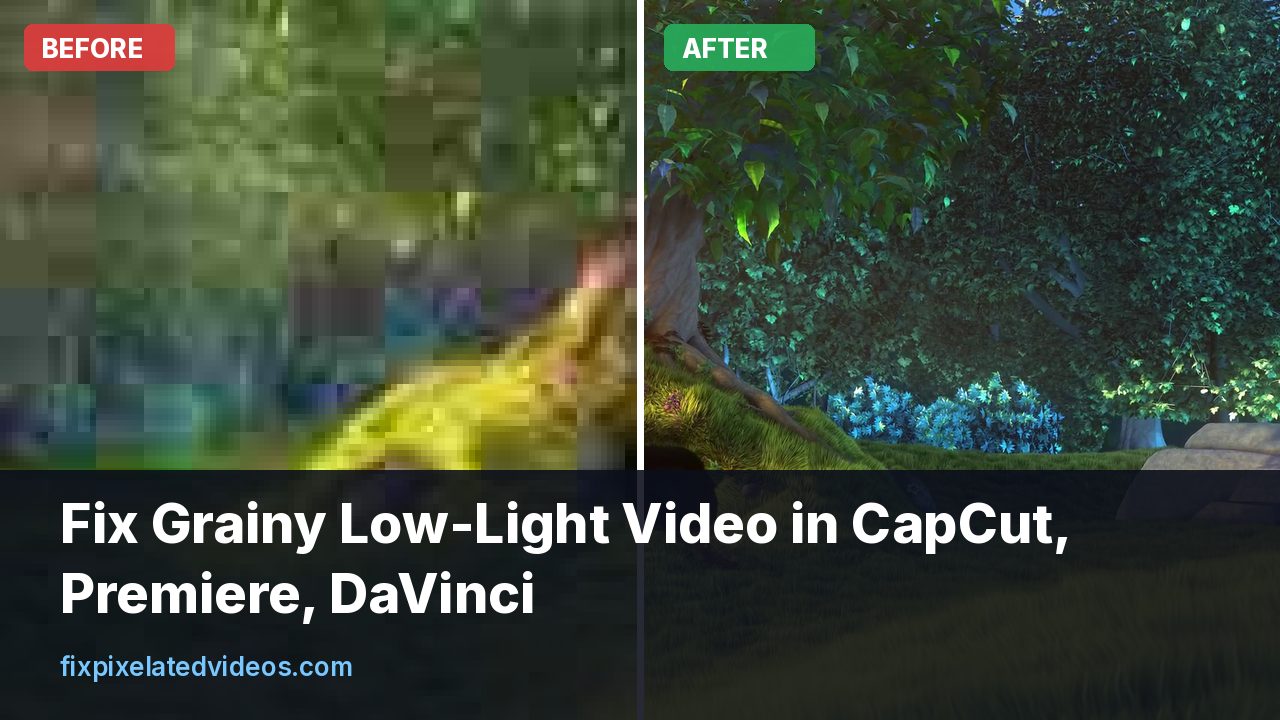
Night videos look like they were filmed through sand. The shadows swim, faces look blotchy, and when you upload them the platform turns the grain into blocks. People call this “pixelated”, but it is noise, and the fix is different from the fix for a low-resolution file.
Here is how to deal with it in the editors people actually use, and what I measured when I tested denoise filters on a controlled clip.
Noise is not the same as pixelation
Pixelation is large blocks of flat color, from compression or from scaling up a small image. Noise is a fine, random, sparkling pattern, from the camera sensor and the amplification used to see in the dark. In a night video you usually have both, because noise is hard to compress, so the encoder smears it into blotches and blocks.
That is why cleaning noise before export can improve the compressed result. Less random detail for the encoder to handle means more bits for the real picture.
What a denoise filter does
There are two basic approaches, and good tools combine them.
Spatial denoising looks within a single frame. It smooths areas that look like noise and tries to keep edges. It is fast, and a strong setting makes skin look like plastic.
Temporal denoising compares neighboring frames. Noise is different on every frame, while the real picture stays the same, so averaging across time removes noise without blurring detail on still areas. The downside is ghosting on moving subjects, if the setting is too aggressive or the motion tracking is poor.
I compared several filters in a test described in more detail in video noise reduction, spatial versus temporal. I added synthetic noise to a clean 1080p clip, giving a noisy version at 34.15 dB PSNR against the clean original, then filtered it:
| Filter | PSNR | SSIM | Size at CRF 23 | Time |
|---|---|---|---|---|
| None | 34.15 dB | n/a | 9,362 kB | n/a |
| hqdn3d, light (4:3:6:4.5) | 35.83 dB | 0.879 | 7,423 kB | about 5 s |
| hqdn3d, stronger (8:6:10:8) | 38.67 dB | 0.945 | 5,378 kB | about 4 s |
| nlmeans (s=3, p=5, r=11) | 38.80 dB | 0.956 | 5,191 kB | about 146 s |
The strong hqdn3d and nlmeans results were close in quality, but nlmeans took roughly 35 times longer. Both produced much smaller files at the same CRF, 43 and 45 percent smaller than the noisy original. That is the encoder-side benefit I mentioned. The noise in this test was synthetic and uniform. Real night footage has noise that varies with brightness and color, so you may need different settings, but the pattern holds.
CapCut
CapCut’s tools change with versions, so look for these things in the current app.
Denoise. Recent desktop and mobile versions offer a noise reduction or denoise option for video, under the video’s basic or enhance panels, and some AI enhance tools include it. Start with a low or medium strength and compare, since high settings make faces waxy.
Brightness first, carefully. Raising exposure in CapCut lifts the noise with it. Do the brightness change modestly, and consider lowering the shadows’ brightness back down.
Export. Choose the highest bitrate or quality option, and 1080p or higher. A noisy clip at a low bitrate comes out blocky no matter what you did earlier. There is more on this in making video quality better in CapCut.
Do not stack several “enhance” effects. Each one acts on the same noise, and combined they can make a harsh, over-processed picture.
Premiere Pro
Premiere Pro does not have a single dedicated, strong denoiser in the way a specialist plugin does, and available tools change by version, so check your build. What people typically do:
- Use a noise reduction plugin, such as a third-party temporal denoiser. These give by far the best results in Premiere.
- Use Dynamic Link to open the clip in After Effects, where grain removal and other effects are available, then send it back.
- Use the Median effect with a small radius, applied lightly. It is crude, and it softens detail.
- Reduce the camera’s noise at the source by lowering shadows and blacks gently in Lumetri Color rather than lifting them.
If you do not want plugins, process the clip in FFmpeg (see below), then bring the cleaned file into Premiere.
Sequence settings matter too. If your footage is 4K and your sequence is 1080p, downscaling averages pixels and reduces visible noise a little, a free and useful effect.
DaVinci Resolve
Resolve has the strongest built-in noise reduction of the three, on the Color page, with spatial and temporal controls. Some of its most powerful modes are in the Studio version, so check what your version offers.
A reasonable approach:
- Go to the Color page and open the Motion Effects panel.
- Set Temporal NR to a low or medium level, with a small number of frames (two is enough to start).
- Add Spatial NR at a lower strength for the blotchy chroma noise.
- Compare with the effect on and off at 100 percent zoom, on a paused frame and on a moving one.
- Put the noise reduction on the first node, before any color correction.
Chroma noise, the colored speckles in dark areas, is often more annoying than luma noise, and can be stronger in the denoiser without damaging detail. Look for separate luma and chroma sliders.
Noise reduction is slow on long timelines. Render the section you work on, or use render cache, and remember to turn the cache and proxy options off for your final render, as in Resolve’s proxies and viewer settings.
FFmpeg, the free and scriptable route
For one clip, FFmpeg gives you good control and no cost. A reasonable first pass:
ffmpeg -i night.mp4 \
  -vf "hqdn3d=4:3:6:4.5,eq=gamma=1.15" \
  -c:v libx264 -preset slow -crf 18 -c:a copy night_clean.mp4
The four numbers of hqdn3d are luma spatial, chroma spatial, luma temporal and chroma temporal strengths. Raise them for noisier footage, lower them for cleaner footage. In my test, the stronger preset (8:6:10:8) removed far more noise than the light one, but on a clip with only moderate noise it would flatten skin, so start gentle.
If you can wait, nlmeans is slower and cleaner, and it needs patience: about 146 seconds for what hqdn3d did in 4 or 5 seconds on my test clip.
A brightened night shot gets noisier, so combine a denoise with a gentle brightness lift. A chain I checked for syntax and use as a starting point for dark clips is:
ffmpeg -i dark.mp4 \
  -vf "hqdn3d=3:2:5:3,eq=gamma=1.3:contrast=1.08,unsharp=5:5:0.6:5:5:0.0,scale=-2:1080:flags=lanczos" \
  -c:v libx264 -preset slow -crf 18 dark_fixed.mp4
The order matters: denoise first, then brighten, then a light sharpen on luma only, then scale. Adjust values by eye.
Does the order really matter? A small test
Everyone says to denoise before you brighten. I wanted to see how much it matters, so I made a controlled test. I darkened a clean 1080p clip (gamma 0.6), added noise to it, and then tried to recover the original brightness three ways, measuring each against the original clean clip:
| Method | PSNR vs clean original |
|---|---|
| Brighten only (gamma 1.67), no denoise | 36.66 dB |
| Denoise first (hqdn3d 4:3:6:4.5), then brighten | 39.75 dB |
| Brighten first, then denoise with the same filter | 38.59 dB |
Both denoise orders helped a lot over doing nothing, about 3 dB for denoise first. Denoising before brightening was about 1.2 dB better than doing it after. That is a modest but real gap, and it matches the reasoning: brightening stretches the noise along with the picture, so the filter then has to deal with bigger, more distinct noise values and its thresholds, tuned to a certain amount, work less well.
I want to be careful about how far to take it. This was synthetic noise on a clip that was artificially darkened, one filter and one setting. Real night noise has different structure, and the size of the gap will vary. But as a rule, it costs nothing to put noise reduction first, and in this test it gave the better result.
Shadows, blacks and the “lift” trap
Brightening a dark shot is where most of the damage happens. A few habits keep it under control.
Raise exposure or gamma, not just shadows. A big shadows slider lifts the darkest values until noise and compression blocks become obvious.
Keep real blacks. If you lift the whole image until the blacks turn gray, the video looks foggy, and the noise in the flat areas is on show. Leave a bit of true black.
Use a curve with a soft shoulder. A gentle curve brightens midtones without pulling the darkest pixels up too far.
Watch skin tones. Aggressive denoise and brightness together push faces toward orange or gray. Compare with a still from the original.
Chroma noise. Colored speckles in the shadows are worth reducing separately and more strongly than luma noise, since the eye is less sensitive to color detail.
Phone night modes and what they hide
Phone cameras do a lot before you ever see the video. In low light they combine frames, apply their own noise reduction and sharpening, and sometimes lower the frame rate or the exposure time. The result can look smooth in the viewfinder and smeared in the file. If you then add heavy noise reduction in the editor, you are denoising an already denoised video, and it can look like a watercolor painting.
If your phone has a night video mode, test it against the normal mode on the same scene. Sometimes the normal mode with a light denoise in the editor looks more natural. Also check whether the phone records at 30 fps or lower in the dark. Slow frame rates create blur in motion, which is not something noise reduction can repair.
If your phone supports a “pro” or manual video mode, you can fix the shutter speed and lower the ISO limit to control noise, accepting a darker image that you brighten later with a denoise, or accepting some blur on moving subjects. Which trade-off is right depends on the scene.
Judging noise reduction fairly
It is easy to judge on a thumbnail or at small size and be fooled. To compare a denoise setting properly:
- View at 100 percent zoom, not fit to window.
- Pause on a frame with a flat dark area and a frame with a face.
- Play a section with movement, to check for ghost trails.
- Toggle the effect on and off while the clip plays.
- Check the result after export, not only inside the editor, since compression will change what survives.
Ghost trails behind moving subjects are the signature of too much temporal denoising. If you see them, lower the temporal strength or reduce the number of frames averaged. Plastic skin is the signature of too much spatial denoising. Reduce that strength next. A good result keeps a little visible grain, which looks natural. A video with zero grain looks fake and loses detail.
Why shadows turn into blocks after upload
Even if your edit looks acceptable, platforms re-encode with their own settings, and dark noisy shadows are the first thing to break. The encoder sees noise, tries to preserve it, runs out of bits and replaces it with blocks. The cleanup before the upload is therefore not only about looks in your editor but about surviving the platform’s encoder. See YouTube video pixelated after upload for the platform side.
Batch processing a folder of night clips
If you have many clips, such as a night event filmed over several clips, it is worth settling on one setting and applying it to all of them, so that the look stays consistent. A short shell loop does it with FFmpeg:
for f in *.mp4; do
  ffmpeg -i "$f" -vf "hqdn3d=4:3:6:4.5,eq=gamma=1.15" \
    -c:v libx264 -preset slow -crf 18 -c:a copy "clean_$f"
done
Test on one or two clips first. Different clips will have different noise, so you may need two or three presets: one for lightly noisy, one for very noisy, and one for clean shots that need nothing. Keep the originals until you have checked every result.
A realistic expectation
Noise reduction is not a miracle. It cannot recover detail that the sensor never captured. What it does is to remove the random speckle, make the picture calmer, and let the encoder do a better job. A well-cleaned night clip looks smoother and more pleasant, but it will still look like a night clip. If someone tells you a tool will make a dark phone clip look like it was shot in daylight, be skeptical.
Dark footage you cannot reshoot
If the clip is precious, such as a night concert, a street scene or a family moment, try the following in order:
- Make a copy of the original, and keep it safe.
- Denoise lightly, then compare at 100 percent.
- Raise brightness a little, and add contrast gently. Do not lift shadows too far.
- Apply a light sharpen. Skip it if it brings the noise back.
- Scale up only if you need to.
- Export at a high quality, since your cleaned clip is easier to compress.
You can also upload a short sample to the free preview and see a before and after of a cleanup before you decide what to do with the full file.
Common mistakes with night footage
Denoising twice. Applying an app’s built-in enhance and then a separate denoise doubles the smoothing. Use one tool, and judge the result.
Exporting at a low bitrate to hide noise. A low bitrate does not hide noise, it turns it into blocks. Denoise, then export at a normal bitrate.
Sharpening before denoising. Sharpening raises the noise level, which makes the denoise filter work harder and less precisely.
Judging on a bright screen in a bright room. Night footage looks different in a dark room. Check on the device and in the conditions where it will be watched.
Shooting tips for next time
- Use the lowest ISO or gain that gives a usable picture, and add light where you can. Even a small lamp helps.
- Use a slower shutter only if the subject is still. A shutter speed of about twice the frame rate (for example 1/60 at 30 fps) is a good starting point.
- Use a wider aperture if your camera allows it.
- Avoid digital zoom, which crops into noise.
- Record at a higher bitrate if the camera offers it.
- Use night mode on a phone for still scenes, but know that it can smear detail and create odd textures.
Summary
Grainy low-light video is a noise problem. Denoise before color correction, balance spatial and temporal reduction, and avoid stacking several enhance effects. In my test, a stronger hqdn3d filter cut the file size at the same CRF by 43 percent and improved the quality measure by about 4.5 dB, while nlmeans did slightly better at a much higher time cost. Clean first, then brighten gently, sharpen lightly and export at a high bitrate. And for the next shoot, light matters more than any filter.
Got a pixelated video right now?
Upload it and see a free before and after preview in about a minute.
Fix my videoFrequently asked questions
Why is my low-light video so grainy?
In the dark the camera raises its sensitivity (ISO and gain), which also amplifies sensor noise. Phones add heavy processing on top, so night clips are noisy and smudged at the same time.
Can you remove grain from a video after filming?
You can reduce it a lot with temporal and spatial denoising, but a strong setting removes real detail, so aim for a balance.
Should I denoise before or after color grading?
Before. Lifting shadows and raising contrast amplify noise, so cleaning first gives the grade a smoother base.
Does noise make my exported video blocky?
Yes. Noise is random and expensive to compress. At a fixed bitrate, noisy footage looks blockier than clean footage, so denoising often improves the export as well.
Is there a free way to denoise video?
FFmpeg has free filters such as hqdn3d and nlmeans, and most editors include some noise reduction. A light pass is often enough.
Keep reading
Video Noise Reduction: hqdn3d vs nlmeans, Measured
I added noise to a clean clip and denoised it with hqdn3d and nlmeans. Quality scores, file sizes and a 30x speed gap, with settings to copy.
DaVinci Resolve Pixelated? Proxies and Viewer Fixes
Resolve footage pixelated in the viewer or the export? Check proxy mode, playback resolution, render settings and codec problems in order.
How to Enhance Dashcam Footage (What Is Realistic)
What you can and cannot recover from dashcam video: denoising, brightening night footage, cropping in, and why plates stay unreadable.
How to Make Video Quality Better in CapCut
CapCut export looks soft or blocky? Practical settings for resolution, frame rate, bitrate and effects, plus the habits that protect quality.