Why Screen Recordings Look Blurry (and How to Fix)
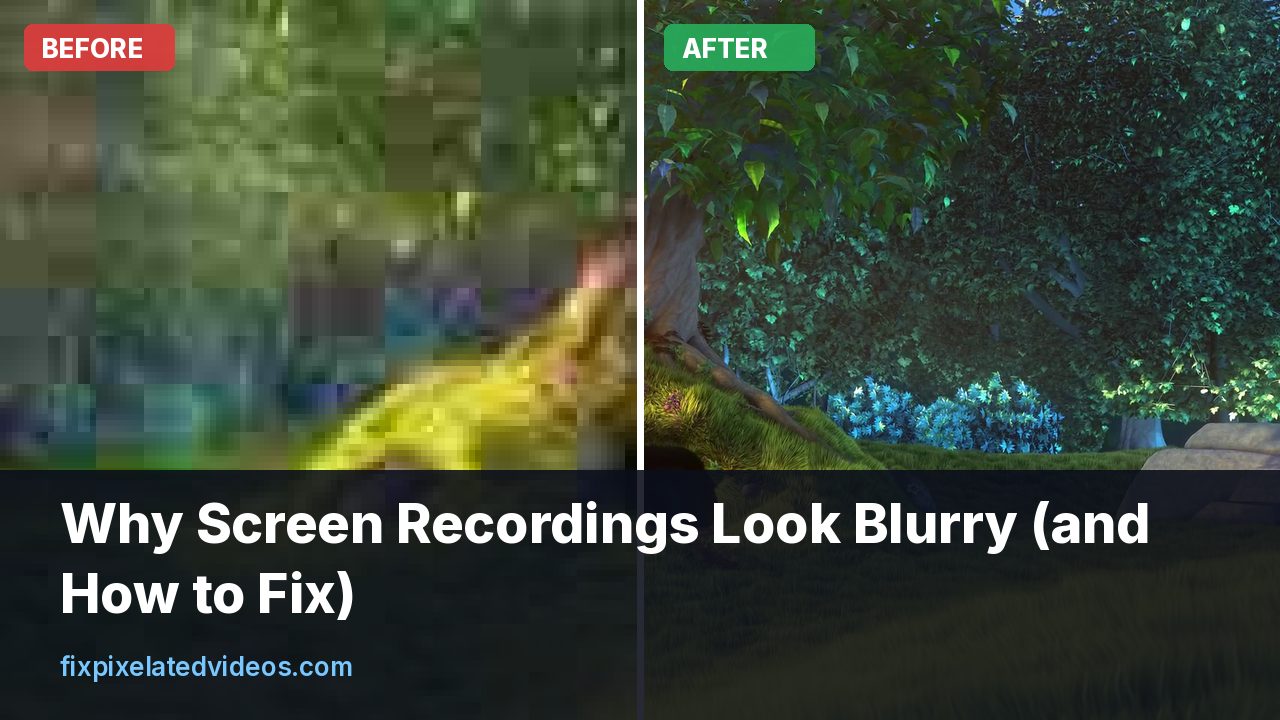
Text is the hardest thing to put in a video. A photo of a landscape forgives a lot, because the eye does not know what the leaves should look like. A line of code or a menu label is different: you know exactly what it should look like, and the slightest softness is obvious.
If your screen recordings come out fuzzy, you are not imagining it, and it is usually fixable. I found four causes that account for nearly every case, and I measured one of them, the least known, on a test image.
Cause one: the recording was scaled
The most common reason is simple. The screen was one size, and the video is another. A 2560 by 1440 screen recorded into a 1920 by 1080 video has to be scaled by a factor of 0.75. A 4K screen recorded into 1080p is halved, and a laptop with a scaled display may be rendering at a size that no video format matches.
Scaling blends neighboring pixels. For a photo that is fine. For one-pixel-wide text strokes, blending turns crisp black lines into gray smudges. The worse the scale factor, the worse the result. Whole-number ratios, such as exactly half, are cleaner than something like 0.75, because the blending is regular.
What to do:
- Record at the native resolution of the screen, and keep the video at that size.
- If you need a smaller video, set the screen itself to a smaller resolution before recording, for example 1920 by 1080, so that the text is rendered sharply at that size and no scaling happens afterward.
- If you must scale, use a good filter. Lanczos is sharper than bilinear. In my scaling test, lanczos scored about 0.9 dB higher than bilinear, which on text is a visible difference.
- If you edit, do not zoom into the recording by an arbitrary amount. Crop to the part you want at native size, or record at 4K and zoom into a 1080p frame at up to 200 percent without enlargement.
The same applies to display scaling. A Windows laptop at 150 percent scale draws text with extra detail, and recording it down to 1080p can look soft. Compare a short recording with display scaling at 100 percent.
Cause two: chroma subsampling
This is the cause most people never hear about. Standard video formats, including the usual H.264 in MP4, store brightness at full resolution but color at only a quarter of that resolution (it is called 4:2:0). The eye is less sensitive to color detail, so for camera footage it hardly matters. For screens, it matters a lot, because screens contain sharp-edged colored text, colored icons and thin colored lines.
I tested it. I made a 1080p test image with colored text on colored boxes: red on blue, green on magenta, and white on dark gray. I encoded it twice with x264 at CRF 18, once in the usual 4:2:0 format and once in 4:4:4, and measured the quality of each against the original in RGB.
| Format | File size | PSNR vs original |
|---|---|---|
| 4:2:0 (yuv420p) | 35 kB | 34.2 dB |
| 4:4:4 (yuv444p) | 38 kB | 53.4 dB |
The size was almost the same, since a mostly static image is cheap in either format, but the quality measure was nearly 20 dB higher with 4:4:4. That is a huge difference, and it is visible: in the 4:2:0 version, red text on blue showed colored fringes and soft edges, and the thin green text on magenta was smeared.
It is a synthetic image with the harshest colors I could think of. Real screens have more neutral colors, and the white or black text on a plain background suffers much less. Still, anything with a colored background, a syntax-highlighted editor, or colorful interface elements benefits from 4:4:4.
How to use it:
- In OBS, open Settings, then Advanced, then Video, and look at the Color Format option. NV12 and I420 are 4:2:0. I444 is full-resolution color. Choose I444 for screen recording, and make sure your encoder and output format support it.
- Many hardware encoders handle only 4:2:0, so 4:4:4 may require the x264 software encoder, or an encoder profile that supports it.
- 4:4:4 files do not play everywhere. Many phones, TVs and browsers cannot decode High 4:4:4 H.264. Keep the 4:4:4 file as your master for editing, and export a normal 4:2:0 version for delivery.
The last point matters. If you export to 4:2:0 at the end, the colored fringes come back, but the edit will have had full color resolution to work with, and the final result often looks better than if the whole chain were 4:2:0. For white and black text, you will see little difference.
Cause three: a bitrate that is too low
Screens are usually calm. A static desktop costs almost nothing to encode, and a low bitrate looks fine. The trouble comes with change. Scrolling a web page, switching windows, dragging things and playing video inside the recording demand lots of data for a moment, and a fixed low bitrate shows blocks around moving text.
A constant quality mode copes better than a fixed bitrate, since it gives the harder moments more bits. With x264, a CRF of 16 to 20 is a good range for screen content. For a recording to be edited and uploaded, I would err on the side of quality, and CRF 16 to 18.
Hardware encoders in constant bitrate mode are the typical offenders. If you use one, set the bitrate generously, 20 Mbps or more for 1080p screen content with a lot of scrolling, or use its quality-based mode.
For the controls in OBS in particular, see OBS recordings pixelated when moving. It explains why recordings should not use the same settings as streams.
Cause four: the upload
You can record a perfect file and still lose it on upload. YouTube, Vimeo and chat apps re-encode, and thin text suffers first. Practical steps:
- Upload the highest quality file you have, at native resolution.
- Wait for the HD versions to finish processing before you judge.
- Check that the player is set to the highest quality.
- For tutorials, consider uploading at a higher resolution than you need. If you record a 1440p screen, upload it as 1440p instead of shrinking to 1080p, because YouTube gives higher resolutions a better bitrate tier.
I look at the details of platform processing in YouTube video pixelated after upload, and the size limit problem for chat apps in Discord video pixelated.
Frame rate: you probably need less than you think
Most screen content does not need 60 fps. Tutorials, slides and code demos look fine at 30, and many are fine at 15 or 24 when nothing moves. Halving the frame rate halves the number of frames the encoder must handle, so at the same bitrate each frame gets twice the data. If you do not scroll or move the mouse quickly, 30 fps is the sensible choice. Use 60 for games or smooth animations.
Variable frame rate recorders help here, but they can confuse editors. If the footage stutters in the editor, convert it to a constant frame rate before editing:
ffmpeg -i screen.mkv -r 30 -c:v libx264 -crf 14 -preset slow -c:a copy screen_30fps.mp4The cursor and the interface
Some recorders capture the cursor separately and draw it on top, which can cause a slightly blurry or doubled pointer if the scale is off. Make the cursor large enough to follow. Highlight clicks if the recorder offers it. Turn off notifications and animations that add visual noise, since each moving element costs bits and distracts the viewer.
Use a clean desktop background, a readable font size in your editor or terminal, and a light or dark theme with good contrast. A font size that looks fine on your monitor is often too small once the video is shown on a phone. As a rule, make text larger than you think you need.
Zooming into the recording in the editor
A common technique is zooming into part of the screen during a tutorial. It works, as long as the zoom happens on a high resolution recording. If you recorded at 1080p and zoom to 200 percent, the text is enlarged pixels, which look soft and blocky. If you recorded at 4K and zoom to 200 percent, the result is a native 1080p crop, which is sharp.
If you cannot record at a high resolution, keep zooms modest, 120 percent or less, and apply a mild sharpening afterwards. Do not combine digital zoom with a low bitrate.
Built-in recorders and meeting tools
Not everyone uses OBS. The recorder that comes with your computer or phone makes its own choices, and most of them favor small files over crisp text.
Operating system recorders. The Windows Game Bar and the macOS screenshot toolbar both record the screen with settings you cannot see. They usually produce acceptable results for a quick demo, and they often record at the display’s full resolution, which is good, but the bitrate may be modest. If text looks soft, test a recording from a more configurable tool and compare.
Phone screen recording. Phones record at the display resolution, and the file is typically compressed with hardware encoders at a moderate bitrate. Text on phone screens is small, so any softness shows. Increase the phone’s brightness and font size before recording, since larger text survives compression better. If the phone offers a quality option for screen recording, choose the highest.
Meeting recordings. Zoom, Teams and Meet record the shared screen at the quality the meeting delivered, and a shared screen in a meeting is limited by the live connection. If your recording of a presentation looks soft, record locally with a tool of your own, or use the local recording option in the meeting software and share the screen at the highest quality it offers. I wrote a guide on fixing pixelated Zoom recordings that goes through the meeting-specific options.
Browser-based recorders. These capture through the browser, and the output depends on your browser and the tool. They are convenient and rarely the sharpest.
Presentation software. If you are recording slides, exporting them as a video from the presentation program itself, or recording the slideshow with its built-in function, often gives a cleaner result than recording the screen, since the slides are rendered directly at the video size.
Retina and high density displays
A high density display shows a logical resolution that is smaller than its physical one, for example a laptop with a 3024 by 1964 panel that looks like 1512 by 982. A recorder may capture the physical pixels, the logical ones, or something in between. If the recording is at the logical size, text is already scaled down by a factor of two compared with what you saw, and looks softer than on screen. If it is at the physical size, it is sharp but large, and you may then scale it down for delivery.
The fix is to pick one resolution on purpose. A capture at the full physical size, followed by a high quality downscale by an exact factor of two, gives crisp text. A recording in a mode that the system scales by an odd ratio, such as 1.5, gives soft text. If your recorder offers a choice, pick the one that gives a whole-number ratio to your final video size.
Compression of static content: a note on bitrate waste
A mostly static screen is easy to compress, which creates a trap in the other direction. At a constant quality setting, a still desktop might need only a few hundred kilobits per second, and the encoder gives it a tiny file. When something moves, the file size jumps. If you use a fixed low bitrate to keep a long recording small, the busy moments suffer. With a constant quality setting, the long still sections cost almost nothing, and the busy ones get what they need. That is why quality-based modes suit screen recording better than a fixed bitrate: you do not pay for the calm parts, and the hard parts are not starved.
Keep an eye on disk space anyway. A long session with a lot of motion can create a large file, and a recording that fills the disk stops. Free space of at least a few gigabytes is a sensible habit.
Choosing a format for sharing a short demo
If your demo is short, a few seconds of a clicking sequence, you might use a GIF or a short loop. GIFs are limited to 256 colors, so smooth gradients and colored text look worse, and the files are often much larger than an MP4 of the same clip. An MP4 or WebM loop is almost always smaller and sharper. Many platforms accept short MP4 files and loop them, which gives you better quality with less weight.
For documentation and web pages, consider a video with a high quality setting, hosted on a platform that handles streaming. If a still image would do, a screenshot is sharper and smaller than any video. Use video when motion is the point.
Checking your result like a user would
Before you publish a tutorial, view it on the device your audience will use. Many viewers watch on laptops in a small browser window or on phones. Pause on a frame with small text and ask: could I read this on the smallest screen? If not, increase the font size in the application you are recording, or crop to a smaller area and zoom. A readable tutorial is better than a pretty one.
Also test with the sound off and with captions if you add them. Captions rendered into the video are part of the picture, and thin caption text suffers like any other. Use a bold font with a solid background.
What about already blurry recordings?
If the recording exists and cannot be redone, a few things can help. A good scaler and a mild sharpen recover some edge contrast. Deblocking removes blocky patches around text. None of this restores strokes that were smeared by chroma subsampling, since that information is gone. Try a short sample with the free preview to see whether the cleanup is worth running on the full file. For text-heavy video, I would set expectations modestly: it will look cleaner, not new.
A setup that works
- Set the screen to the resolution you want in the final video, at 100 percent display scaling.
- Record at that size, 30 fps, with a quality-based rate control around CRF 16 to 18. Use I444 if you can and plan to edit.
- Record to MKV and remux to MP4.
- Edit without non-integer scaling. Zoom only into higher resolution recordings.
- Export a 4:2:0 H.264 file at a high quality, for example CRF 16 to 18.
- Upload at native resolution and check after processing.
Summary
Blurry screen recordings come from scaling, color subsampling, low bitrate and platform compression. Record at native resolution, avoid odd scale factors, use constant quality, consider 4:4:4 for the master (my colored text test showed 34.2 dB at 4:2:0 against 53.4 dB at 4:4:4 with nearly the same file size) and upload at a high quality. Text rewards care at each of those steps.
Got a pixelated video right now?
Upload it and see a free before and after preview in about a minute.
Fix my videoFrequently asked questions
Why is my screen recording blurry?
The common causes are scaling the recording to a different resolution, chroma subsampling that smears colored text, a low bitrate, and a platform that compresses the upload again.
What resolution should I record my screen at?
Record at your screen's native resolution, then export at that size or at a clean 2x or 1x ratio. Avoid odd scale factors, which blur text.
What is chroma subsampling and why does it blur text?
Most video stores color at a quarter of the detail of brightness. Colored text on a colored background loses sharp edges. Recording in 4:4:4 keeps them.
What bitrate do I need for screen recording?
Mostly static screens compress well, but scrolling and window changes need headroom. A constant quality setting around CRF 16 to 20 is a good start.
Why does my recording look worse on YouTube?
YouTube re-encodes everything. Upload a high bitrate, native resolution file and check again after HD processing finishes.
Keep reading
OBS Recording Pixelated When Moving? Fix It
OBS recordings turn blocky during fast motion when bitrate, encoder or rate control is wrong. Settings that work, with real numbers.
Discord Video Pixelated? Fit the Size Limit Cleanly
Discord videos look blocky when you squeeze them under the upload limit badly. Do the bitrate math and compress cleanly with real test numbers.
YouTube Video Pixelated After Upload? Real Fixes
Why YouTube makes uploads look blocky, how to tell processing delays from real damage, and the upload settings that survive its re-encode.
HandBrake Output Pixelated? Settings That Fix It
HandBrake video looks blocky or blurry after conversion? Check quality mode, preset, filters and framerate settings with real CRF numbers.